

Main Window
This window is where most of Gantt Scheduler options will exist. Open any Gantt Project to see a version of this view.
User Interface:
-
Header
-
Ribbon
-
Project Explorer
-
Main Dock Panel
-
Footer
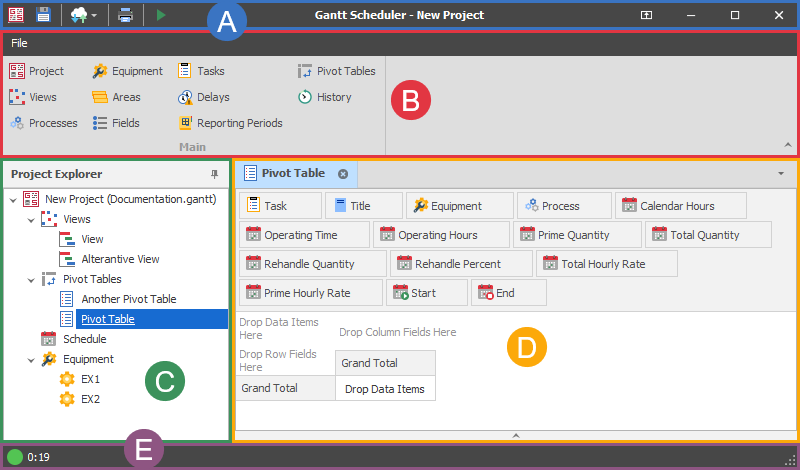
Header
Context Matters: Some options in the Header (Import/Export and Print) change behaviour based on what window has focus in the Main Dock Panel.
-
Save
-
Import/Export Dropdown
-
Print
-
Run Schedule
-
Project Name
-
Ribbon Display Options
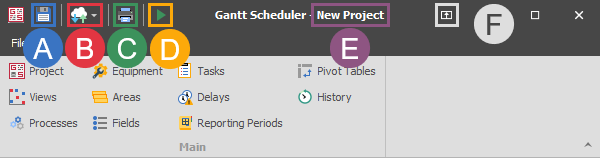
Save
Saves changes to the project.
Import/Export Dropdown
This button is contextual. That means the menu changes depending on what window has focus in the Main Dock Panel.
All contexts -> Import -> Schedule: Deprecated. This menu should no longer be used.
Pivot Table context -> Export -> Results: Exports Pivot Table to an XLSX file. See Pivot Tables documentation for an explanation of the export options
Equipment context -> Export -> Equipment Schedule.
Schedule context -> Export -> Schedule: Exports the current schedule to a file.
This button is contextual. That means the menu changes depending on what window has focus in the Main Dock Panel.
See the related documentation for Printing Pivot Tables and Views.
Run Schedule
Runs the Schedule.
Project Name
Shows the Project Name. Set from the Project Settings.
Ribbon Display Options
Click this button to display options for managing the Ribbon. The default is Show Tabs and Commands.
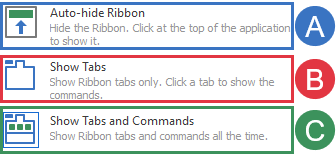
A. Auto-hide Ribbon: The ribbon and header are automatically hidden on an outside click. Gantt Scheduler is forcibly maximized in this mode. An end-user can click at the top of the window to show the ribbon.
B. Show Tabs: The ribbon is minimised but tabs are visible.
C. Show Tabs and Commands: Shows both the ribbon and tabs.
Ribbon
The ribbon is one of two main ways to navigate through the different windows in Gantt Scheduler. The other is through right-click menus and the Project Explorer.
Project Explorer
See the related documentation for the Project Explorer.
Main Dock Panel
See the related documentation for managing your windows/docks here: Working with Windows & Panes
Footer
Hover on coloured circle icon in the button left of the Window for license information
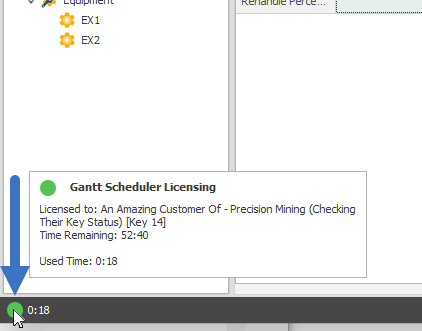
Update information
If an update is available for Gantt Scheduler, the footer will include information about the update on the right hand side.