

Ribbon
Project
The primary location for changing the End Date for your schedule.
Location
Select Project from the Ribbon.
User Interface
image.png
A. Filename
B. Project Name
C. End Date
Views
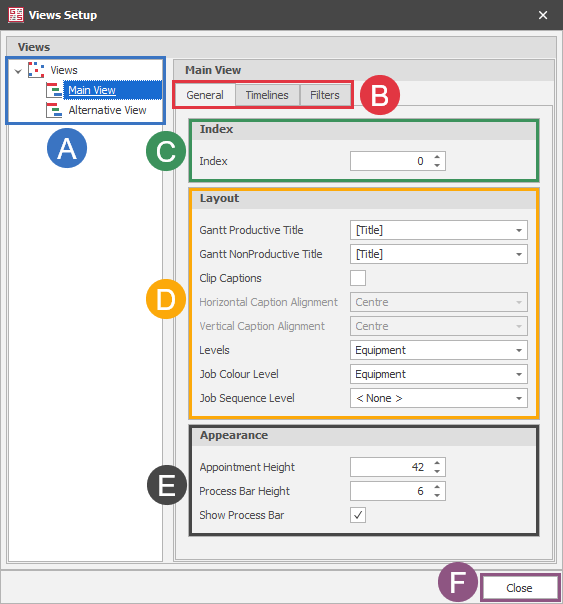
User Interface (General)
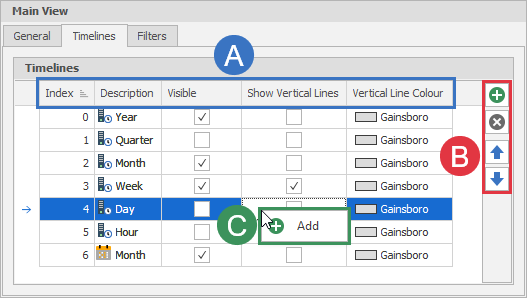
User Interface (Timelines)
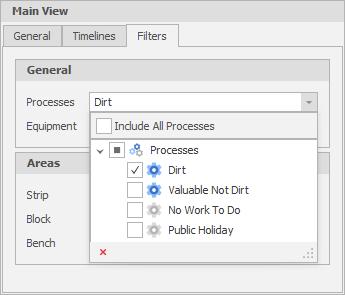
User Interface (Filters)
Processes
The Processes tab is used to set up Productive and Nonproductive Processes. Productive Processes are used by Tasks, Nonproductive Processes are used by Delays.
User Interface
image.png
A. Productive/Nonproductive Tab
B. Process Properties
C. Add button
D. Delete button
E. Bulk Editor
Productive/Nonproductive Tab
Select to switch between the Productive and Nonproductive Process view.
Process Properties
Index
The index affects the order that Processes appear in lists, starting at 0.
Name
The name of the Process must be unique.
Units
The units are appended to Prime Quantity and Total Quantity. A Unit of
bcm
Will make a Prime Quantity of 1,000 appear as
1,000 bcm
Text
Colour
The colour is used when representing the Process in the following locations:
Views - Job Colour Level
Views - Process Bar
Tasks Setup
Schedule
Equipment - Path - Grid
See the general colour editor documentation for information about editing colours.
Background Colour
The background colour is used when representing the Process in Views when selected as a Level.
Hidden
Hidden Processes are merged into the Process to the left of them in Gantt Views. They can still be viewed when double clicking a job in the Gantt View.
Equipment
The Equipment Setup popup is the primary location for changing the Schedule Start Date of your equipment in bulk, as well as other less common tasks.
Select Equipment from the Ribbon, or select Setup from the Project Explorer -> Equipment right-click menu.
User Interface
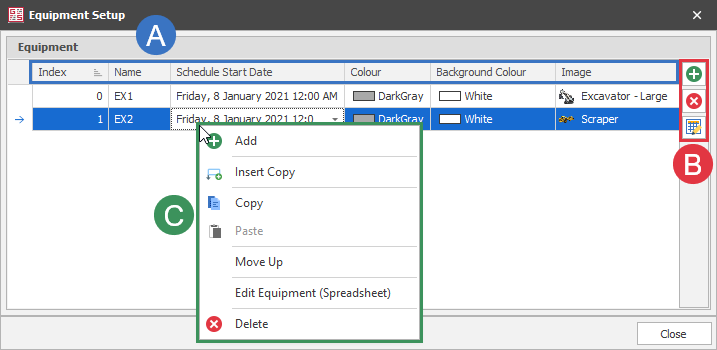
A. Primary options
B. Bulk Editor, Add and Remove
C. Row right-click menu
Primary options
Index
Sorted from 0 up. Affects the order in this view, the Equipment list in the Project Explorer and in Views. New Equipment defaults to last in the list.
Name
Affects the name for the Equipment in all areas of Gantt Scheduler. New Equipment defaults to "Equipment"
Schedule Start Date
Affects the start date for each piece of Equipment. The earliest Schedule Start Date determines the start date for the entire schedule. New Equipment defaults to current date.
Colour
Affects the colour in Views when the Job Colour Level is set as Equipment. New Equipment defaults to Dark Gray.
Background Colour
Affects the colour in Views when Levels includes Equipment. New Equipment defaults to White.
Image
(Optional) Affects the visual representation of the Equipment in any tree list. New Equipment defaults to no image.
Areas
Areas are optional text properties for Tasks. Levels are a category or collection of Areas.
Select Areas from the Ribbon.
User Interface
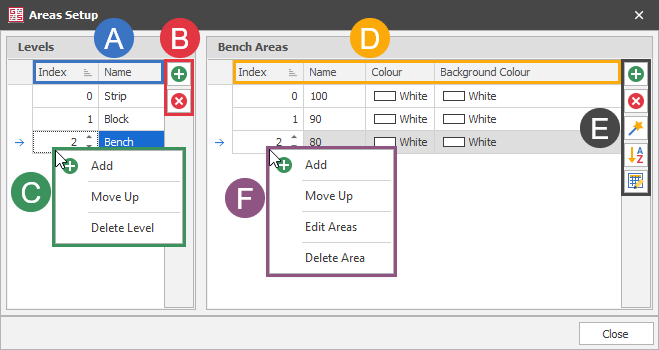
A. Level properties
B. Add/remove Level buttons
C. Level right-click menu
D. Area properties
E. Area buttons
F. Area right-click menu
Level properties
Index
Name
Level right-click menu
Add
Move Up / Move Down
Delete Level
Area properties
Index
Name
Colour
Background Colour
Area buttons
Area right-click menu
Fields
Areas are optional numeric properties for Tasks.
Select the Fields button from the Ribbon.
User Interface
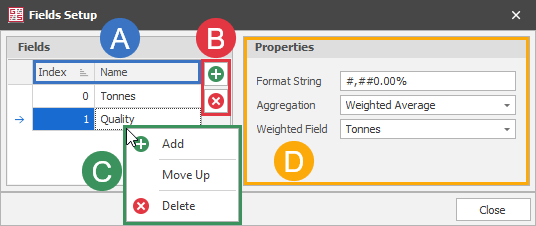
A. Field list
B. Field buttons
C. Field right-click menu
D. Field properties
Field list
Index
Name
Field buttons
Add
Remove
Field right-click menu
Add
Move Up/Down
Delete
Field Properties
Format String
Aggregation
Tasks
The Tasks list is the primary window to import the tasks that will be scheduled. It is also used to make minor edits or to add tasks manually.
Select Tasks from the Ribbon.
User Interface

A. Task properties
B. Task buttons
C. Task right-click menu
D. Import button
E. Export button
F. Close button
Task properties
Title
Process
Prime Quantity
Total Quantity
Rehandle
Percentage Complete
Scheduled Percent
Scheduled Equipment
Predecessors
Successors
Fields
Areas
Prime Quantity Remaining
Total Quantity Remaining
Prime Quantity Completed
Total Quantity Completed
Task buttons
Task right-click menu
Import button
Export button
Close button
Closes the Tasks form.
Delays
Delays is the primary location to control delays that occur on a certain date (or recurrence of dates) regardless of the state of the schedule. Examples of delays managed in this window are public holidays and planned maintenance. This is as opposed to delays that are schedule which are managed in individual Equipment (docked) windows.
Select Delays from the Ribbon.
User Interface
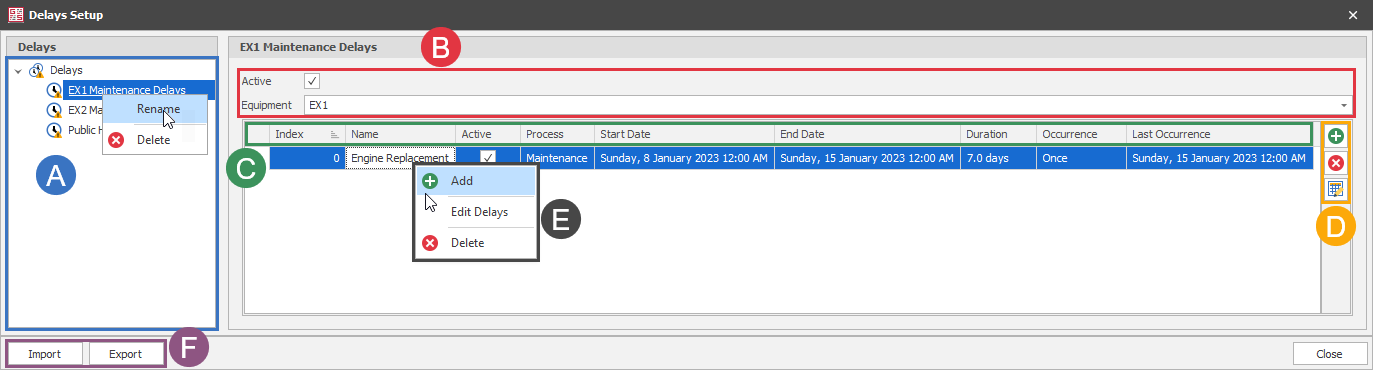
A. Delays list
B. Delay properties
C. Delay entry properties
D. Delay buttons
E. Delay entry right-click menu
F. Import and Export buttons
Delays list
Right-click menu
Delay properties
Active
Equipment
Delay entry properties
Index
Name
Active
Process
Start Date
End Date
Duration
Occurrence
Last Occurrence
Delay buttons
Delay entry right-click menu
Add
Edit Delays
Delete
Import button
Export button