User Profile
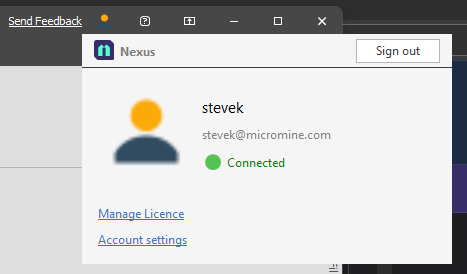
To view your Nexus user profile click the Profile icon on the right-hand side of the application title bar.
Tip: When signed out, the Nexus Profile icon is a question mark. When signed in, if you have not chosen an avatar, the profile icon is your Initial.
To update your profile details and choose an avatar via the Nexus customer portal:
-
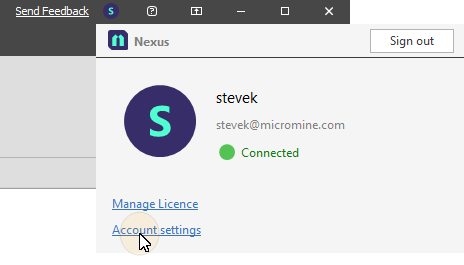
Click on the Nexus Profile icon and select Account Settings.
-
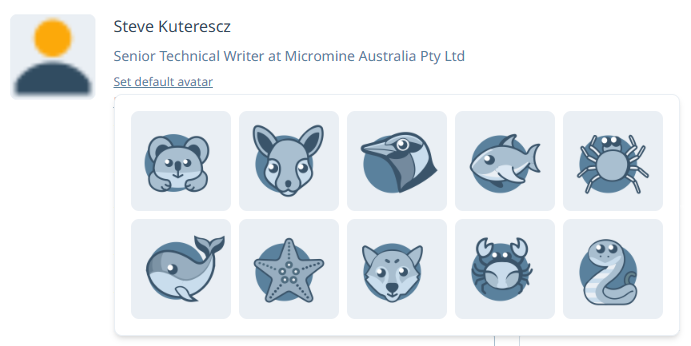
On the User Profile page you can click on a link to set a default avatar. The Set default avatar option is used to set a default image to represent you, or another user. If you click the link, a panel containing the available avatars is displayed and you can select the preferred default:
-
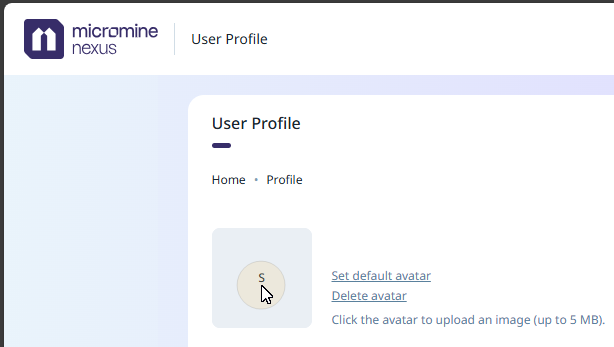
Alternatively, click on your Initial in the User profile page and navigate to the location of an image:
-
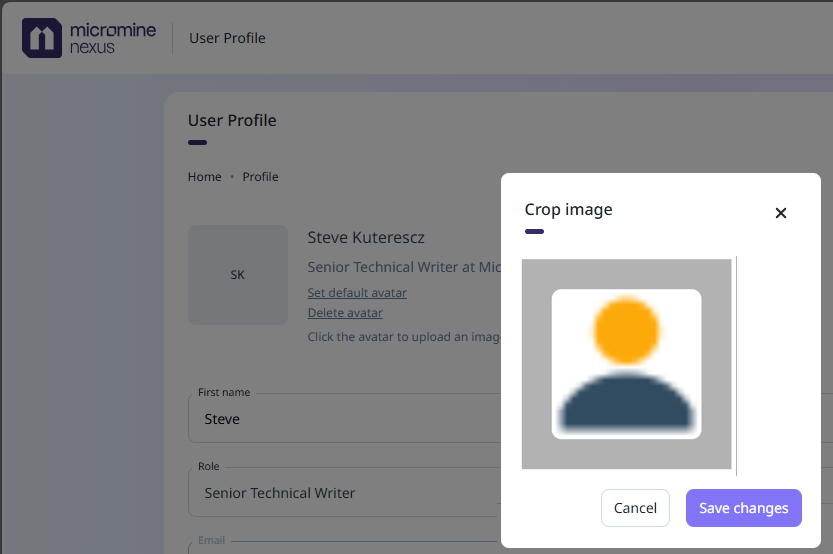
If necessary crop the selected image to size and Save Changes.
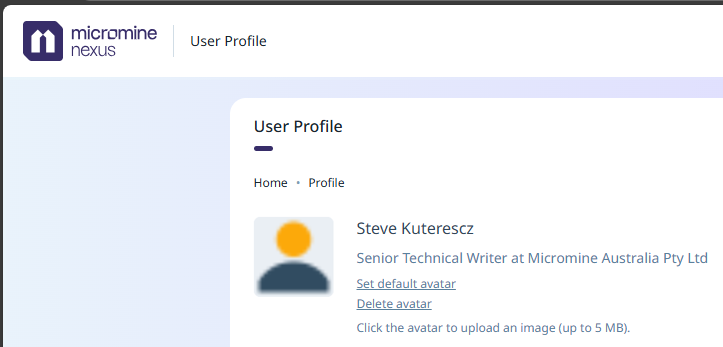
Your user profile page is updated:
Tip: To see the new avatar in Spry, you will need to restart the application.