

Manage Jobs
Select this option to manage the My Jobs pane  in the Reporting service.
- Click System on the services toolbar.

- Select Manage Jobs from the Administration list.
The window is divided into three areas where jobs or defined reports are listed:
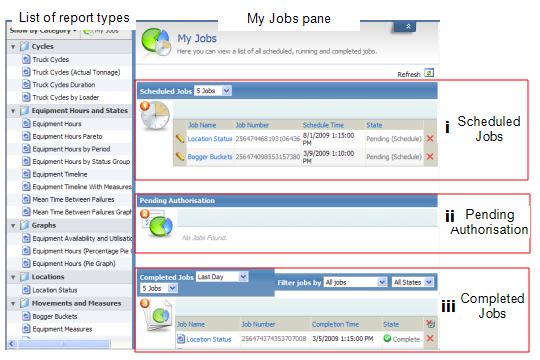
Scheduled Jobs
Listed here are reports that have been defined and set to run according to a particular schedule.
Pending Authorisation
Reports in this list are awaiting the authorisation of a particular Person of Authoritybefore the report can be distributed.
Completed Jobs
A list of the reports that have been generated and those that have been run, but could not be generated.
Scheduled Jobs
Listed reports that have been defined and set to run according to a particular schedule. The schedule may include the information on the frequency, and the start and end time, and the date for the report to be run. When a scheduled job has been run, it will appear in the Completed jobs pane.
It is possible that a large number of jobs could be listed. If so, use the filter on the header to define the number of jobs in the list.
Modify Query
Click on the Modify Query icon to modify the report query for the scheduled job.
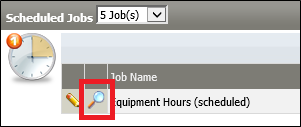
The Modify Query screen is similar to the screen that is displayed when a new report is created, however, in this case it is only possible to modify the parameters of the report query. The Query Manager can also be used to load and save existing queries.
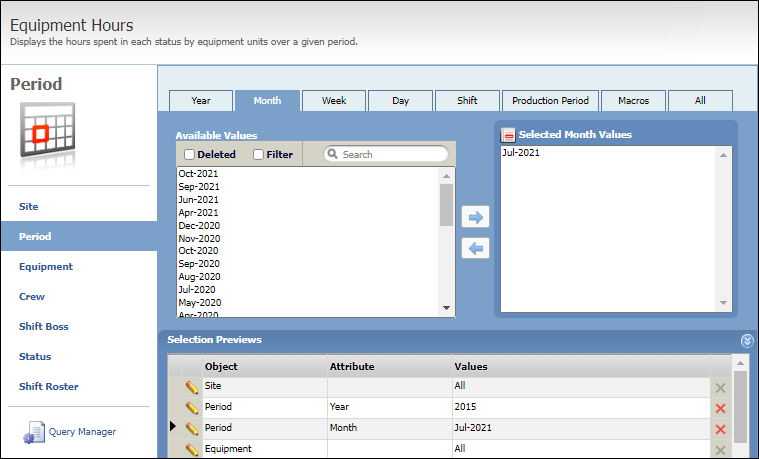
For example, modify a query by adding July-2021 to an existing June-2021 Month parameter:
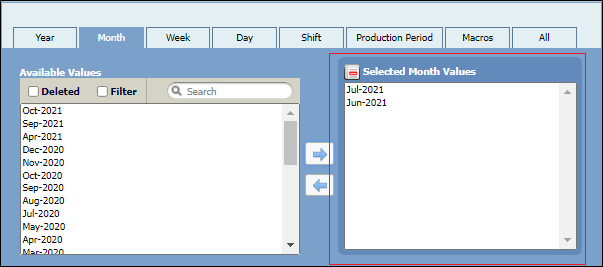
After changing the query parameters, the change can be saved by clicking the Save Query button, or be discarded by clicking the Cancel button.
Save or Cancel will return the user to the My Jobs screen.

Pending Authorisation
Reports in this list are awaiting the authorisation of a particular Person of Authority before the report can be distributed by email or copied to Dome Library. The Person of Authority is defined by either the login or the customised role. The authority can elect to Approve or Decline permission for the report to proceed.
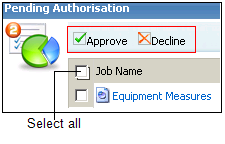
To approve or decline all the jobs in the list, select the Job Name check box, then click Approve or Decline to action all jobs.
Completed Jobs
Listed are the reports that have run successfully (i.e. Complete) or could not be run (i.e. Failed (Extraction)). Click on a report name in the list to view the report.
Jobs that are scheduled to run or are pending authorisation will be listed in Completed Jobs once they have been run.
To limit the number of jobs listed there are two filter types to define:
- Completed Jobs. Define the filter in terms of the reports completed in the last number of days, and made up of a particular number of jobs or reports.
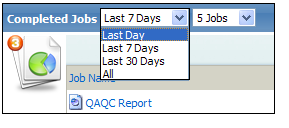
-
Filter jobs by. Select to filter jobs by selecting job categories or All Jobs (the default).
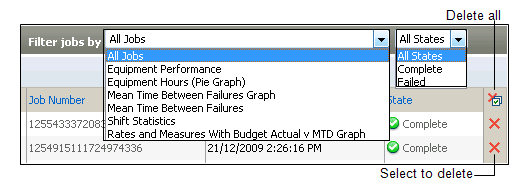
To delete jobs, you can either:
- delete individual jobs by clicking on the Delete icon at the end of the Job row
 .
- delete all jobs by clicking on the Delete All icon.