

Selecting Report Parameters
The Reporting database contains a vast amount of information. By selecting a parameter's objects, attributes and values, you can define a subset of data you want to report on. As you select values, they are added to the Selection Previews panel.
|
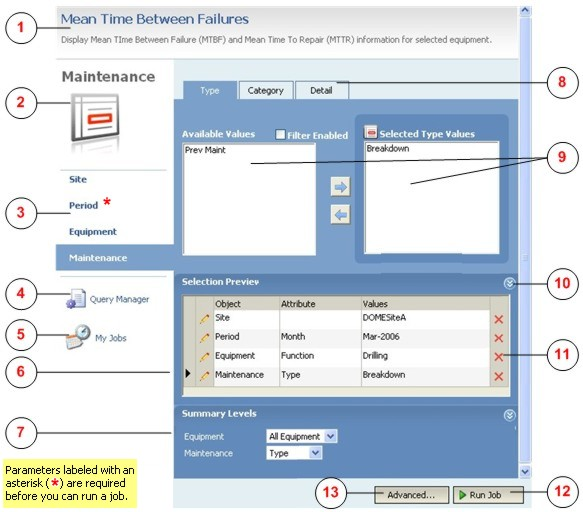
1 . Report Title 2 . Object Heading 3 . Available objects 4 . Save parameters 5 . View 'My Jobs' 6 . Edit selections 7 . Set summary levels 8 . Select attributes 9 . Select values 10 . Expand/Contract 11 . Undo selection 12 . Run Job 13 . Set job options |
|
Objects
The different parameter objects that can be applied to a report are presented as a list of menu options to the left of the selection box. These are the objects that will determine the content of the report. Any object flagged with a red asterisk is mandatory and so you must enter a value.
Typically, the objects or filters available for selection include Site and Period. The availability of other filters depends on the nature of your report. If Period is also available, a Macros tab allows you to select a macro so that you can include dynamic data in the report.
Attributes
When you select a parameter object, the attributes of that object are made available for selection as tabbed pages at the top of the screen.
Values
When you select an attribute, a list of available values are displayed in the left-hand pane of the selections window. Depending on the nature of the attribute, either single selection using the mouse, or multiple selection using the CTRL or SHIFT keys with the mouse will be available.
Use the right arrow button
 to move the values you have selected to the right-hand pane. The values
listed in the right-hand pane are the attribute values you have selected
for inclusion as parameters in your report.
The selections you have made are also reflected in the Selection Preview pane.
To undo your selections, move attribute values back to the left-hand pane using the left arrow button  , or click the Delete icon
 at the end of the appropriate row of the Selections Preview pane.
Filter Enabled
When this option is selected, the attribute values you select for a parameter will be used to filter the values that can be selected for other parameters .
If the Filter Enabled option is selected and the attribute SHIFT and the value Day 19-JAN-2006 are selected for Period, only those Equipment items that were active for that shift will be available for selection.
It may sometimes be desirable to disable filters when running a report. Using the same example as above, you may prefer to select equipment items from a list of ALL EQUIPMENT, even if some of those equipment items were not active for the shift you have selected. Whether those non-active items of equipment are included in the report, or whether they are assigned null or zero values, will depend on the configuration of the report.