Keeping Track of My Jobs
The My Jobs page is the default display when you log on to Pitram Portal. It displays a list of all your scheduled, running and completed jobs. This information, which is also recorded in a log file, can also be displayed by selecting the My Jobs option from the Report Selection menu.
The following panes are displayed:
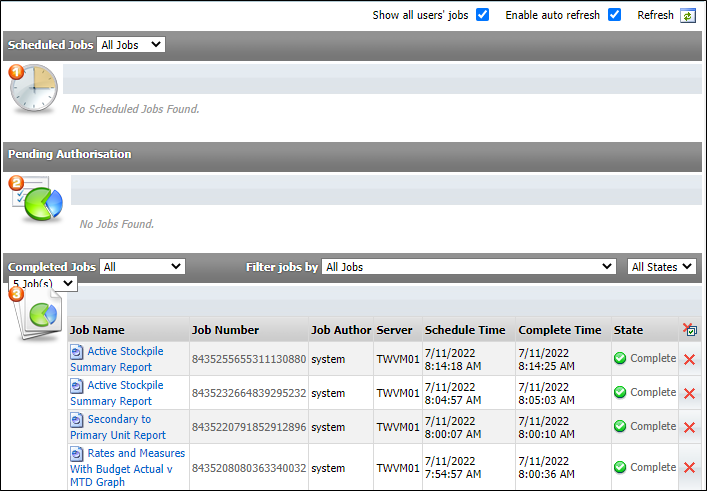
To View a completed job, or a job that has a status of Pending Authorisation, click on the job name.
To Edit the Advanced Job Options for a scheduled job, click on the job name.
To Delete a job, click on the Delete icon at the end of the job row.
To Refresh the My Jobs page,
click the
Refresh icon  at the far right of the screen.
Scheduled Jobs
This pane shows those jobs that have been scheduled to be run at a later date. Jobs that run immediately will only appear briefly in this pane.
Since the number of scheduled jobs is potentially large, you can control the number of jobs to display by selecting an option from the drop-down list provided alongside the job category heading.
Occasionally, you may be redirected to the My Jobs page when a job runs
for an  extended period of time. When the job is finished, it appears in the Completed jobs
pane, where you can view its output.
Pending Authorisation
This pane shows the jobs that have been assigned to you and require authorisation before they can be run or distributed. For more information about authorising jobs, refer to the Advanced Job Options topic.
Use the check box alongside a job's name to select it. Click the Approve check box to authorise that job. The job will be run before being posted to the Completed Jobs pane. If you select Decline , the job will be deleted.
To approve/decline all pending jobs simultaneously, click the anonymous Job Name check box before clicking the Approve or Decline buttons.
Completed Jobs
This pane shows those jobs that have been run. Note that failed jobs are also listed here. Click on a failed job to view the errors that caused the job to fail.
Jobs that are scheduled to run, or are pending authorisation, will appear in the Completed Jobs pane when they have run.
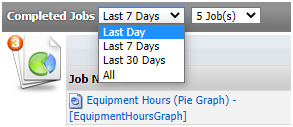
Since the number of completed jobs is potentially large, you can control the number of jobs to display by selecting an option from both the drop-down lists provided alongside the job category heading.
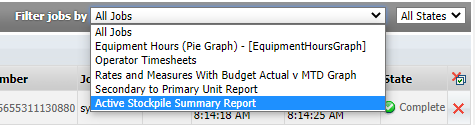
In addition, you can filter jobs by selecting a job category from the Filter jobs by list, and selecting the state of the completed jobs you want to view (either All, Complete or Failed).