

Files & Projects
This
 Imports & Exports
Import DHDB ODBC and Access DB
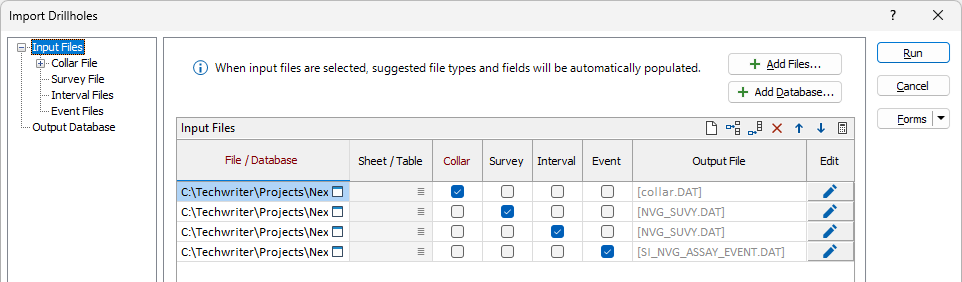
The Add Database button has been added to the Import Drillholes tool on the File tab, in the Import group to support the import of tables and queries from ODBC and MS Access databases.
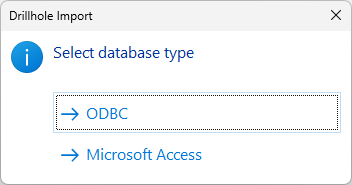
If you click the Add Database button, you will be prompted to select the database type to be added to the import:
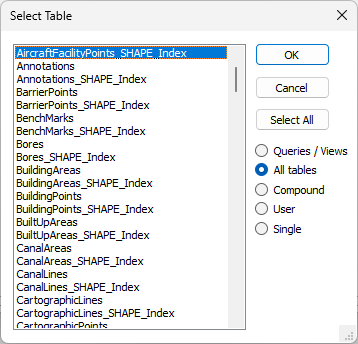
When you select the required option, Explorer will open and you can specify the database to use. Once selected, you will be prompted to select the required table/s:
Additionally, the Negative inclinations are downward option has been added to the Collar File and Survey File options to mark negative inclinations as a hole pointed downwards. You can deselect the option to treat positive inclinations as downward.
For more information, see Drillholes.
Append GIS Export
Support for appending the details of the GIS output file has been added to the Export GIS tool on the File tab, in the Export group.
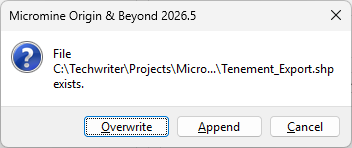
If the specified Output file exists, you will be prompted to Overwrite or Append the details in the file:
Previously, exporting the GIS file would always overwrite the details in the file.
Edit DHDB Files
The Edit column and a corresponding button to open the new Edit DHDB Input File form has been added to the Input Files grid in the Import Drillholes form.
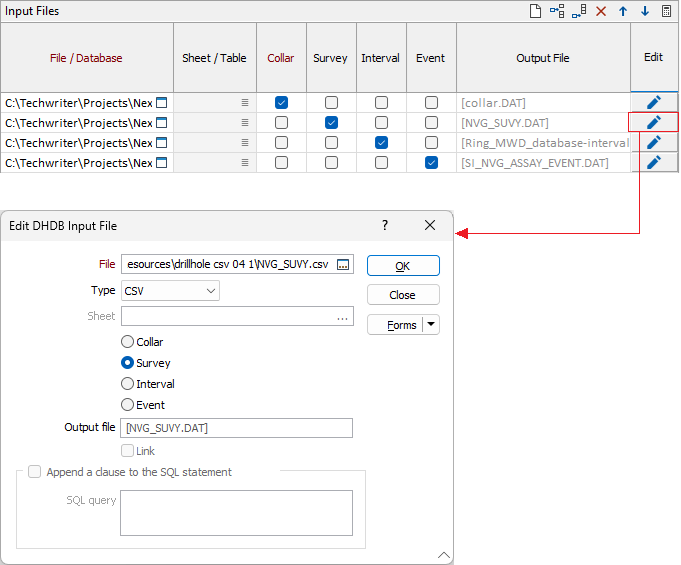
You can select an alternate File from the field provided, set the file type to Collar, Survey, Interval or Event, as well as enter a custom name for the Output file.
When an ODBC type file is selected, you can also choose to Append a clause to the SQL statement and enter the clause in the SQL query field.
For more information, see Drillholes.
Import .dmx Files
Support for importing new format (.dmx) Datamine files has been added to a number of Import tools.
New format .dmx files can be imported in the following tools under File | Import:
Older format .dm files can also be imported with the above tools. Where an input type is required, use Datamine Binary to import .dmx files.
Import DHDB Collar Attributes
The Collar Attributes tab has been added to the Import Drillhole Database tool on the Drillhole tab, in the Database group to specify Attributes used to group or classify drillholes using some non-unique identifier.
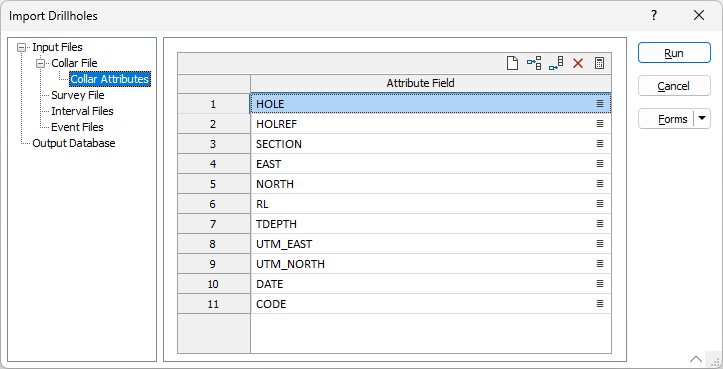
This can be useful when specifying a filter, for example, to limit the display to those holes within a particular survey section.
For more information, see Collar Attributes.
Wireframe Bulk Import Autoload
The Import Wireframes tool on the File tab, in the Import group has been enhanced to provide autoloaded bulk import wireframes.
When a Bulk Import process is performed, if you select the Autoload option on the Output tab, the wireframes imported will be loaded as an ad-hoc set, allowing for bulk edits.
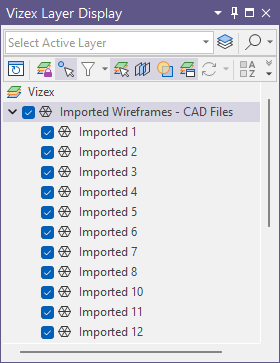
Note that if more than 50 wireframes are imported, each individual wireframe will not be shown as a dropdown under the set.
For more information, see Wireframes.
ODBC Import Enhancements
Support has been added for substitution variables for ODBC table inputs in formsets for macros to enable automation of ODBC workflow where users need to switch between tables with identical schemas. Variables can be added in the Table field for the import.
To enable this new functionality, the Connection String has been added to the form and is now directly editable:
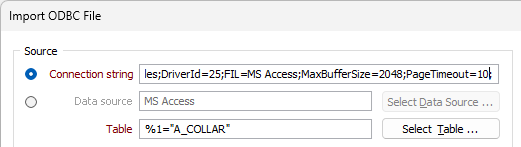
For more information, see ODBC.
Import Geosoft Voxels
Support for importing Geosoft Voxel (*.geosoft_voxel) files has been added to the Block Model tool on the File tab, in the Import group.
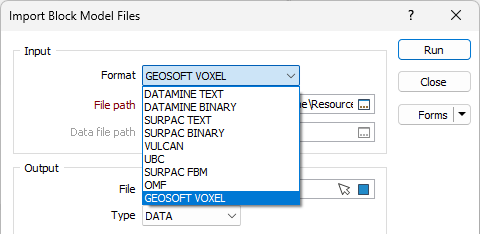
Geosoft Voxel files are 3D raster grid files commonly used in surface exploration in North America, Africa and Europe.
For more information, see Block Model
Edit Data
Recode Selection
The Recode Selection tool has been added on the File tab, in the Edit Data group to select and recode points or drillhole intervals.

The Recode Selection tool can be used with either Drillholes or Points data to select and recode objects in a displayed file. A colour set can be specified to automatically assign colours to the display.
When you have configured and executed the Recode Selection process, the results are displayed in the Recode Selection tab that opens, providing a Legend and tools for selection and display options. Codes can be assigned as well as created from the toolbar in the Legend.
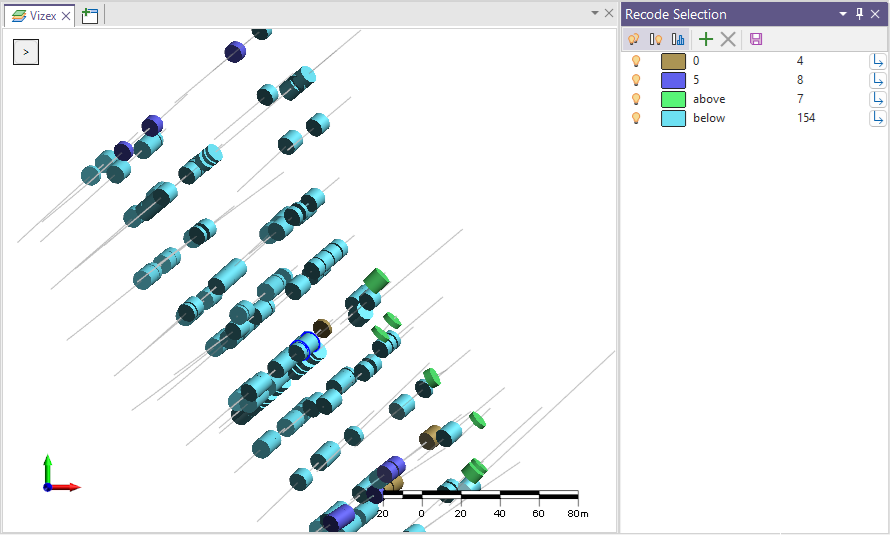
For more information on the new tool, see Recode Selection and Using Recode Selection.
Actions
Concatenate Files
The Concatenate Files tool has been added on the File tab, in the Actions group to append or concatenate one or more files at once.
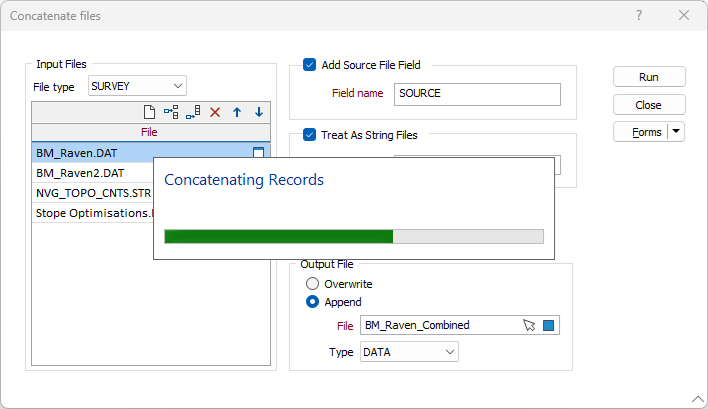
The Concatenate tool can accept two or more files of the same or different types and overwrite or append them all to produce a new file. A source file field can be optionally added to provide a field in the output that states the name of the source file from which the data originated. The tool supports specifying a join field, with values incremented when needed.
The Concatenate tool replaces the Append tool, making it significantly more flexible and allowing multiple files to be appended or concatenated at once.
For more information, see Concatenate.
User Interface
File Editor Shortcuts
Support has been added for two new navigation shortcuts in the File Editor. The CTRL + SHIFT keys can now be used with the arrow keys as follows:
| CTRL + SHIFT + UP (Arrow) | Select all cells above the selected cell (in the same column) |
| CTRL + SHIFT + DOWN (Arrow) | Select all cells below the selected cell (in the same column) |
For example, in the following, selecting the cell in row 11 for the Easting column, and the deploying CTRL + SHIFT + UP has selected all the cells in the column above and including cell 11.
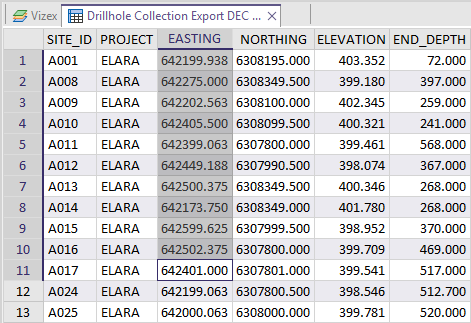
This is familiar behaviour for users of popular spreadsheet applications such as Microsoft Excel®
For an extensive list of the available shortcuts, see Keyboard Shortcuts.