

Using Recode Selection

When you have configured and executed the Recode Selection process as outlined in Recode Selection, the results are displayed in the Recode Selection tab that opens, providing tools for selection and display options.
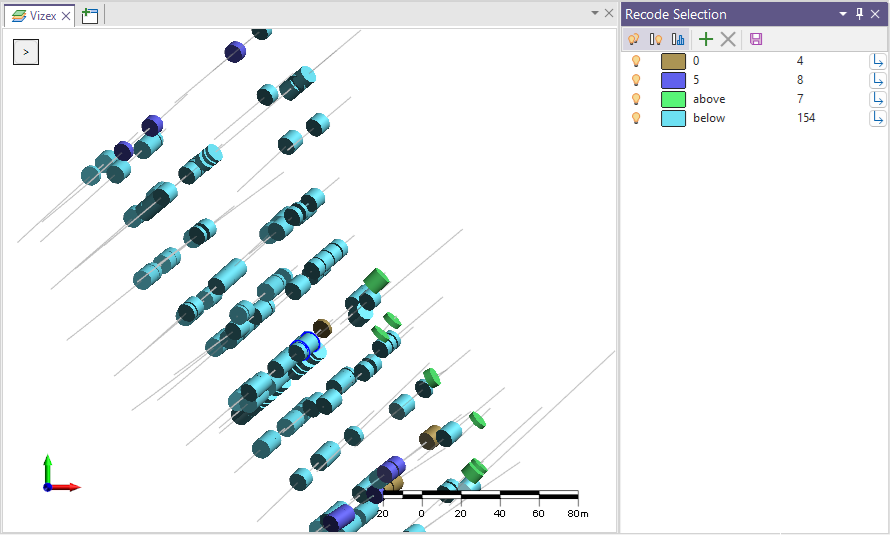
The Vizex window displays the drillhole intervals or points included in the Recode Selection process.
You can modify the Codes in the current display using the tools in the Recode Selection ribbon.
At the right, the Recode Selection panel contains a Legend with more advanced tools than the standard colour legend display.
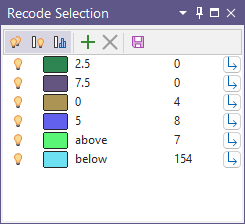
Using the 'light bulb' display icons at the left, you can toggle ON and OFF the visibility of legend items in the display:
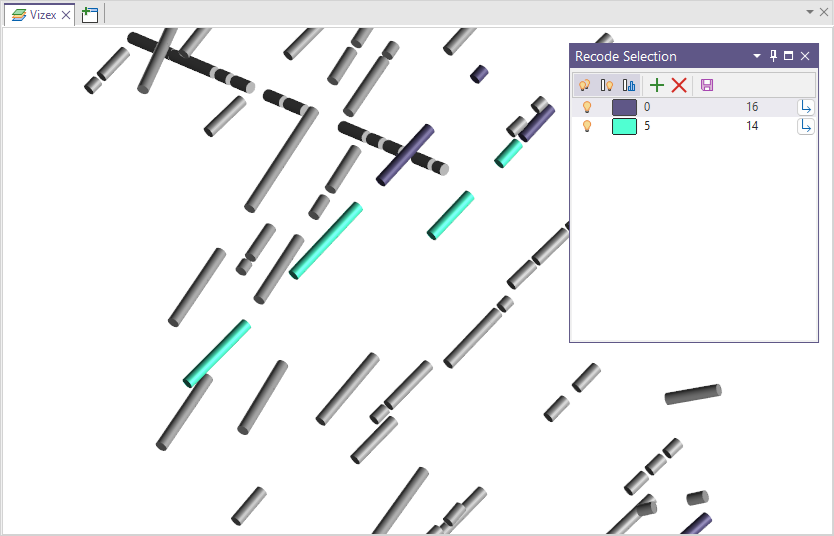
The Colour field for each legend item can be modified by double-clicking to open the Colour Selection form to specify a new colour.
The Code for each item displayed is listed for the legend row. Codes can be assigned to selected objects using the Assign button at the right.
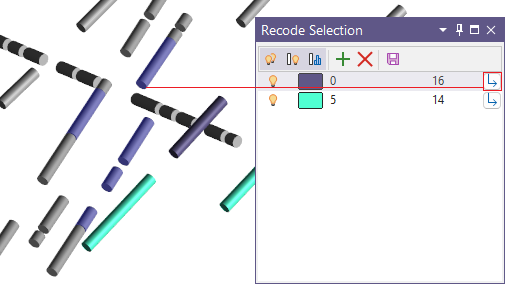
New codes can be added to the legend using the Plus button on the toolbar for Add Legend Item. If you click Plus, the Add Code form is opened and you can enter a new code in the field provided.
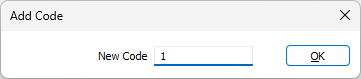
Click OK to add the code to the legend. Objects in the display can be assigned the new code as required.
Any codes that have been added to the legend in this manner can be removed using the Cross button for Remove Legend Item.
The Count column in the legend displays the number of objects assigned to each code. The count can be removed from display using the Show Counts Column button in the toolbar.
The Save button in the toolbar allows the current codes setup to be saved as a colour set. The form set will then be set to use that colour set.
Forms
Click the Forms button to select and open a saved form set, or if a form set has been loaded, save the current form set