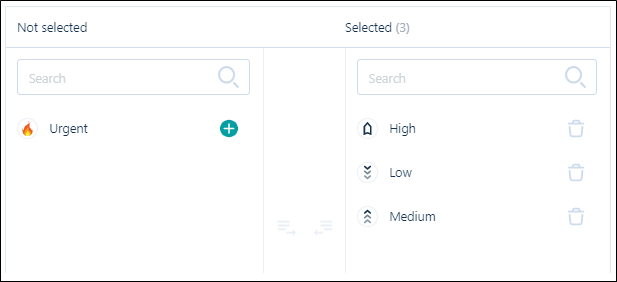
Create a Task Priority
When you create or edit a task type, you can create and allocate your own custom priorities:
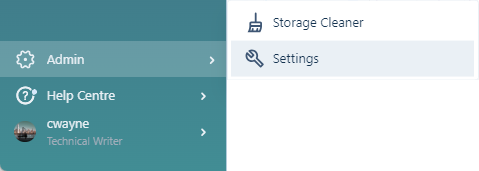
-
Click to select the Tasks tab.
-
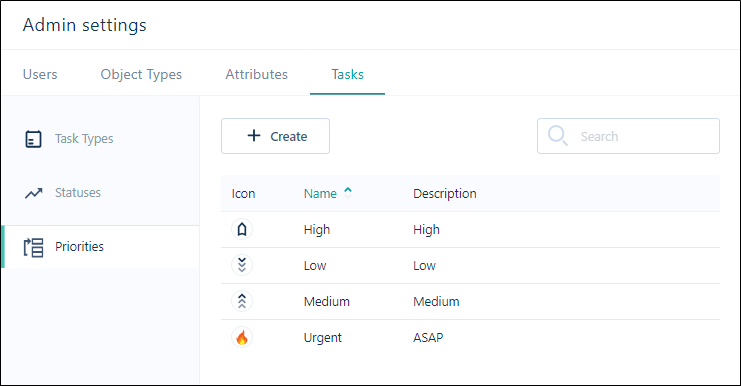
Click Priorities to switch to the Priorities pane. Default priorities and any custom priorities that were previously created are listed:
-
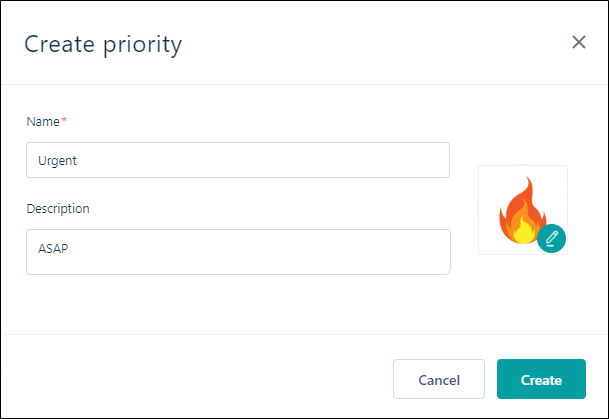
Click the Create button to create a new priority.

-
Set the following properties of the Priority.
Properties
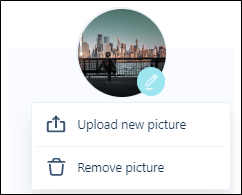
File icon
Double-click on the File icon to select an icon that represents the
Name & Description
Enter the Name and Description of the
-
Click Create.
The new priority is available for selection for a task type: