

Create Attribute Sets
Micromine Nexus Workspaces allows you to work with a default set of attribute sets, for example, Micromine formats including Data, String, Annotation and Wireframe files, Image formats, CAD formats, PDF and Word documents, etc. To facilitate the implementation of your business processes, you can also create "custom" attribute sets.
Attribute Sets are configured globally and selected as part of the settings of a workspace.
To create an attribute set:
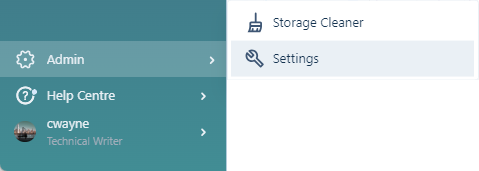
-
Click to select the Attribute Sets tab:
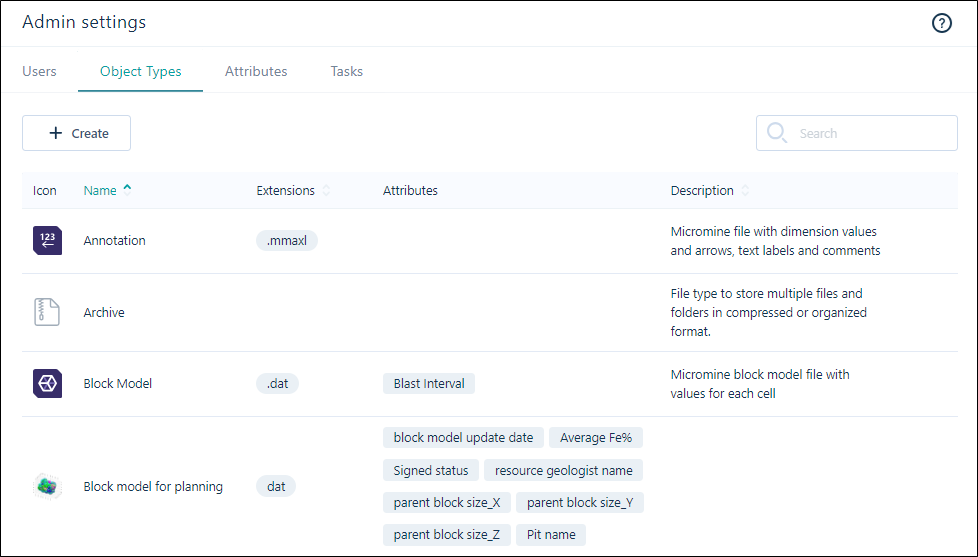
-
Click Create above the list of attribute sets:
Properties
Set the following properties of the attribute set:
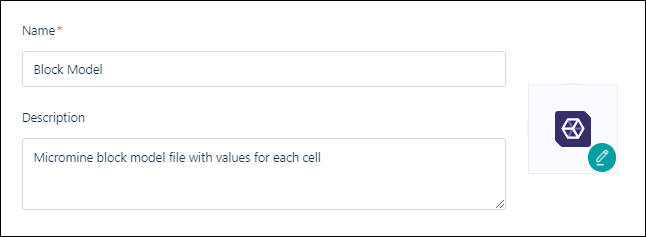
Name & Description
Enter the Name and Description of the attribute set. The name must be unique. Your description should help other users identify the type.
Attributes
When you create an attribute set, you can select from a list of attributes that have been configured globally.
Note that attributes are simply used to identify and manage the files and tasks in Nexus and should not be confused with the fields in the files you upload to Nexus.
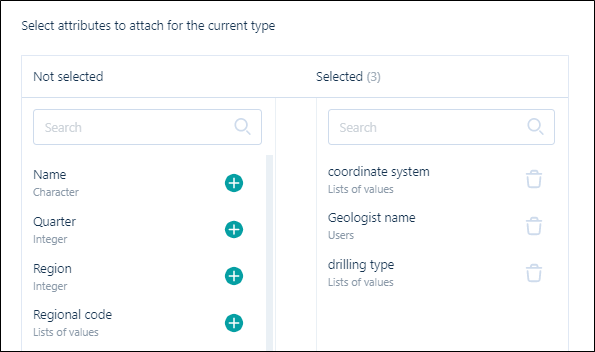
Click the Attributes tab to select the attributes that will be allocated to this type:
Not Selected
The attributes that have been configured on the Attributes tab of the Administration window are available for selection in the Not selected pane. Click on the Add icons to move them to the Selected pane.
Selected
The attributes that you have added to the attribute set are listed in the Selected pane. Click on the Trash can icons to remove them. This moves them back to the Not selected pane.
Create
Finally, click Create to create the attribute set. The new attribute set is added to the list of attribute sets on the Administration | Attribute Sets page: