

What’s New
New features and enhancements in Nexus Workspaces (version 1.9) are described under the following headings:
 User Interface
User Interface Improvements
Nexus has been given a makeover!
The user interface for the Workspaces application has been visually refreshed; bringing it in line with the modern, unified look of the Micromine Nexus platform.
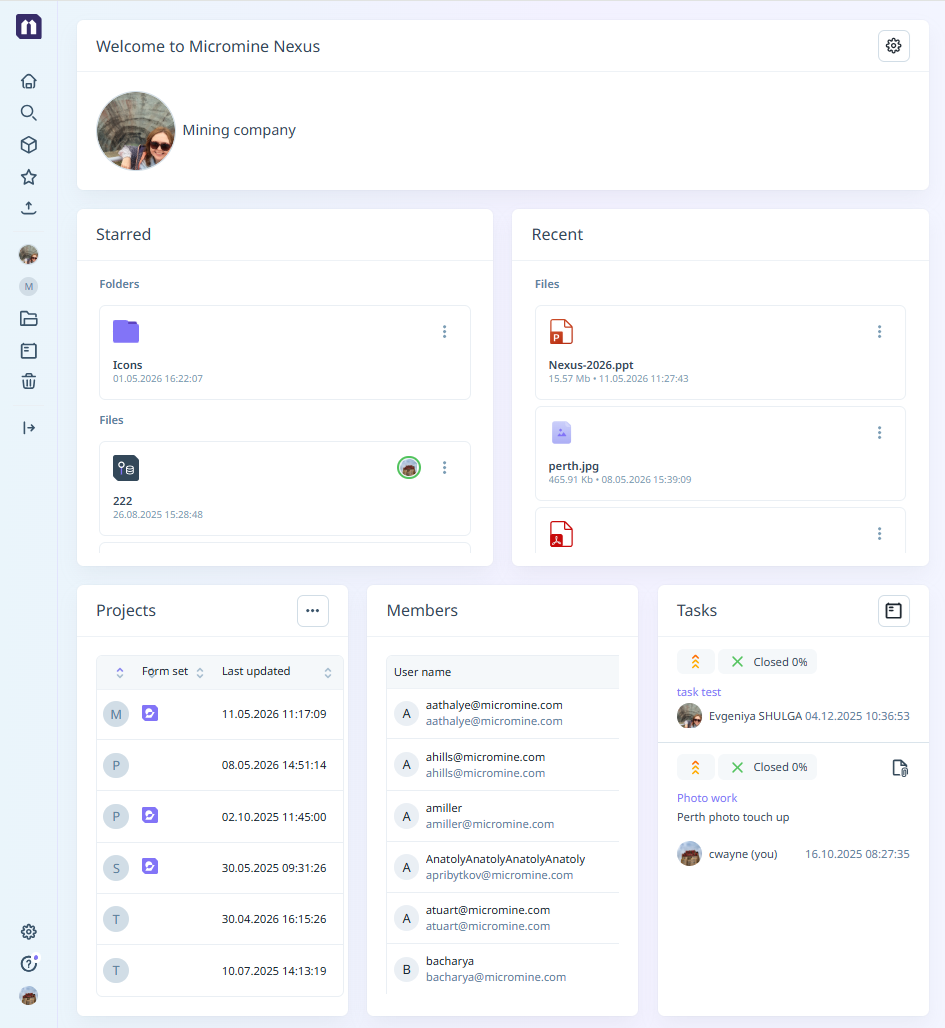
The interface has been redesigned to feel cleaner, more intuitive, and more visually engaging - making everyday workflows smoother and more efficient.
The interface of the Viewer, Workspace start page, and Project File Manager has been redesigned to deliver a more modern and consistent experience.
All key tools, including the Info panel, Check-in/Check-out functionality, Search, and Task Manager have been refined, along with the introduction of new Starred and Recent sections for quicker access to important content.
For more information on the great new look of Nexus, just use the application and see!
Starred and Recent Section
The Starred and recent section has been added to Workspaces to display the folders / files that you have starred and/or recently interacted with:
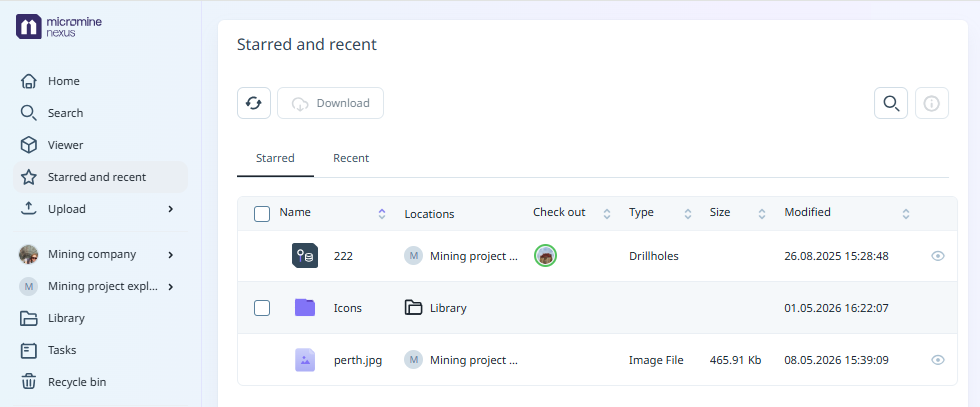
Files / Folders can be added to the Starred section using several methods, including the new Add to Starred option More menu in the Info panel:
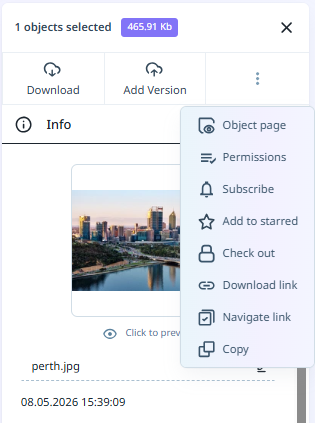
For more information, see Add to Starred.
The Recent tab in the Starred and recent section for the Workspace (as well as the Recent panel on the Home page) displays a collection of the most recent files you have interacted with:
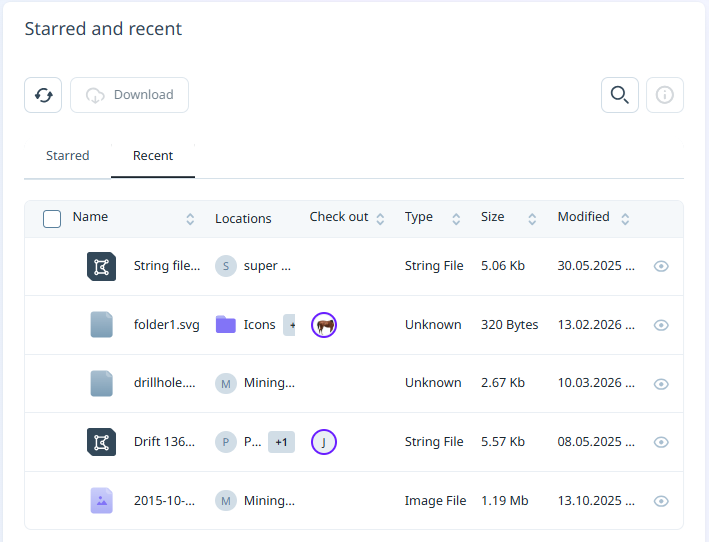
Starred and Recent panels have also been added to the Workspaces Home page.
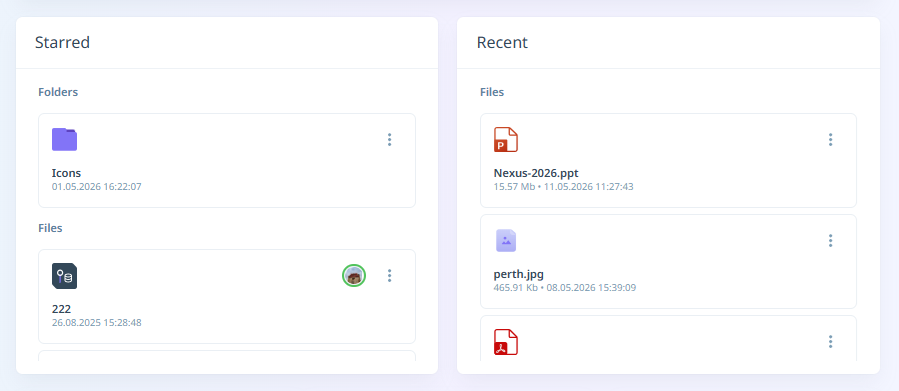
Any files / folders that have been Starred by users with access to the workspace will be displayed in the Starred panel.
The Recent section is a personal panel - the listed files are your personal recent work. No other user can login to this workspace and view your Recent files. The list updates automatically and cannot be cleared manually.
For more information on the ways Recent files are managed, see Workspaces.
Go To Location
The Go to Location option has been added to the More menu in the Starred and Recent panels on the Workspaces Home page.
For each file/folder listed in the Starred or Recent section, you can navigate to it using the Go to Location option on the More menu for the file/folder you want to view:
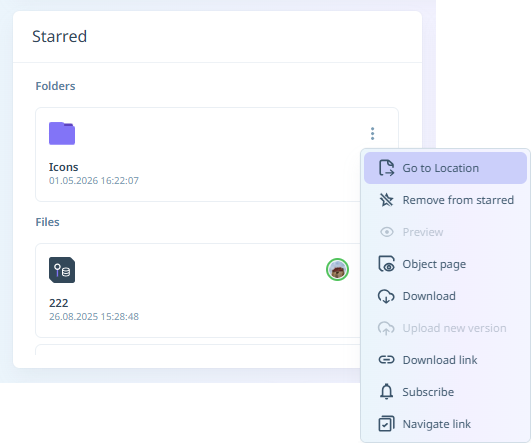
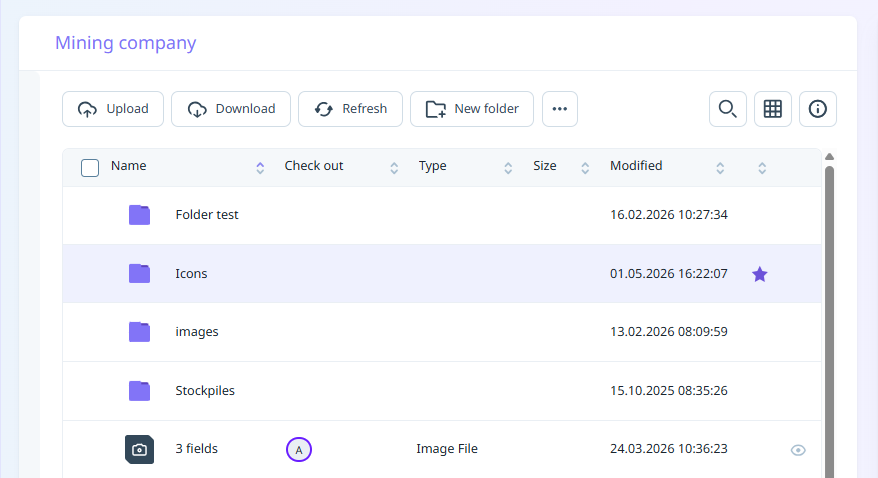
This will open the file / folder selected in its location - i.e. the Project or Library.
For more information, see Workspaces.