

Create Task Types
Task Types are configured globally and selected as part of the settings of a workspace.
To create a task type:
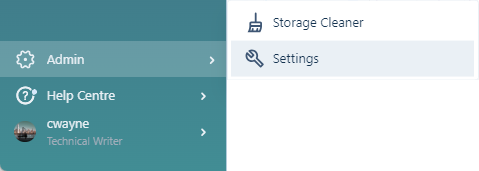
-
Click to select the Tasks tab.
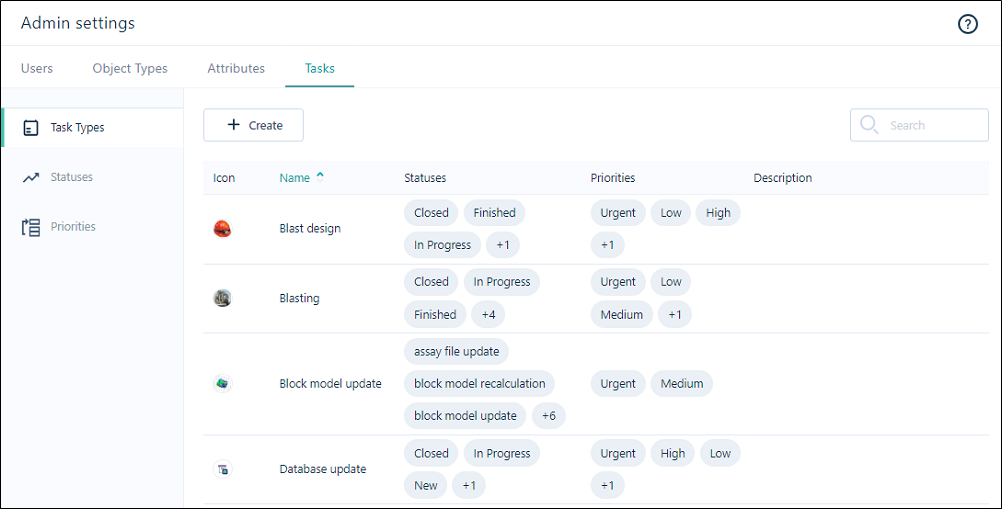
-
On the Task Types page, click Create above the list of types:

-
Set the following properties of the task type:
Properties
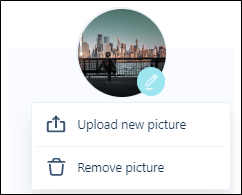
File icon
Double-click on the File icon to select an icon that represents the
Name & Description
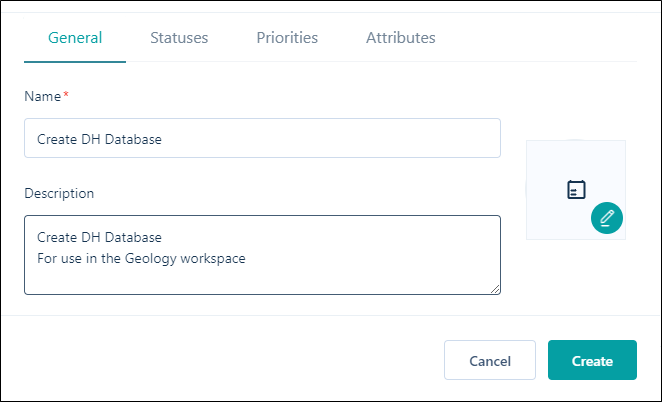
Enter the Name and Description of the
Statuses
Select the statuses that you may want to assign to tasks of this type:
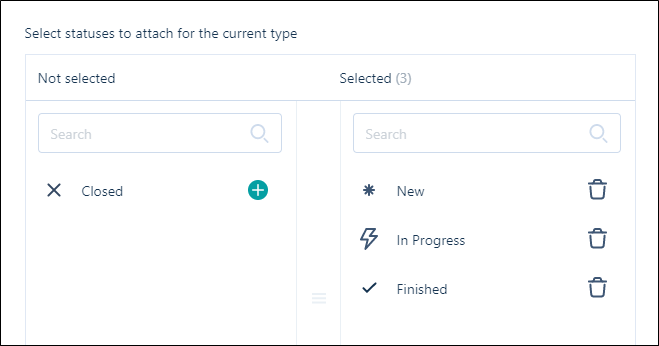
Not Selected
The
Selected
The
You can use the Add All and Remove All buttons to add all Not Selected items to Selected respectively.

A set of default statuses are available for selection, but you can also create your own custom statuses and attach them to a task type. See: Create a Task Status
Priorities
Select the priorities that you may want to assign to tasks of this type:
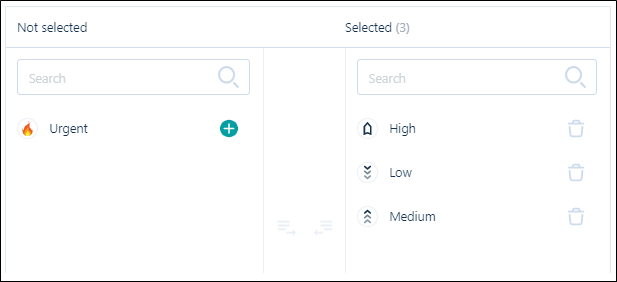
Not Selected
The
Selected
The
You can use the Add All and Remove All buttons to add all Not Selected items to Selected respectively.
A set of default priorities are available for selection, but you can also create your own custom priorities and attach them to a task:. See: Create a Task Priority
Attributes
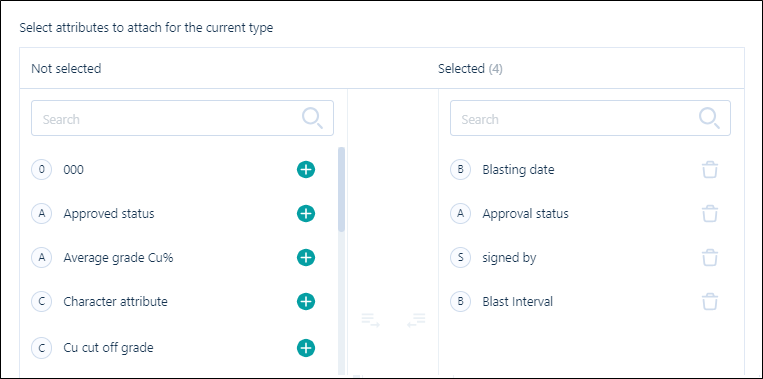
When you create a task type, you can select from a list of attributes that have been configured globally.
Select the attributes that will be used to manage and track tasks of this type:
Not Selected
The
Selected
The
You can use the Add All and Remove All buttons to add all Not Selected items to Selected respectively.
Create
Finally, click Create to create the task type. The new type is added to the Administration | Task Types window.