Attribute Sets
Micromine Nexus Workspaces allows you to work with a default set of attribute sets, for example, Micromine formats including Data, String, Annotation and Wireframe files, Image formats, CAD formats, PDF and Word documents, etc. To facilitate the implementation of your business processes, you can also create "custom" attribute sets.
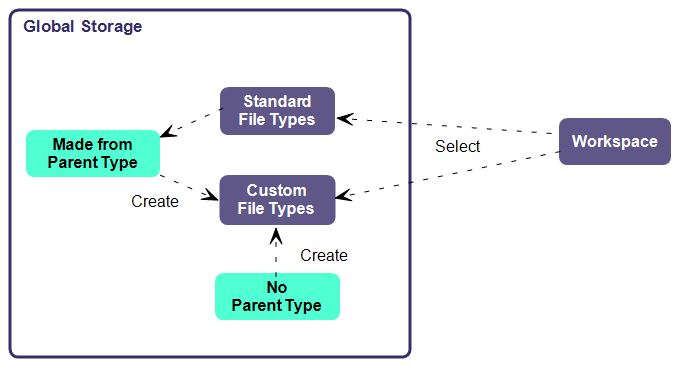
Attribute Sets and their Attributes are configured globally and selected at the workspace level. When you upload a file, the option to select its attribute set and set its attribute values is provided.
Note that all attribute sets are customisable except for the Unknown type. If you do not assign an attribute set to a file at the time it is uploaded and Nexus is unable to determine a default type based on the extension, it will be assigned the Unknown type.
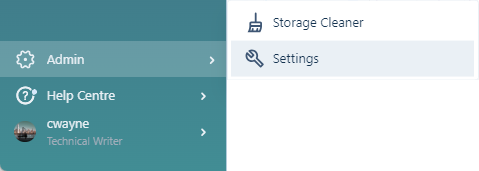
To manage attribute sets globally:
-
-
Click to open the Attribute Sets tab:
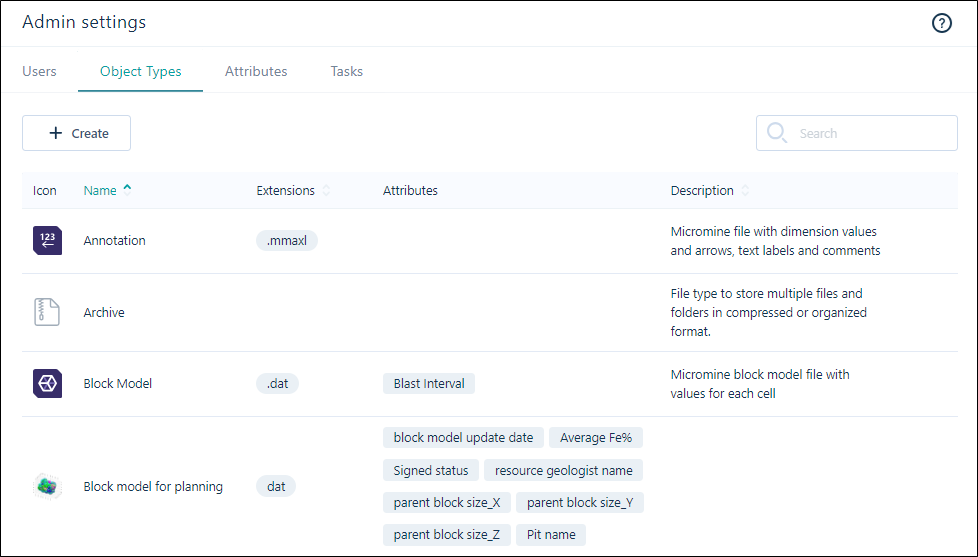
The following properties are shown for each attribute set listed in the Files page:
| Property | Description |
|---|---|
| Icon | Iconography allows each attribute set and each attribute set group (for example Micromine files) to be quickly identified. |
| Name | The name of the attribute set will typically include its file extension(s). Some attribute sets are known by their extension, for example, PDF. |
| Description | By default, the description of an attribute set will be the same as the name of the attribute set. |
| Extensions | Object types will often have more than one extension. These are typically historical, for example, different Excel workbook and worksheet formats. The list of extensions for an attribute set determines which variants can be selected when files are uploaded to Nexus. |
| Attributes | Attributes created in Admin | Attributes can be assigned to the attribute set. Any validation applied to the attribute will be required for a file of this type. |
Create
To create an attribute set:
-
Click Create above the list of Object types:

-
Set the properties of the attribute set in the Create Attribute Sets dialog.
Edit
To edit the properties of an attribute set:
-
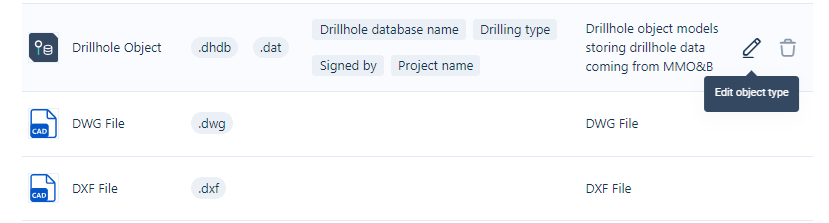
Click on the Edit attribute set icon that appears at the far right when you hover on the attribute set row :
-
Set the properties of the attribute set in the Edit Attribute Sets dialog.
Delete
To delete an attribute set:
-
Click on the Delete attribute set icon that appears at the far right when you hover on the attribute set row :
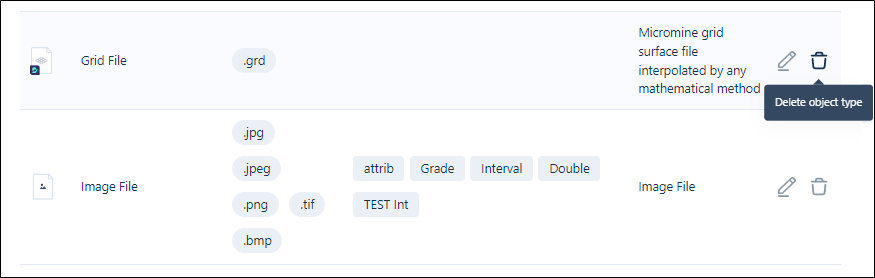
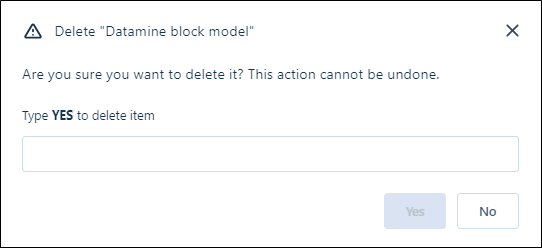
You will be prompted to confirm the deletion.
-
Type YES in the field provided and click Yes to proceed with deleting the attribute set.
Note: the attribute set will disappear from all Workspaces settings immediately. Files of this Object type will become non-editable.
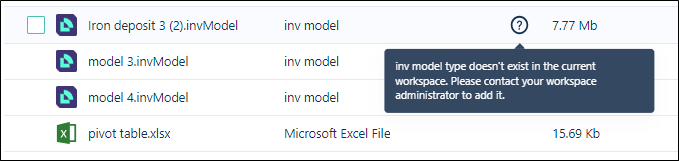
A pop up message will appear for files of the deleted attribute sets: