Haul Distances
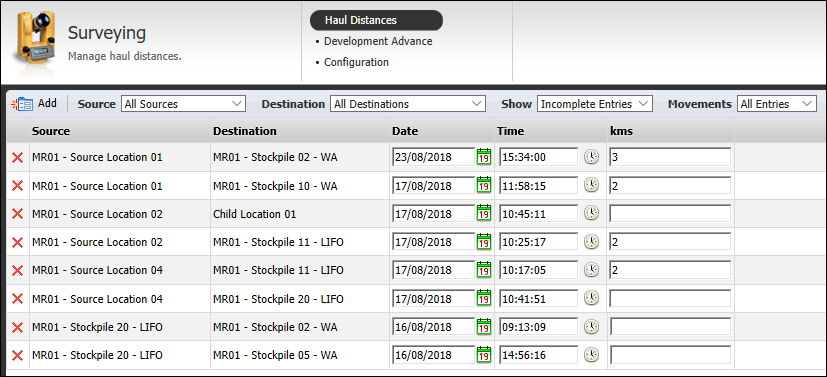
Haul Distances is the default option when you open the Surveying service. The surveyed distances between sources and destinations are entered here.
Period
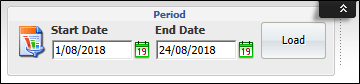
Select the period (Start Date to End Date) that you want to work with. By default, any truck or loader movements between a source and a destination for that period will be displayed. Only those movements that were done during the designated time period will be included.
Source and Destination
Use these inputs to filter the movements displayed .
The Source/Destination pairs for which movements have been recorded in the database for the selected period are displayed. If no surveyed distances have been entered for the Source/Destination pair, then the Kms value is blank.
Haulage distances may change multiple times during a shift as routes change, therefore the same movement (Source/Destination pair) may be entered multiple times, each with a different date and time.
Show
Select either:
- Incomplete Entries. Select to only show source-destination pairs for which the Kms are not defined.
-
All Entries. Display source-destination pairs whether they have Kms defined or not.
Movement.
Select either:
- All Entries. Display all movements between a source and a destination regardless of whether the movement was undertaken by a truck or loader.
- Truck Movements. Display only those source-destination movements undertaken by a truck.
- Loader Movements. Display only those source-destination movements undertaken by a loader.
Calculate TKM
Tonnes Kilometres Per Hour is a calculation of the tonnage moved between a source-destination pair multiplied by the surveyed distance between the pair (i.e. tonnage X distance).
Click the Calculate TKM (tonnes kilometre) button to recalculate the TKM.
The TKM will be recalculated when:
- A valid surveyed distance value (Kms > 0) event occurs and is saved to the database.
- The Calculate TKM button is clicked.
- A shift is Reprocessed using the Micromine Pitram Service.
TKM can have any Description and Abbreviation, but the Code must be equal to TONKM. It is a summed measure.
Add a movement
To add a new movement:
- Click Add at the bottom-left of the screen. A new record will be added below the existing records:

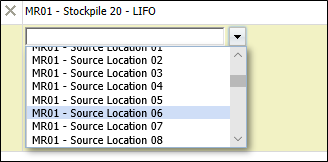
- Use the drop-down lists to define the Source, Destination pair:
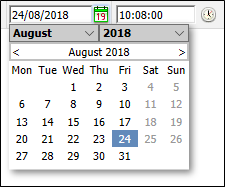
- The Date.field will be auto-filled with the current date. To modify the date click on the calendar icon:
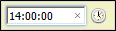
- The Time field will be auto-filled with the current time. If you modify the time it must be entered in hh:mm:ss format.
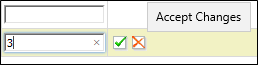
- Enter the haulage distance (Kms) for the movement.
Note: Some sites may have Miles configured as the haulage distance measurement.
- Click Accept Changes.
- Click the Save button (at the lower left of the screen) to save any changes (additions, deletions, edits) you have made. If you forget to save your changes, you will be prompted to do so: