

Create Measure Rule
With the GeneratedMeasuresRuleSet group displayed in the Reference Edit service, the New button is used to create a new Measure rule.
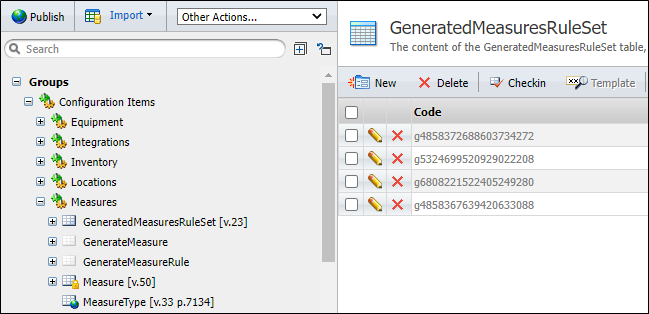
Note: The selected measure must be checked out.
When the user clicks the New button, a new generated measure rule (GeneratedMeasureRuleSet token) can be defined:
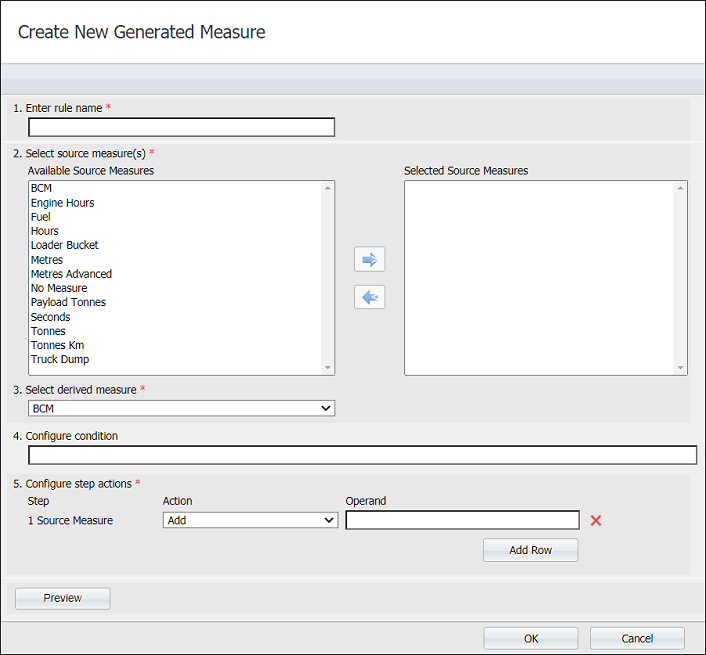
In order to define a new rule the following inputs must be specified:
- Rule name
- Source measures
- Derived measure
- Condition
This field is mandatory.
For example, a new rule called TruckDumpToTonnes is created to generate tonnes from truck dumps:

The rule name will also appear as the description of the new token that will be created in the GeneratedMeasureRuleSet group once the rule definition is completed.
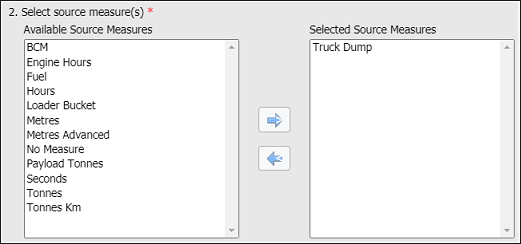
This field is mandatory. Select one or more source measures.
For example, a single source measure TruckDump is selected:
This field is mandatory. Select a derived measure.
For example, a Tonnes measure is selected:

This field is optional and is used to define a condition under which the rule may be executed.
For example, the rule will be executed when equipment capacity is greater than 25:

The following operators can be used in conditions:
| Operator | Description |
|---|---|
| > | Checks if the value of left operand is greater than the value of right operand, if yes then condition becomes true. |
| < | Checks if the value of left operand is less than the value of right operand, if yes then condition becomes true. |
| >= | Checks if the value of left operand is greater than or equal to the value of right operand, if yes then condition becomes true. |
| <= | Checks if the value of left operand is less than or equal to the value of right operand, if yes then condition becomes true. |
| = | Checks if the values of two operands are equal or not, if yes then condition becomes true. |
| <> | Checks if the values of two operands are equal or not, if values are not equal then condition becomes true. |
| AND | Logical AND operator. If both the operands are true then condition becomes true. |
| OR | Logical OR Operator. If any of the two operands is true then condition becomes true. |
Operator precedence and their associativity can be controlled by using parentheses, as shown in this example of a complex condition:
(Equipment.Capacity > 25 AND Equipment.Capacity < 50) OR (Equipment.Capacity >= 75 AND Equipment.Capacity <= 100)
Auto-complete condition field
This feature helps users to learn more about the condition parameters they are using and add the parameters with only a few keystrokes.
If the user types a character a filtered list of valid items (transaction objects) appears. After selecting an item, the user can type a trigger character (a period (.)) which brings up another list of related children items (attributes).
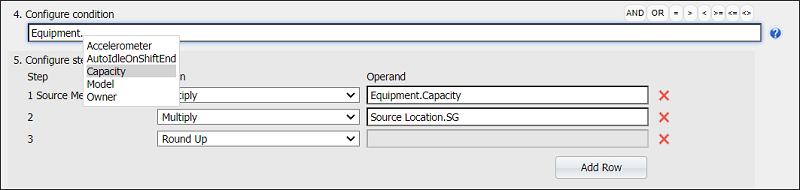
For the condition, object attributes and numeric values can be used. Text values are not supported.
When entering operators (e.g. AND, OR, =,...), instead of typing them in users can use the button bar in the top right corner of the condition text field. This feature is particularly useful for regions where keyboards (language settings) do not provide keys to enter these values.
- Define the step actions
- Preview the rule
- Save the rule
This field is mandatory.
If a measure is generated, it is usually derived from a source measure using a calculation converting the original value to a new value.
For example, to convert kilometres to metres, multiply by 1000:
(5 km = 5 x 1000 m)
The conversion calculations may be more complicated and require multiple steps.
For example, to convert truck dumps to tonnes:
Tonne = ROUNDUP(TruckDump * Equipment.Capacity * Location.SG)

The Step column identifies the individual calculation steps. The steps can be added and removed.
The Source Measure represents a general naming for the measure we are converting from. The rule definition allows to implement a single rule for multiple source measures, this is why the generic name Source Measure is used (instead of for example TruckDump).
The Step Action drop down box allows to select form one of the supported operations: Add, Subtract, Divide, Multiply, Round Down, Round Up.
In the Operand field, the user defines the operand to be used for the calculation. It can be either a numeric value or an object attribute (e.g. equipment capacity). The text values are not supported for operands.
Before the changes are saved, the user can preview the rule by clicking on the Preview button. For example:

On the left side of the '=' operator, the derived measure is displayed. On the right side of the '=' operator, the calculation is displayed followed by the WHERE keyword introducing the condition specified for the rule.
Save the rule by clicking the OK button.