

Searching reference data
The Search function in the Reference Data Tree view searches for Groups, Attributes and Active Lists which contain the keyword typed into the Search field. The Data Tree displays deployed Attributes as child nodes of a Group.
With the Reference Data Tree view open, enter a search term in the field. The search is run against data in the data tree.
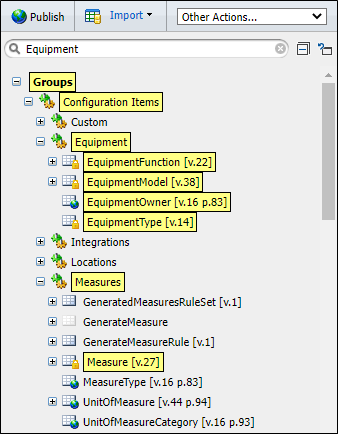
If results are found, all groups and active lists which contain the keyword entered are highlighted, and categories and groups are automatically expanded to show the matching results:

|
When no search keyword has been entered, the Expand Attributes button expands all the groups in the tree that contain attributes. |
| When a search keyword has been entered and the tree is displaying search results, and all attributes have been collapsed (either by clicking Collapse Attributes or Collapse All) clicking the Expand Attributes button will expand only the groups which contain attributes that match the entered keyword. | |

|
Clicking the Collapse Attributes button collapses all groups which have been expanded to display attributes. Categories and Active Lists remain expanded. |

|
The Collapse All button returns the tree to its default state. When the tree is displaying search results, the categories with groups, attributes and/or active list matches remain highlighted. |
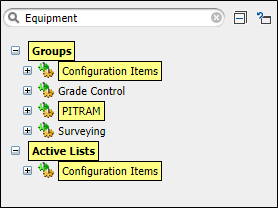
The Group Category, Group, Attribute or Active List nodes are highlighted yellow when the text contains a case insensitive match to the keyword entered in the Search field.
If a Category or Group has children which have a matching keyword, it is also highlighted. For example, in the above screen, the Configuration Items and Pitram groups, as well as the Configuration Items Active List are highlighted because they all contain attributes which contain the Equipment keyword that was entered in the Search field.