

Create Data Groups
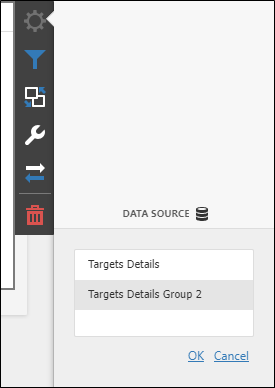
By default, when creating a new Targets dashboard, a single Data source (Target Details) is created by default. The Targets Details data source is displayed when you configure the binding for a widget:
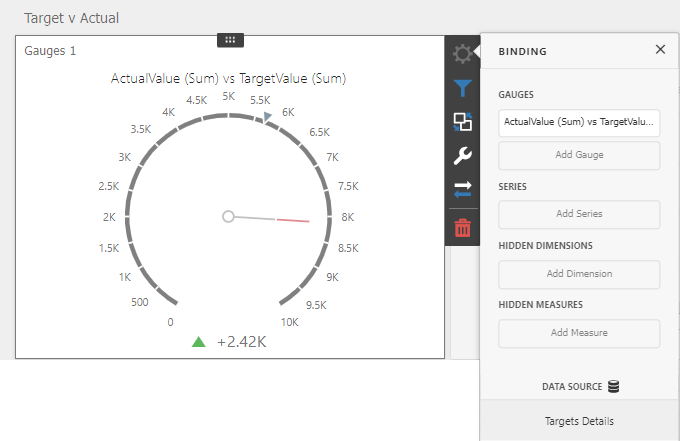
All widgets within a dashboard will bind to this data source by default. The data source is populated according to the Data Source filter settings:
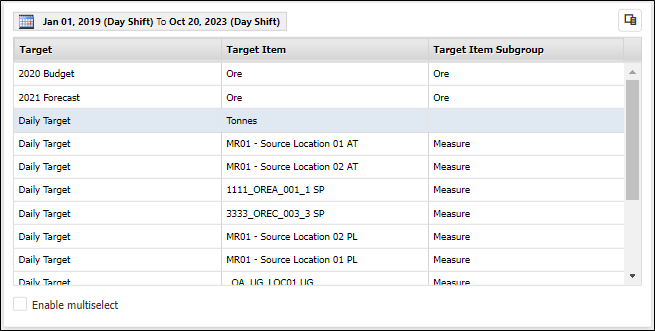
However, there may be cases where you require a dashboard to use two distinct sets of data set by the data source filter. To do this, you need to create one or more instances of the Targets Details data source and utilise Layout Groups to contain widgets. For each layout group, you can assign all widgets to the same separate instance of a data source. The data source filter within the layout group will apply to the widgets within the same.
The following outlines the process of creating separate groups of widgets and the necessary additional data source/s.
Create a Data Source
To create a new instance of the Targets Details data source, with your dashboard in Designer mode,
-
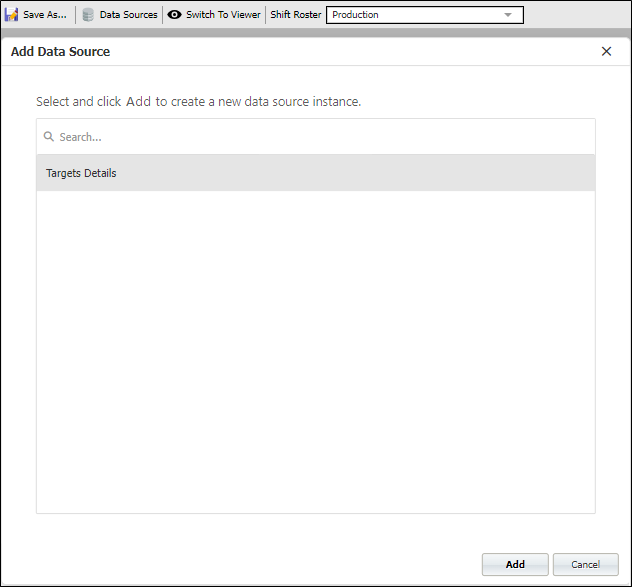
Click Data Sources in the toolbar.
This will open the Add Data Source form.
-
Select the data source type - in this case Targets Details - and,
-
Click Add.
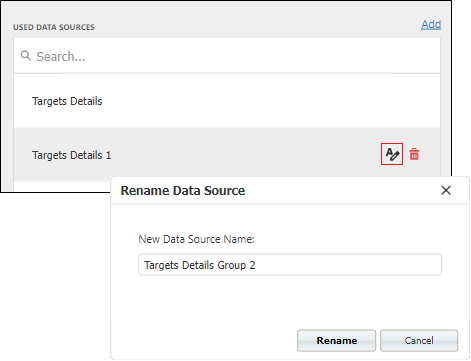
A new instance is created and you can rename it if required, using the Edit button.
Calculated fields can also be created from the Data Sources screen. Information on creating and using Calculated Fields is contained on the Dev Express End-User site via the link.
When the new instance is created and named as required,
-
Close the Dashboard Menu to return to the dashboard design editor.
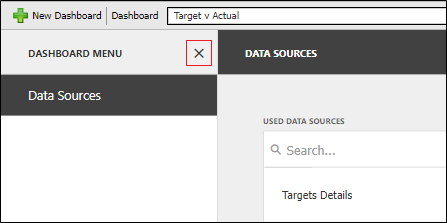
The next step now that a separate data source has been created is to add the Layout Groups to your dashboard.
Create Layout Groups
The Layout panel in the Targets Dashboard tools pane contains the available Layout widgets for use with the dashboards you create.
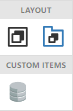
To add a Group widget to the dashboard,
-
Drag and drop the Group item from the Layouts panel to the required position on the dashboard.
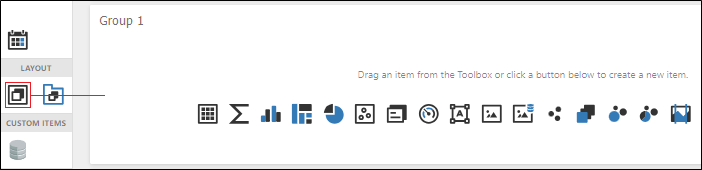
-
Repeat this procedure for all of the groups you need to add to your dashboard.
With separate groups added to the dashboard, you can add widgets to each group, or drag and drop existing widgets on the dashboard into the relevant group - as shown below:
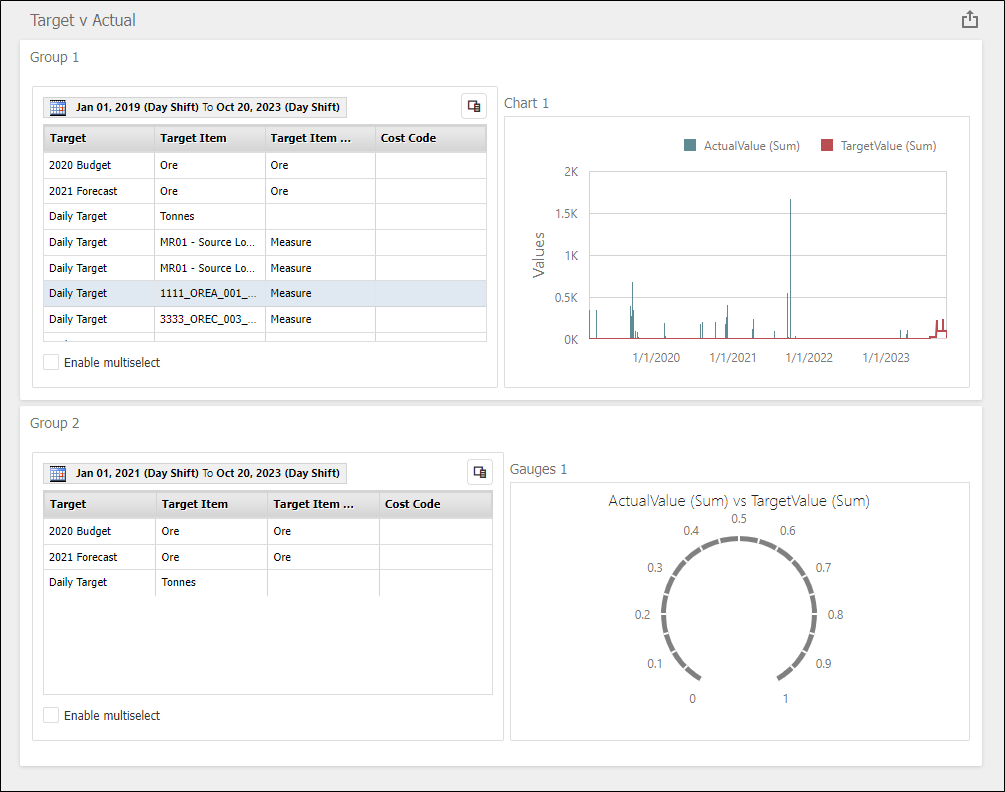
-
Use the Binding options to bind each widget to the relevant data source for each Layout Group.
Be sure to bind all widgets within a Group to the same data source, or undesired results will occur. To help prevent this situation, each time a dashboard is modified, Pitram will check that the data source for all the widgets within the group match. If an item is found that does not match the rest of the group, a notification will be displayed under the toolbar (as well as logged):
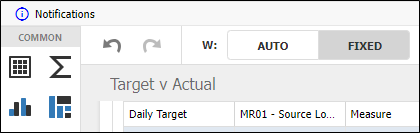
If you click the Notifications link the full notification is displayed:
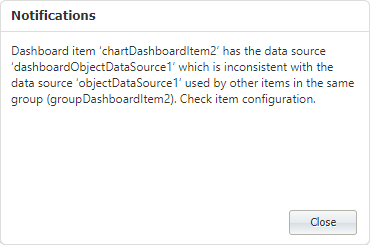
You can Close the notification using the button at the bottom right. The Notification in the toolbar can be removed using the cross at the right. This will not clear the notification until the mismatched data source is fixed. If the mismatch is not fixed, the Notification will occur again and be added to the message form:
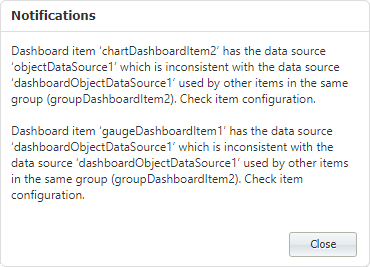
This behaviour is to ensure the user fixes the issue, as if not, a data source may use the wrong parameters to load the data. Users may see the Notification when dragging a new item into a group, if it defaults to the wrong data source. In this instance, the data source should be remapped before adding any more widgets.