

In-Cab Validation Screens
Micromine Pitram 2022.5 introduced basic In-Cab validation functionality – screens with summary information about operators activities that can be invoked from Micromine Pitram Mobile menu. Micromine Pitram 2023 included a configurable log off check list that allows sign off on several items. Micromine Pitram 2023.5 introduces a simplified process which submits report data to the server.
When an operator logs off from Micromine Pitram Mobile, the In-Cab Validation process will be invoked. Data for validation is displayed across a number of screens. Buttons at the bottom of the screens are used to navigate to the next and previous screen, edit or delete information and submit completed details. A scrollbar may be displayed if data on a screen does not fit.
Each screen has a Pass / Fail toggle for validation. When an operator submits the validation data, the application saves a snapshot of the displayed data and validation result. This information will be sent to the server when connected to the network.
Note: Validation is carried out for the current shift to avoid any rare issues with a user being logged into multiple shifts. Operational breaks (such as lunch) have no impact on reporting. The summary for the whole shift (or from the start of the shift until 'now') is reported and the user can log in and out as many times they need. Summaries are only for the transactions performed by the logged in user for the shift. If another user is logged in during the shift, their transactions will be ignored - as In-Cab Validation is performed for the activity of the operator, not the equipment.
Primary Status Details
The Primary Status Details screen displays information on the primary status for the equipment.
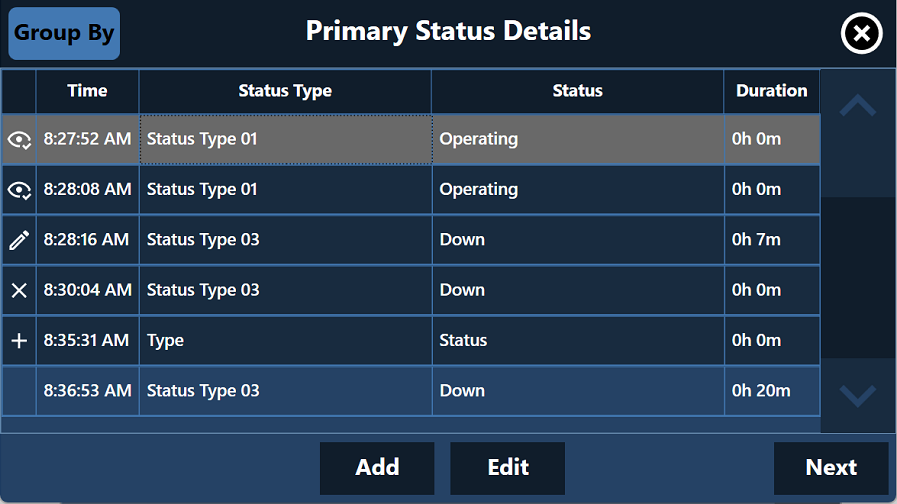
The screen features buttons to Add or Edit an event as well as the Next button to navigate to the Measure Details screen.
If you press Edit, the Edit Properties screen is displayed:
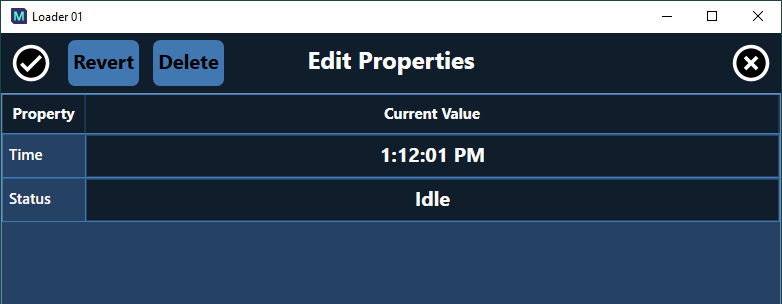
You can edit the details of the event from the screen and press the Check to save the change or Cancel to close without saving. The Revert button will undo any changes that have been made in this instance. The Delete button will delete the copy of the event from the validation report.
Note: It is important to remember that Adding, Editing or Deleting events during validation does NOT affect actual events in the Pitram system; only the copy that will be included in the validation snapshot.
The icons in the left hand column of the Details screens indicate the current status of the event:
| Icon | Description |

|
Record reviewed during previous validation. |

|
Record edited during previous validation. |

|
Record added during previous validation. |

|
Record deleted during previous validation. |
Measure Details
The Measure Details screen displays the details of any measure events. Buttons allow you to Add or Edit events from the screen.
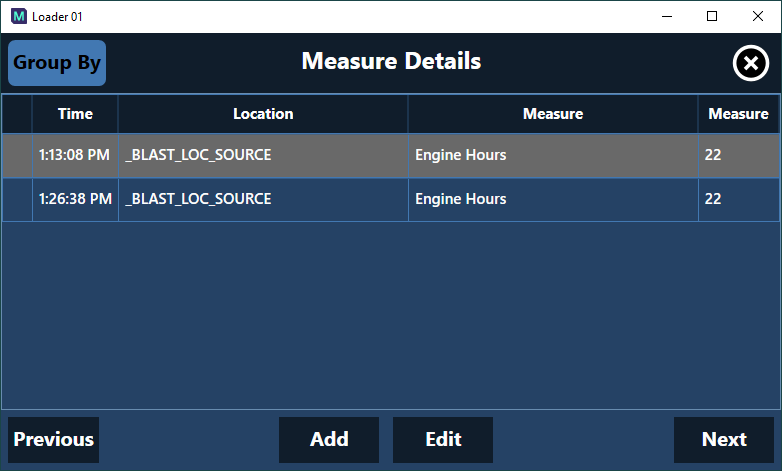
Note: It is important to remember that Adding, Editing or Deleting events during validation does NOT affect actual events in the Pitram system; only the copy that will be included in the validation snapshot.
The Next button in the Measure Details screen is used to navigate to the Movement Details screen.
Movement Details
The Movement Details screen displays information on the movement of Equipment between Locations, as well as the Material and Measure values for each movement event.
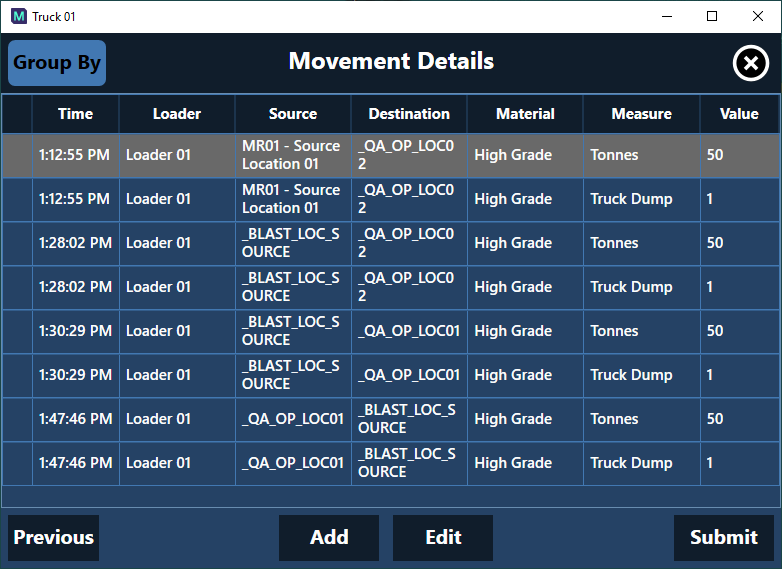
With the buttons on the screen, you can navigate back to the Previous screen, Add or Edit an event and Submit the completed validation.
Note: It is important to remember that Adding, Editing or Deleting events during validation does NOT affect actual events in the Pitram system; only the copy that will be included in the validation snapshot.
Once the validation data has been submitted, the validation report will be generated and displayed.
For information on the report generated by the submitted validation data, see In-Cab Validation Reporting.