

Required steps to enable Details screens
Details screens are implemented as MobileActions so they are configured like other actions and assigned to a Widget. To configure MobileActions, you will need to ensure the Mobile Action group is deployed. To do this,
-
Open Micromine Pitram Portal and select the Reference Edit service.
-
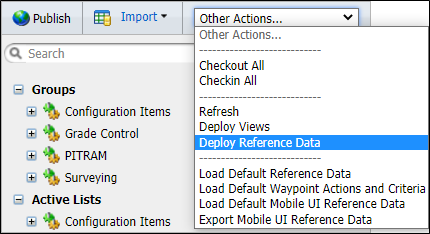
From the Other Actions menu, select Deploy Reference Data.
-
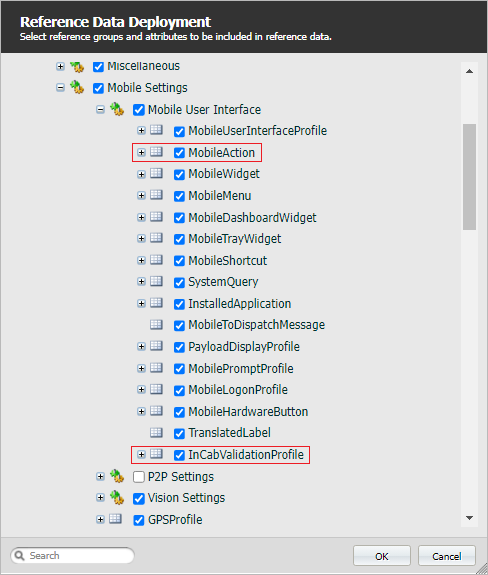
Under Configuration Items | Mobile Settings | Mobile User Interface, make sure the MobileAction and InCabValidationProfile groups are selected - as shown:
-
Click OK to deploy the relevant reference data.
When the Mobile User Interface group is deployed, you can:
-
Create an InCabValidationProfile token in Configuration Items | Mobile Settings | Mobile User Interface.
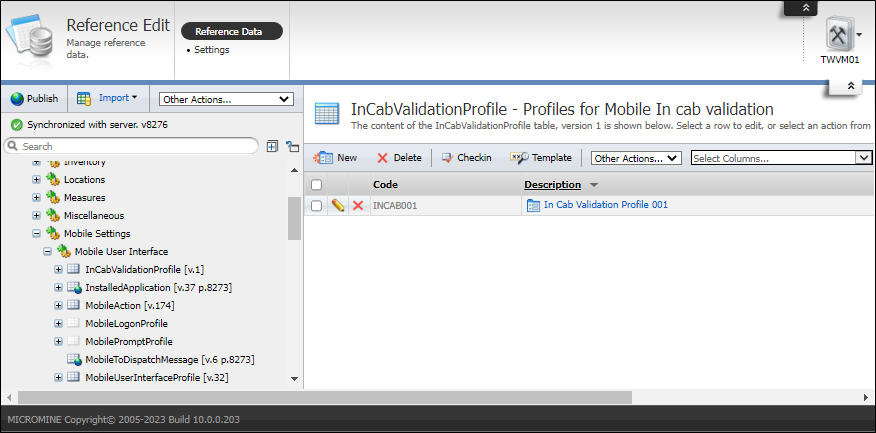
Validation parameters are configured using the In-Cab Validation Profile attributes.
Once created,
-
Set this token for the InCabValidationProfile attribute in the MobileLogonProfile.
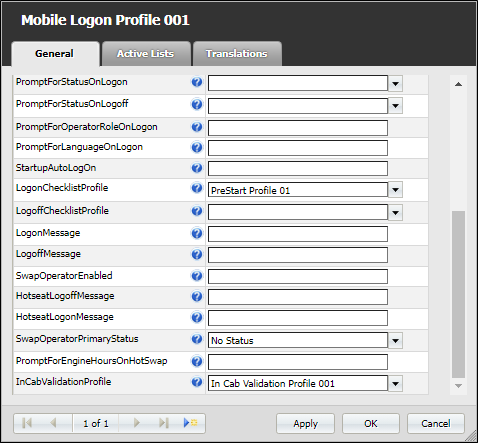
When the required InCabValidationProfile has been assigned to the MobileLogonProfile, you can Configuring Mobile Actions to be assigned to Widgets.
For information on the types of Details screens available, see Details Screen Types.
Steps to enable In Cab validation:
-
Create a token in the InCabValidationProfile reference group.
-
Assign the token to the InCabValidationProfile attribute in a LogonProfile token.
InCabValidationProfile Attributes
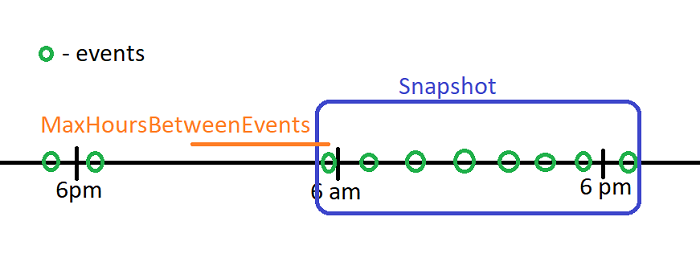
MaxHoursBetweenEvents - Maximum duration in hours between subsequent events submitted by the same operator. This attribute defines a boundary for a validation snapshot. A snapshot includes all events from “now” moving backwards until there is a gap between two subsequent events with an event time difference bigger than the threshold value defined by this attribute.
Primary Status Validation Attributes
ValidatePrimaryStatusEvents – Allows to enable primary statuses validation.
PrimaryStatusAction - Action to show primary states when adding or editing primary status in validation.
Measure Validation Attributes
ValidateMeasureEvents – Allows to enable validation of measure transactions.
MeasureAction - Action to filter measures displayed during validation. It is also used to show measures when adding or editing measures in validation.
MeasureLocationAction - Action to show locations when adding or editing measure transactions in validation.
Movement Validation Attributes
ValidateMovementEvents – Allows to enable movements validation.
LoaderAction - Action to show loaders when adding or editing movements in validation.
SourceLocationAction - Action to show source locations when adding or editing movements in validation.
DestinationAction - Action to show destinations when adding or editing movements in validation.
MovementMeasureAction - Action to filter measures displayed during movements validation. It is also used to show measures when adding or editing movements in validation.