File Distribution Server Installer
Before running the Server setup executable, make sure the PFDS database has been deployed. An SQL user should also be available to login to the database. Refer to the Server Service topic for more details.
- Run the file PFDSService_setup.exe:
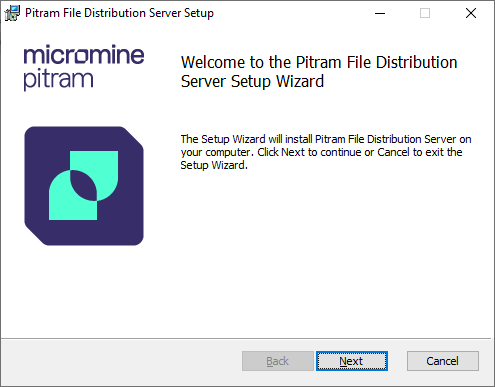
- Click Next. If you are upgrading, there will be no need for the following steps and the installation will proceed. Go to Step 7
- Click Next.
- On the Server Information page (above), configure the communications and database connection information, as described in the following table:
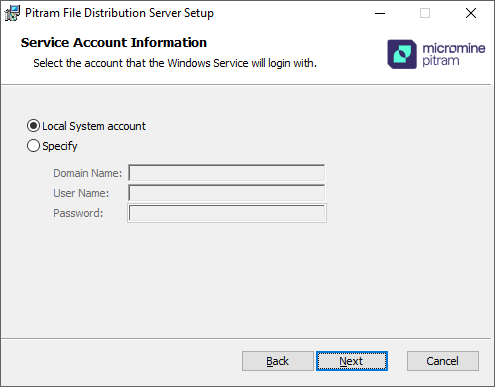
This is the account the service will log on with. It is recommended that you accept the default. Unless there is some reason to run under a different account, leave this setting as Local System account.
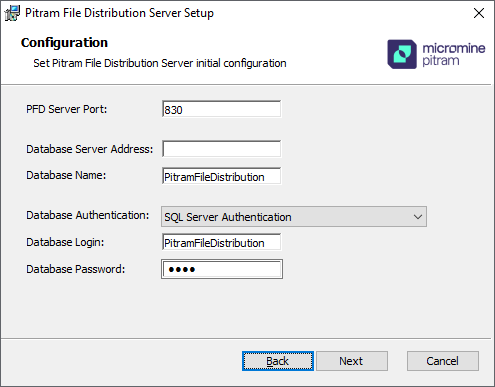
| Field | Recommended Value | Description |
|---|---|---|
| PFD Server Port | 830 (default) | The main TCP port the service will open for client connector communications. |
| Database Server Address | As per database location | The address of the SQL server on which the PFDS database is deployed. |
| Database Name | PitramFileDistribution (default, though name is not important) | The name of the PFDS database that must be deployed before running this installation. |
| Database Authentication | SQL Server Authentication (default) | SQL database authentication. |
| Database Login | PitramFileDistribution (to identify what the user authentication is for). | SQL user name. |
| Database Password | The default is: pfd | SQL password. |
- Click Next.
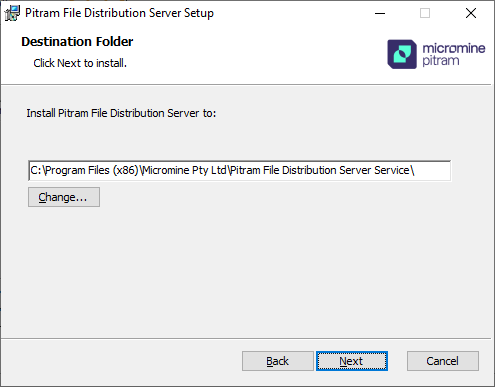
- On the Destination Folder page, accept the default service installation folder and click Next.
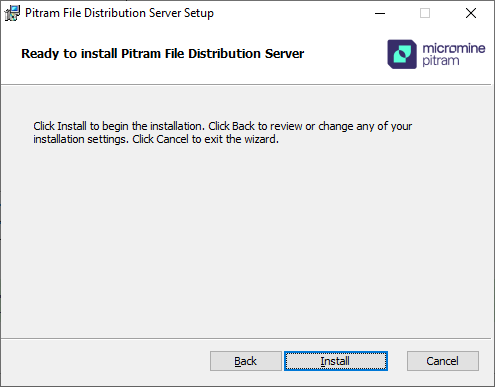
- Click Install to proceed with the installation.