File Distribution Client Connector Installer
This is a guide on the installers, and does not include the other tasks required such as database deployment. Refer to the Client Connector topic for more details.
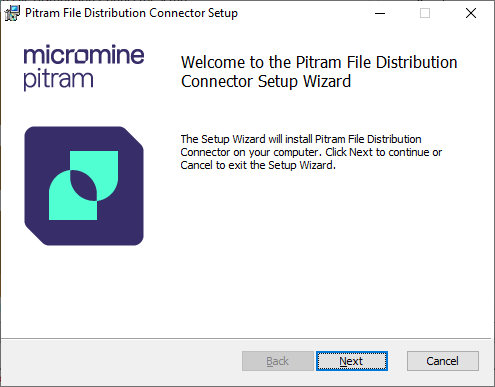
- Run the file FileDistributionConnectorService.msi.
- Click Next.
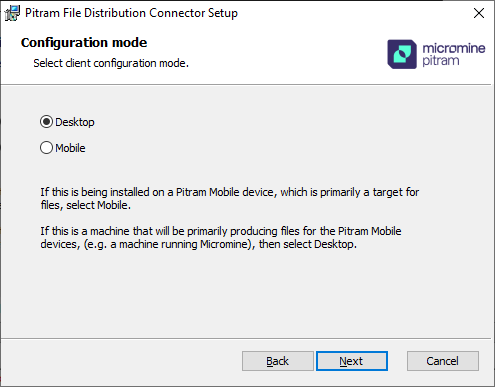
- On the Configuration Mode page, if the client is being installed on a Pitram Mobile device, which is the primarily target for files, select Mobile.
Otherwise, if you are installing the client on a machine that will be primarily producing files for the Pitram Mobile devices, (e.g. a machine running Micromine Australia Pty Ltd), select Desktop as the configuration mode.
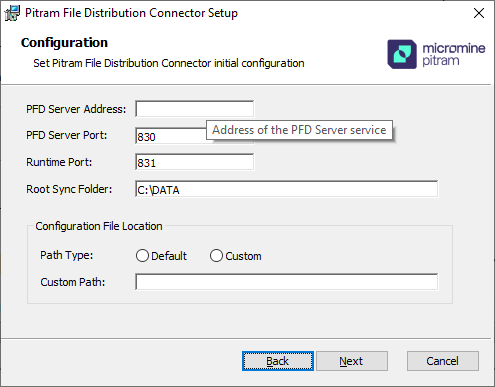
- The Client Connector Configuration page (below) configures the various communication parameters. Provided they are not already used by another program, accept the default port numbers.
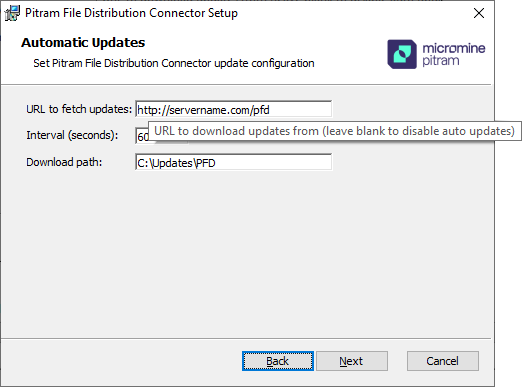
- On the Automatic Updates page, the option to check for updates is provided. To disable auto updates, leave the Updates location URL blank.
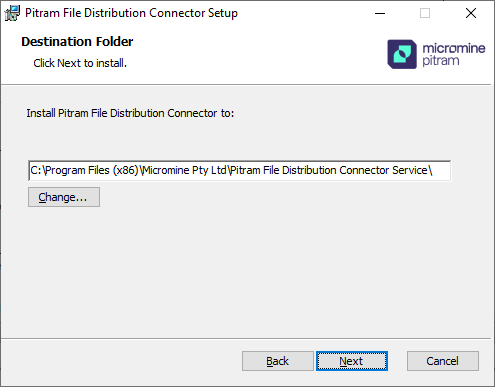
- On the Destination Folder page, accept the default service installation folder and click Next.
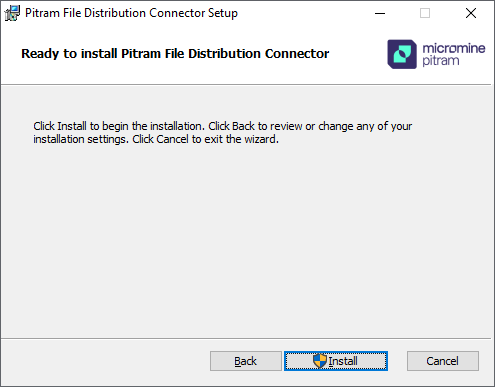
- Click Install to proceed with the installation.
If you are upgrading, there will be no need for the following steps and the installation will proceed. Go to Step 7.
The following pages of the Installer will be the same regardless of the configuration mode you have selected. However, the installer will auto populate the service configuration file according to the mode you have chosen, and the service will behave differently on Mobile and Desktop devices.