Domains
The Domains tab of the Conditional Simulation form is used to configure one or more domains to be used in the simulation.
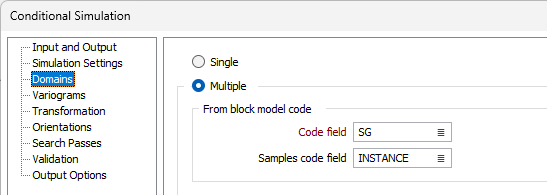
Single / Multiple
Select whether to configure a Single or Multiple domains for the simulation process. If you select Single, the domain will be automatically created from the Sample input file and the information it contains. If you select Multiple, select from the From Block Model Code or From Wireframe Assign options to configure the required domains for the simulation.
From Block Model Code
Select this option to assign domains using a code and samples code from the input data.
Code field
Select the field in the input file which contains the block model information. This field will be utilised for the domains that you configure.
Samples code field
Select the field in the input file which contains the sample information. This field will be utilised for the domains that you configure.
Populate Domains
Clicking Populate Domains will open the Domain Samples Inclusion matrix used to select the block domains to be used for the estimation.
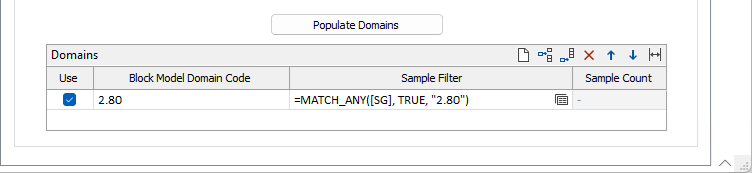
Domains
The Domain grid displays each populated domain for the grade estimation. Depending on the configuration for the Domains tab, the grid will contain a combination of the following columns.
Use
Select the check box in the Use column for the domain row to use the selected domain.
Domain
The read-only Domain column displays the assigned name for the domain.
Block Model Domain Code
Use the Block model domain column in the grid to enter a domain code for the block model to be filtered.
Sample Filter
Optionally, you can select or create a Sample Filter in the field provided. If you click the Filter icon, the Select: Filter form opens. Sample Filters are created automatically when you configure the Domain Samples Inclusion matrix for Block Model Code mode.
Sample Count
The read-only Sample Count column displays the number of samples for the domain on the row.
You can use the toolbar in the Domains grid to Manage the rows in the list.