

Using Mobile for Android
Micromine Pitram version 17.0 supports the use of Pitram Mobile on Android tablets.
The information which follows assumes that Mobile for Android has been installed and configured by your Pitram Administrator. For information on the installation process for test tablets or a single unit, see Installing Mobile for Android.
The Main Screen
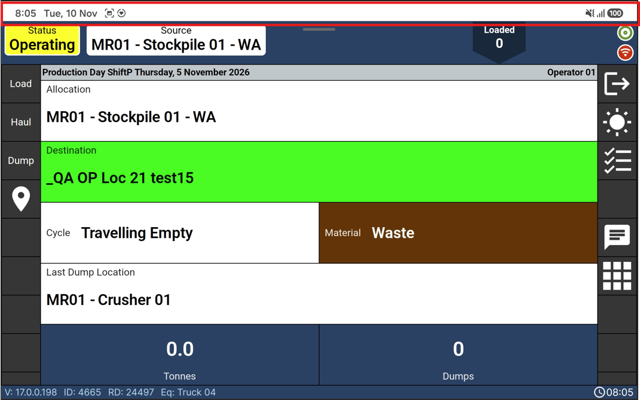
Pitram Mobile runs full screen, but the Android status bar at the top remains displayed, so the operator can still see the tablet information such as the time, Wi-Fi connection, signal strength and battery level.
Logging in
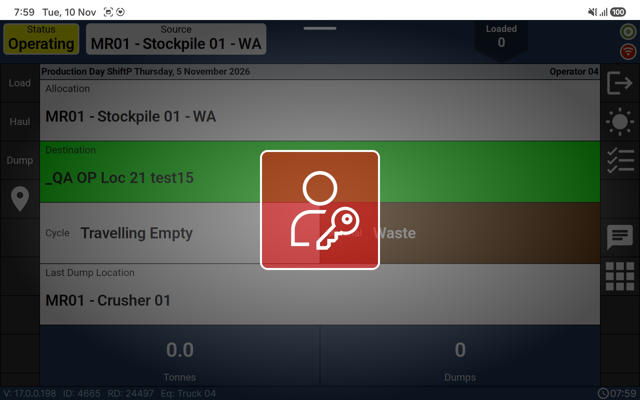
Log in for Mobile on an Android tablet is performed in the same way as Mobile:
Logging in as Administrator
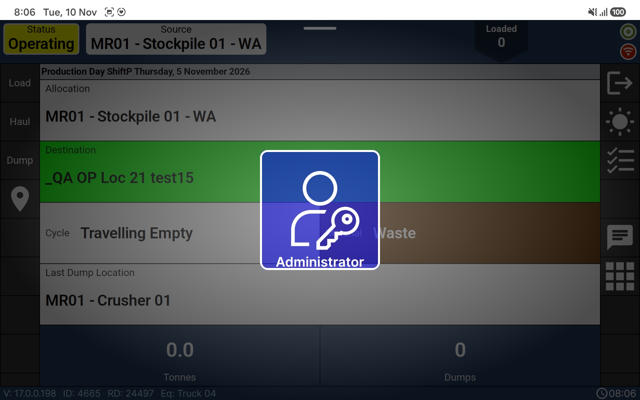
To login as an Administrator, on the login screen,
-
Slide down on the login icon to switch to the Administrator login.
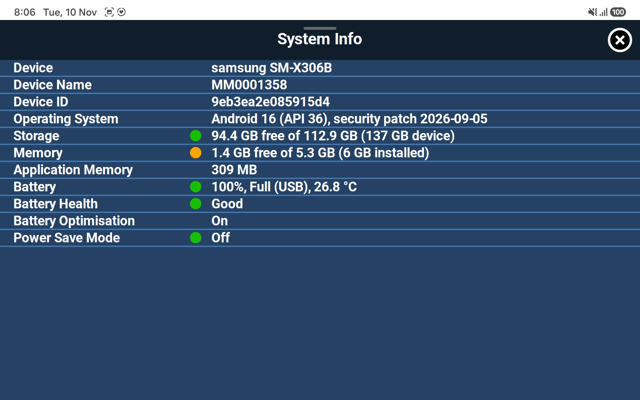
When you are logged in as an Administrator, the Admin options become available; including the Android-specific System Information:
-
Device model and name
-
Device ID
-
Android version and security patch
-
Storage
-
Memory
-
Battery level and health
-
Battery optimisation, and
-
Power save mode.
Return to Pitram Mobile from another app
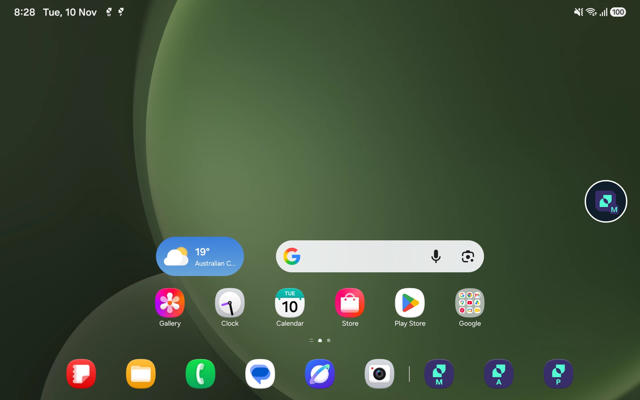
While Pitram Mobile is running, a floating Pitram Mobile button is shown over any other app, except the system Settings.
-
Tap the button to return to Mobile.
Note: The behaviour of the button is configured the button behaves is configured by your Pitram Administrator using the MobileLauncherProfile token in Reference Data.
Apps that remain running in the background
Closing Pitram Mobile from the Recent Apps screen does not always stop it completely: Pitram apps can keep running in the background. AdHoc and Postman are designed to do this, as background services, and should normally be left running.
Android's Check background activity list shows which Pitram apps are still active and for how long;
-
Tap Stop next to an app to end it completely.
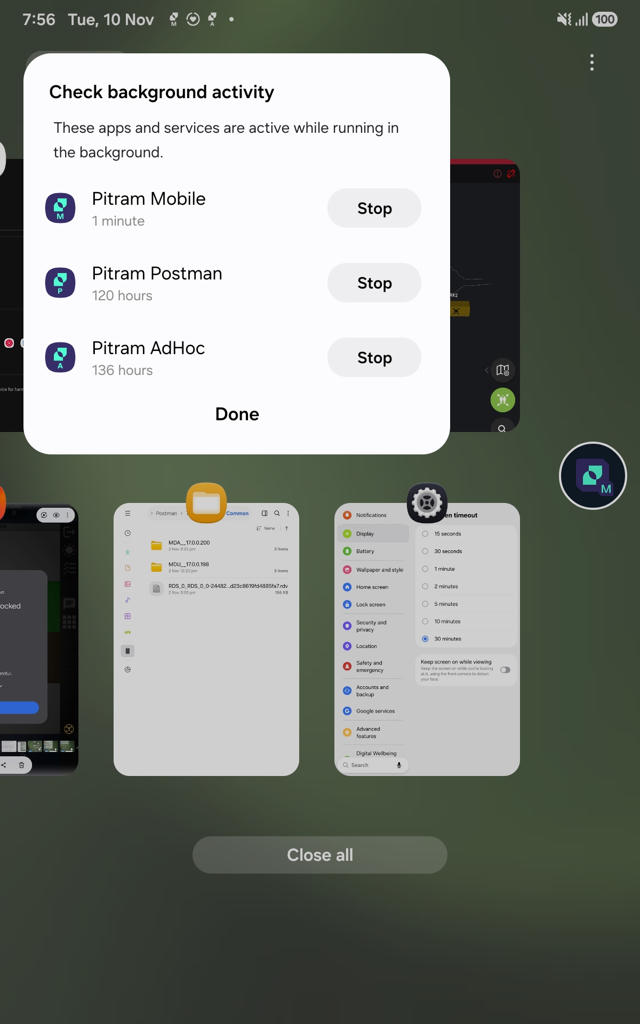
Stop AdHoc and Postman only when you mean to, for example before replacing their configuration files. They start again by themselves after a tablet restart; while Mobile does not (unless your Intune setup launches it), so open Mobile after every restart.
Configuration and Data folders on the Tablet
Pitram Mobile on Android uses the same configuration structure as the Windows version. Configuration, logs and collected data are kept in the shared storage of the tablet, in the PITRAM folder. The files can be browsed with a file manager on the tablet, or over a USB cable, and they stay on the tablet when Pitram Mobile is updated or reinstalled. This requires the All files access permission.
To check which folder a unit is using, look at the first line of the Mobile start-up log; for example Data folder: /storage/emulated/0/Micromine/PITRAM.
Folder Locations
| Android | Windows | |
|---|---|---|
| PITRAM folder | /storage/emulated/0/Micromine/PITRAM/ (shown as Internal storage\Micromine\PITRAM when the tablet is connected to a PC) |
C:\ProgramData\Micromine\PITRAM\ |
| Configuration (the Machine folder) | .../PITRAM/Configuration/Machine/ | ...\PITRAM\Configuration\Machine\ |
| Logs | .../PITRAM/Logs/ | ...\PITRAM\Logs\ |
Besides these, the PITRAM folder contains the familiar subfolders for collected data, business model snapshots and similar files. On Android it also contains SystemLogs (the Android system log and app exit reasons) and, on peer-to-peer sites, FileTransfer (Export and Import).
Changing a setting manually
-
Stop the app whose configuration you are changing: Settings › Apps › the app › Force stop.
-
Connect the tablet to a PC with a USB cable and set it to File transfer, then open Internal storage\Micromine\PITRAM\Configuration\Machine. Alternatively, use a file manager on the tablet.
-
Copy the file to the PC and keep the original as a backup. Edit the copy in a text editor, then copy it back and replace the original.
-
Open the app again. A hand-edited file is read only when the app starts.
-
A value that is also set centrally in reference data (or PRIS) is overwritten by the central value, so the manual change is reverted. Change the reference data instead.
-
To return a configuration file to its defaults, delete it (and its .bak file, if present) and restart the app. The app recreates it.
-
Problems with loading configuration are written to <yyyyMMdd>_startup.txt in the Machine folder.
-
Client Database
The one significant difference from Windows is the location of the client database (SQLite). Because of Android restrictions, the database itself is kept in a protected, private area of the device storage, not in the PITRAM folder. It cannot be browsed or copied over USB, and it is deleted if Pitram Mobile is uninstalled.
The folder .../PITRAM/ClientDatabase/ contains only the database backup file. Mobile creates the backup when reference data is published to the unit, and every time the app is closed normally. On every start, Mobile checks its database: If the database is missing or damaged and a valid backup exists, it is restored from the backup.
| Scenario | Settings | Database |
|---|---|---|
| Application update | Kept | Kept |
| Uninstall and reinstall | Kept | Restored from the backup |
Logs and the database can also be retrieved remotely through the server, without access to the tablet.