

Installing Mobile for Android
The following information on installing Pitram Mobile apply to manual installation; for example installation on a test tablet or a single unit. On site, tablets are typically managed through Microsoft® Intune (or another Mobile Device Management (MDM) application). With MDM installation, apps are distributed and the permissions in this guide are granted centrally by policy, so the operator does not see these prompts.
Install
Copy com.micromine.pitram.mobile-Signed.apk to the Download folder on the table, then follow the steps below. Pitram Mobile asks for each permission it needs the first time it runs; you should grant each one.
-
Install the app. In My Files › Downloads, tap com.micromine.pitram.mobile-Signed.apk, then tap Install. If My Files says installing unknown apps is not allowed from this source, tap Settings, turn on Allow from this source, go back and tap Install. Google Play Protect then scans the app (see Google Play Protect scan below).
-
Open the app. When Android shows App installed, tap Open.
-
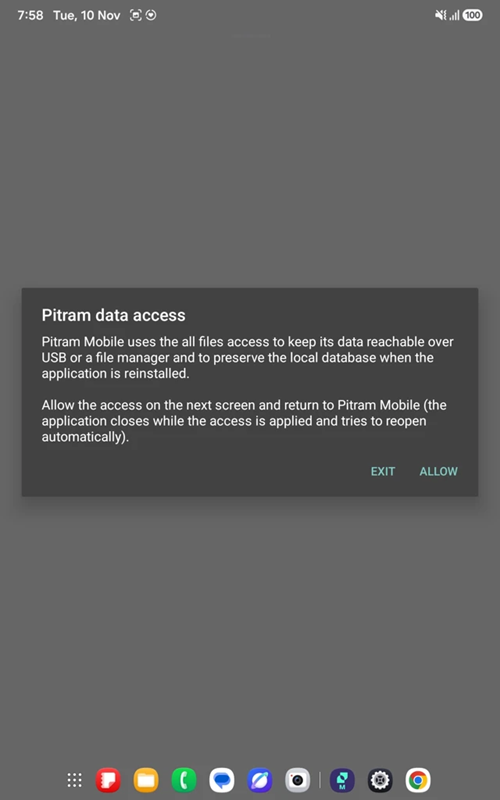
Pitram data access. Mobile explains why it needs all files access. Tap ALLOW to open the settings screen.
-
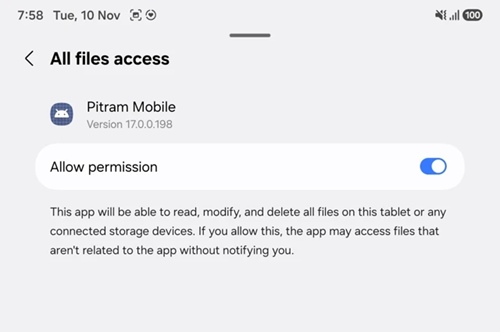
All files access. Turn on Allow permission and go back. This lets Mobile keep its configuration, logs and collected data, and a backup of its local database, in the shared Micromine/PITRAM folder, so they are reachable over USB and survive a reinstall (the database itself stays in the app's private storage; see Configuration and data folders on the tablet). Android closes Mobile while the access is applied; Mobile reopens by itself.
-
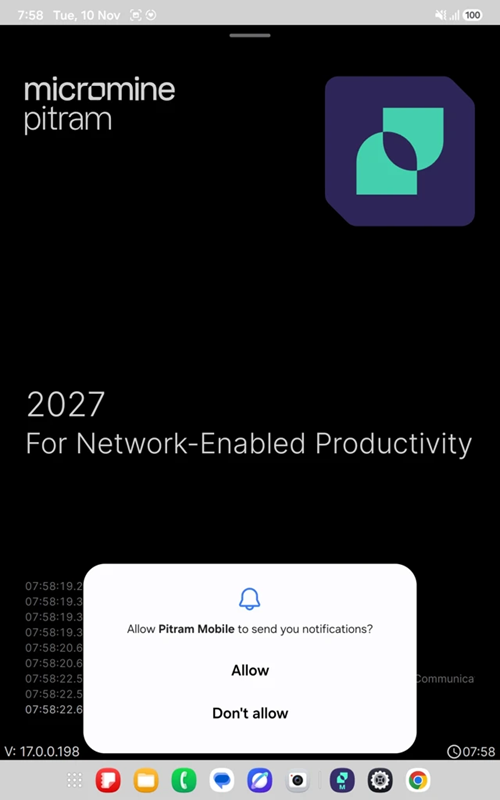
Notifications. When Mobile reopens, tap Allow. This lets Mobile show its status notifications; it still runs without them.
-
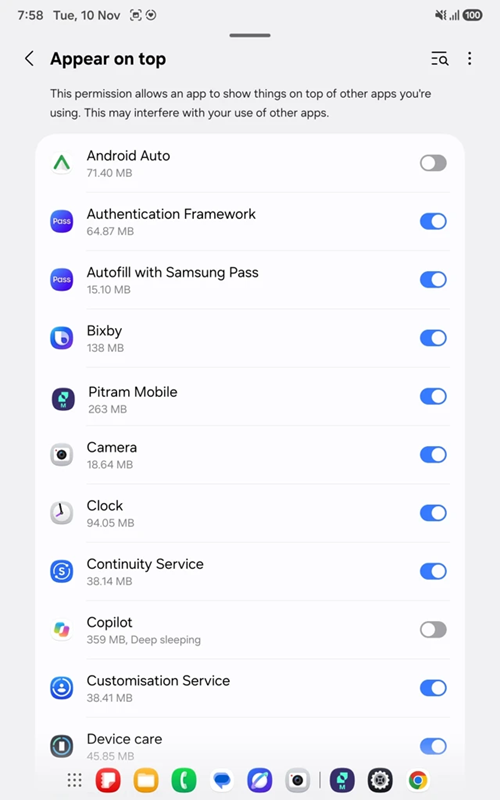
Appear on top. Find Pitram Mobile in the list, turn it on and go back. This is needed for the floating Pitram Mobile button that brings you back to Mobile from other apps.
-
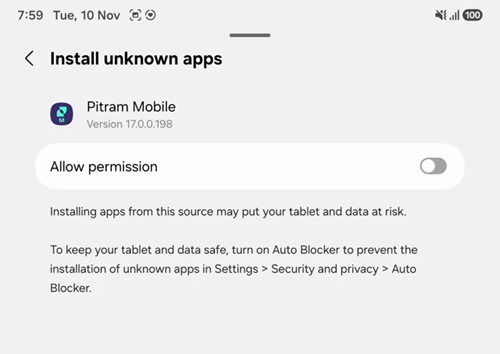
Install unknown apps. Turn on Allow permission and go back. This lets Mobile install its own updates (see Application Updates). If it is skipped, Mobile opens this page again when the first update arrives; grant it then, and the update installs on the next Force Update.
-
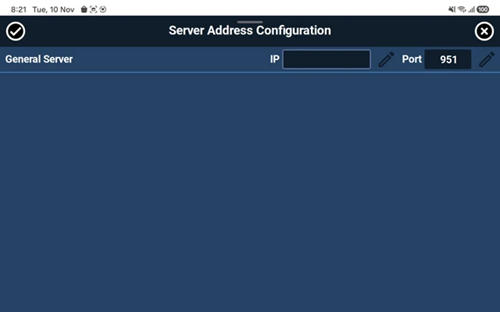
Server address. On Server Address Configuration, tap the pencil next to IP and enter the Pitram server's IP address. Port is pre-filled with 951; change it only if the site's server uses a different port. Tap the tick button at the top left. Setup is complete.
Pitram Mobile permissions at a glance
The following table outlines the permissions required by Pitram Mobile, as granted in the steps above. Mobile needs no Wi-Fi or location permissions; those belong to AdHoc.
| Permission | Granted in | What it is for | If it is missing |
|---|---|---|---|
| All files access | Steps 3 and 4 | Keeps Mobile's configuration, logs and collected data, and a backup of the local database, in the shared folder: Micromine/PITRAM, reachable over USB and kept on reinstall. | Mobile shows the Pitram data access dialog again and does not continue until it is granted. |
| Notifications | Step 5 | Shows Mobile's status notifications. | No status notifications; Mobile still runs. |
| Appear on top | Step 6 | Shows the floating Pitram Mobile button over other apps. | No floating button to return to Mobile from other apps. |
| Install unknown apps | Step 7 | Lets Mobile install its own updates. | Mobile asks for it again when an update arrives; the update waits until it is granted. |
| Battery: Unrestricted (P2P tablets) | Not asked by Mobile; set in Settings › Apps › Pitram Mobile › Battery | Stops Android limiting Mobile in the background, so P2P keeps working with the screen off. | Android may pause Mobile in the background. |
Google Play Protect scan
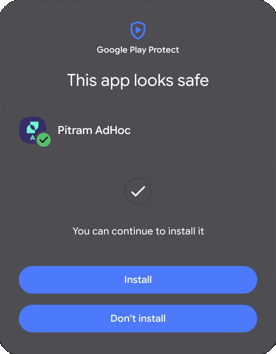
Every time a Pitram app is installed or updated, Google Play Protect scans the package first. If it shows App scan recommended, tap Scan. Normally the scan passes and Play Protect shows This app looks safe; tap Install to continue.
Note: The example which follows is Pitram AdHoc but Mobile and Postman look the same.
If Android blocks the install as a "harmful app"
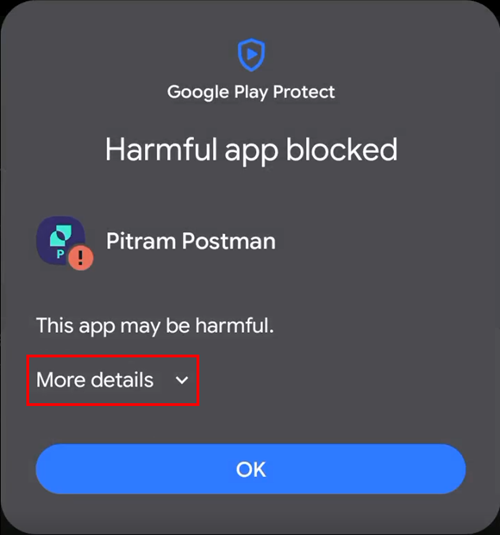
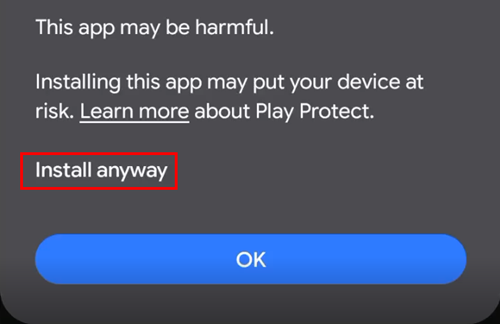
Occasionally the scan does not pass, and Android shows Harmful app blocked with the message "This app may be harmful." This can happen for any of the Pitram apps (Mobile, AdHoc and Postman).
This is a false positive and the app is safe. Play Protect flags apps that were not installed from the Google Play Store, or that it has not seen before. The Pitram APKs are signed Micromine builds; nothing is wrong with the device or the package.
To continue with the installation;
-
Tap More Details.
-
Tap the Install anyway plain text link.
-
Android continues with the normal install. Confirm as usual.
Do not tap the main Dismiss button on the first dialog — that cancels the install. If that happens, tap the APK again (manual install), run Force Update again (Mobile update), or wait for the next update check (AdHoc and Postman updates).
For information on the installation process for Adhoc and Postman, see Installing Pitram AdHoc and Postman.
Information on using the Pitram Mobile Android app is contained in Using Mobile for Android.