

Pit Shell
The options on the Pit Shell tab are used to configure the display of the pit shell for the design. You can opt to display the pit shell, select a colour for the wireframe and set the display parameters for the pit shell contour strings.
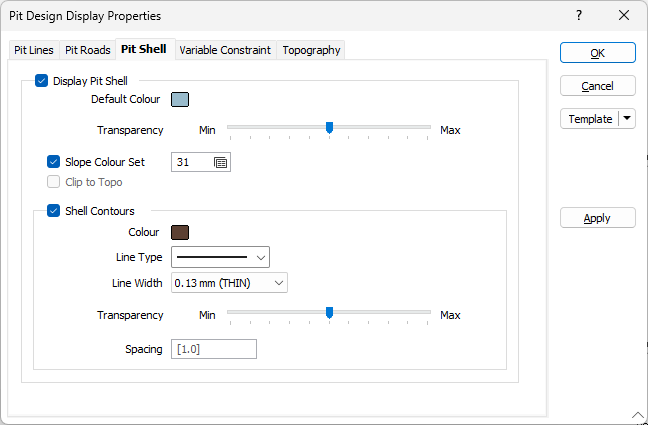
Display Pit Shell
Select this option to enable the display of the Pit Shell for the design by default. If this option is not selected, the Pit Shell will not be displayed and you can turn it on using the Show Pit Shell option in the Pit Design ribbon.
Default Colour
If you have selected to display the pit shell, you can select a default Colour for the wireframe to be used.
Transparency
Use the Transparency slider to specify the visibility level of the
Slope Colour Set
You can optionally select the Slope Colour Set option and use the form button to select the colour set that contains the true dip colour you want to use for the pit shell wireframe.
Clip to Topo
Where information has been entered in the Topography tab, you can select this option to clip the Pit Shell so that no part of the shell is displayed above the defined topography.
Shell Contours
Select the option to configure display of the pit shell contour string/s.
Colour
Double-click the Colour icon, to select a colour for the shell contour string/s.
Line Type / Line Width
Select a Line Type and Line Width from the drop downs to select the style of the shell contour string/s.
Transparency
Use the Transparency slider to specify the visibility level of the shell contours string. The Max transparency setting will render the string completely transparent, while the Min setting is completely opaque / solid.
Spacing
Specify Spacing for the shell contours, or accept the default of 1.
Template
The Template button is only available for Template Forms. Template Forms inherit saved or previously used values.
Click the Template button to select and open a saved form set template.
Load Template
Click the Load Template button to select and open a saved template to populate the fields of the form.
Save Template
Click the Save Template button to save the details of the current form as a template that can be loaded at a later time.
Manage
Click the Manage button to open the Template Forms manager which can be used to open, save, delete, import and export the template forms for your project.
Undo and Redo
Click Undo (CTRL + Z) to undo recent changes in the form. After an Undo, click Redo (CTRL + Y) to restore the last change that was undone.
Collapse
Collapse (roll-up) the form to preview a chart, or preview the results of an operation in Vizex, or obtain input values from Vizex, the Property Window, the File Editor, or the Plot Editor.