

Pit Roads
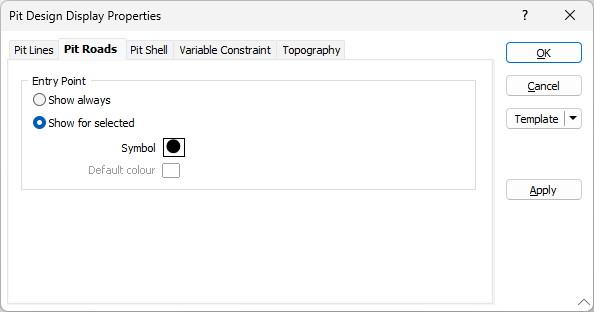
Whether to display the Entry Point used as a handle to interactively move roads and whether to fill polygons, along with the applicable parameters are configured on the Pit Design | Display Properties | Pit Roads tab.
Entry Point
The Entry Point options are used to configure the display of the point used as a handle to interactively move roads.
-
Select the Show always option to always display the road point as configured with the symbol and display colour.
-
If you select Show for selected, the road point will only be displayed when a road is selected. Colour configuration will be overridden by Vizex selection settings in this instance.
Symbol
Double click in the Symbol cell to select a symbol to be used for the displayed road point:
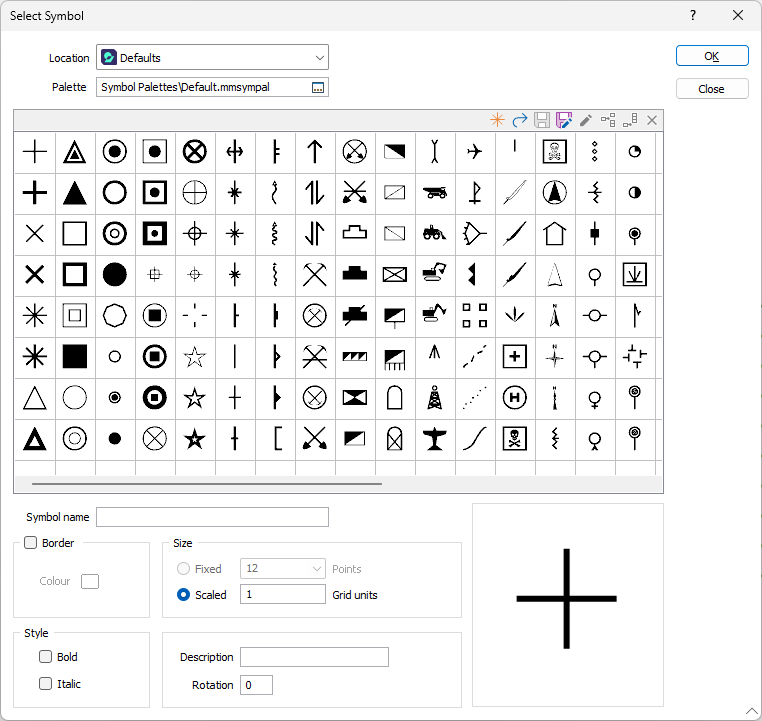
From the Select Symbol form, the symbol can be selected and formatted with Border, Style, Size and Rotation settings.
Default Colour
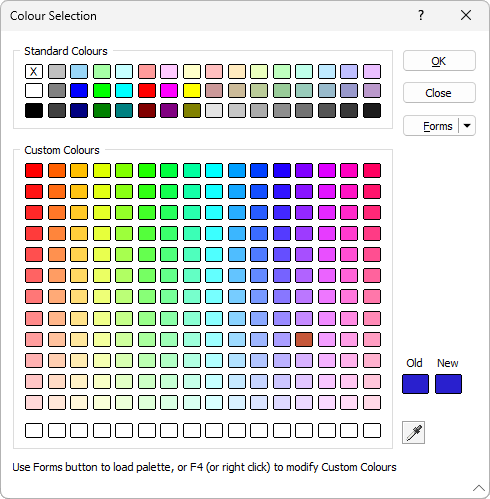
Double click the Default Colour cell to select a default colour for the road point from the Colour Selection form:
Template
The Template button is only available for Template Forms. Template Forms inherit saved or previously used values.
Click the Template button to select and open a saved form set template.
Load Template
Click the Load Template button to select and open a saved template to populate the fields of the form.
Save Template
Click the Save Template button to save the details of the current form as a template that can be loaded at a later time.
Manage
Click the Manage button to open the Template Forms manager which can be used to open, save, delete, import and export the template forms for your project.
Undo and Redo
Click Undo (CTRL + Z) to undo recent changes in the form. After an Undo, click Redo (CTRL + Y) to restore the last change that was undone.
Collapse
Collapse (roll-up) the form to preview a chart, or preview the results of an operation in Vizex, or obtain input values from Vizex, the Property Window, the File Editor, or the Plot Editor.