

Download
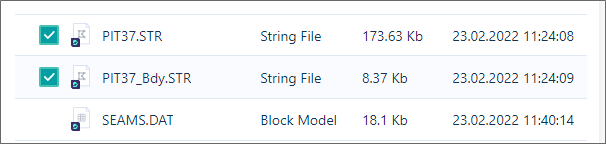
To download multiple files, use the selection check boxes to the left of each file name:
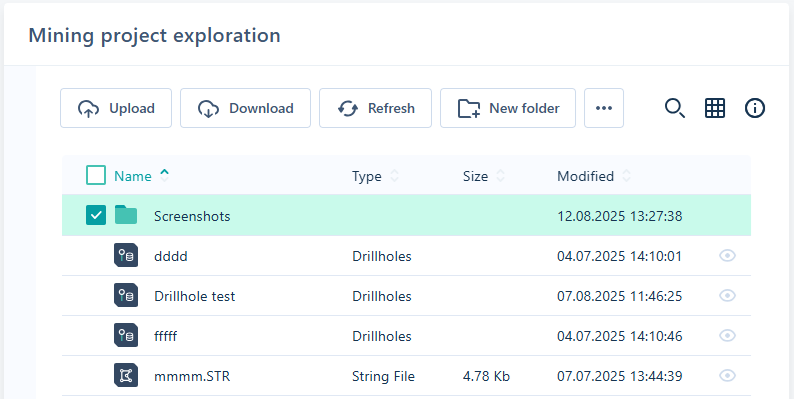
In Nexus, to download all the files in a selected folder, use the selection check box to the left of the folder name:
-
Click the Download button in the toolbar to download the file(s) or folder selected in your Nexus
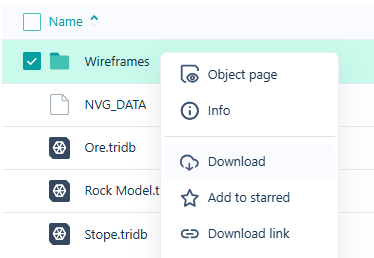
Note: The Download action is also available from the right-click context menu in the file browser for a selected file.
The first time you download multiple files, you may need to allow Nexus permission to download:
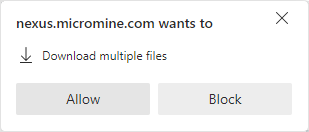
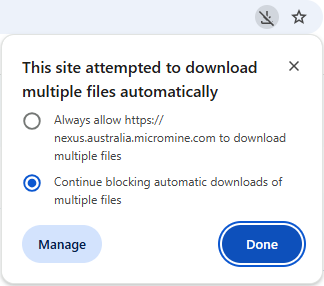
Some browsers may be set to disallow multiple downloads. A prompt will be displayed with the option to allow the download to go ahead. For example:
Folders you download are saved as a .zip file with the same name as the selected folder to your default Downloads location. The [Folder Name].zip file will contain the folder you selected, with all of the valid files it contained.
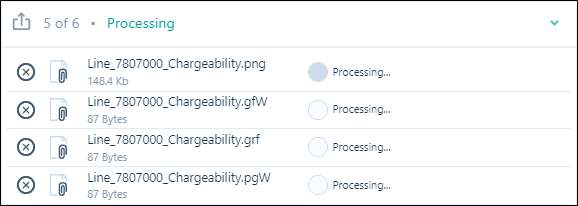
The progress of the download of the files you have selected is shown in a pop up at the bottom of the window:
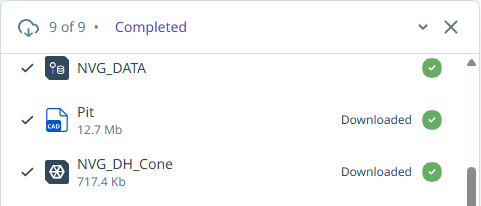
The files will be shown as Downloaded and the status in the pop up will show Completed when the download is done:
Note that you can cancel a download at any time by clicking on the Delete icons to the left of each file name:

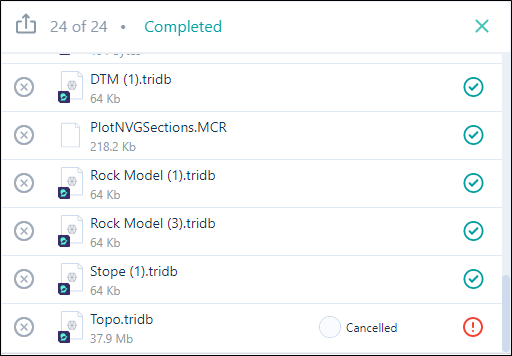
When the file transfer is complete, you can close the Download window:
