

Scan Objects
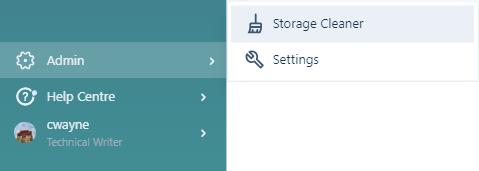
To configure a Storage Cleaner scan for objects, from the Objects tab,
-
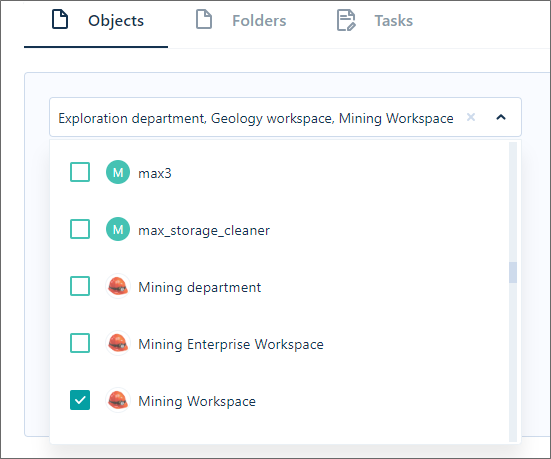
Use the Select Workspace drop down to select the workspace/s to be scanned.
You can select multiple workspaces for the scan using the check boxes at the left of each workspace name.
-
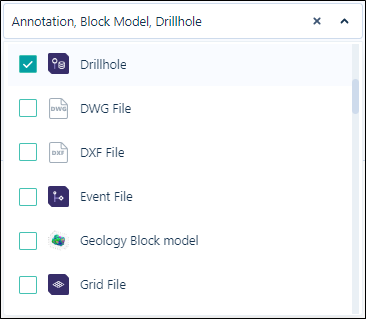
From the Attribute Set drop down, select the attribute sets to be found by the scan for possible deletion.
As with Workspaces, you can select multiple attribute sets for the scan.
-
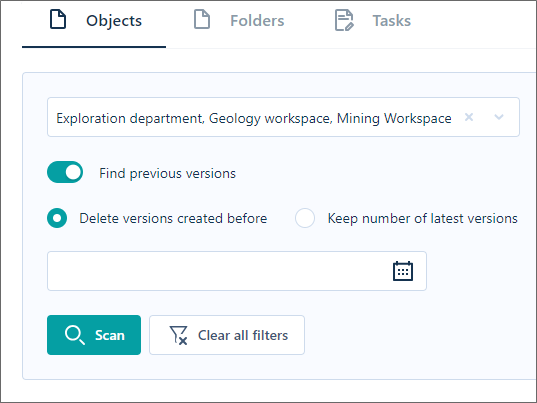
If you enable Find previous versions, the versions options are displayed.
-
If you select the Delete versions created before option, use the Calendar button to select the date/time of creation before which versions of the objects will be found by the scan for deletion.
For example, to only include object versions created more than a year ago in the scan, set the date to a year prior to now.
-
If you select the Keep number of latest versions option, use the up and down arrows in the field to set the specified number of latest versions not included in the scan.
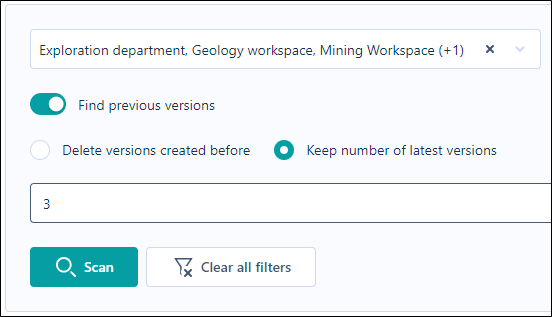
This will limit the scan results to only the versions of the object/s that are older than the specified number of versions.
You can use the Clear all filters button to remove any of the Workspace and Object type and version filters you have applied.

When the relevant filters have been configured,
-
Click the Scan button to begin the Storage Cleaner scan.

The objects which meet the configured scan criteria will be displayed in the Objects tab.
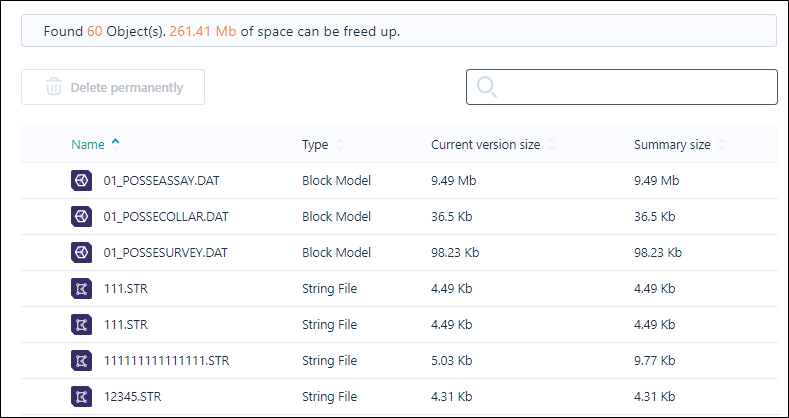
The number of results found and the amount of space that can be saved by permanently deleting all entries listed is displayed above the results.
For objects, the Name of each object and the object Type is listed in the results along with the Size of each individual object and the combined Summary Size of all the versions for that object (if any). Folder results display the Name and Description for the folder or form set, along with a last modified Timestamp.
To find a specific result, you can enter text in the Search field to find results by object name and type.
If you hover on an item in the results list, the Info icon for that item is enabled.
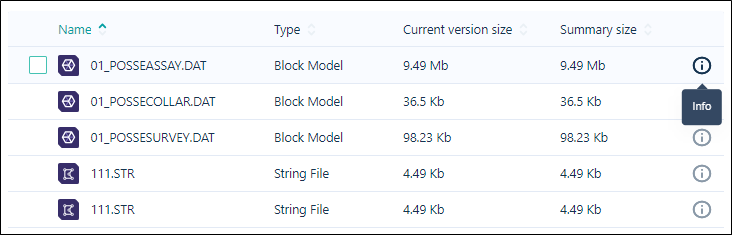
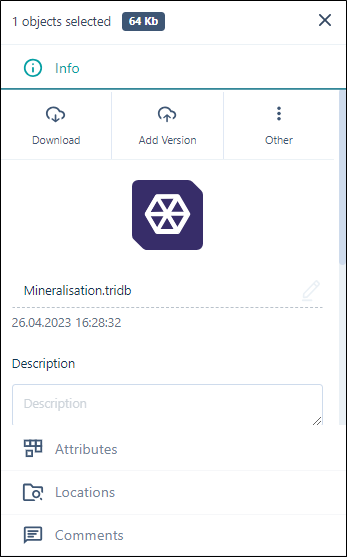
If you click the icon for an object in the list, the Info panel for the object is displayed. You can view information for the object, including versions, attributes, locations and comments.
To remove any object/s to free up space,
-
Select the result using the check box at the left OR
Select All results using the check box at the left of the Name column header.
The size and number of objects selected is displayed above the results.

-
Click the Delete permanently button to delete the selected result/s.
Note: Be sure to only select objects, tasks, folders or form sets you want to delete permanently - the process is irreversible.
When the selected object/s have been deleted permanently, the amount of space that can be freed will be updated.
For information on finding and deleting folders and/or form sets, see Scan Folders. For information on finding and deleting tasks, see Scan Tasks.