

Filter Options
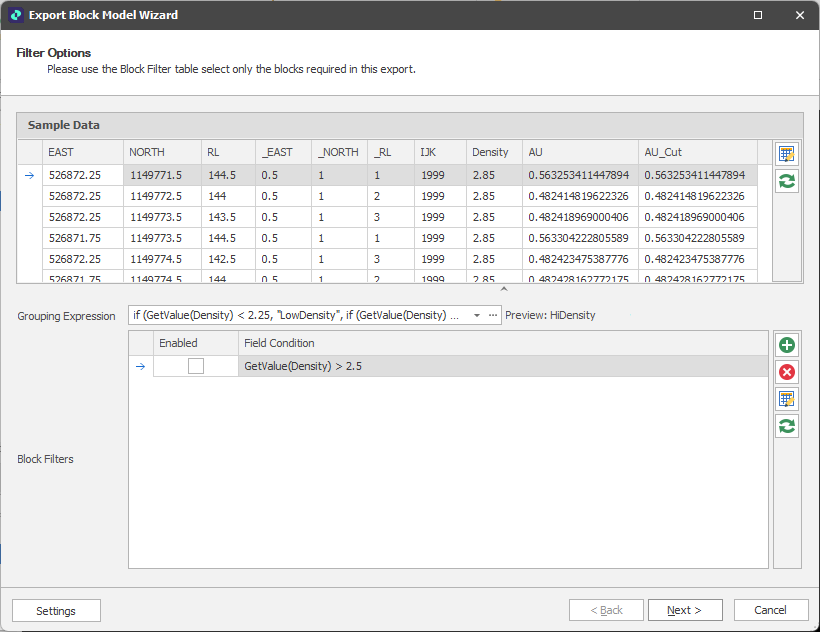
Use the Filter Options page of the Block Model Export Wizard to filter which blocks will appear in the exported block model.
Sample Data
The data in the block model file is previewed here.

|
Use the Bulk Editor to make bulk modifications to the sample data. |

|
Click Refresh to reload the sample data. This may take a while if the block model is not a Micromine block model or the framework needs loading. |
Grouping Expression
(Optional). Use the drop-down or click on the ellipsis to use the Expression Editor to create a Grouping Expression that will be used to split the block model.
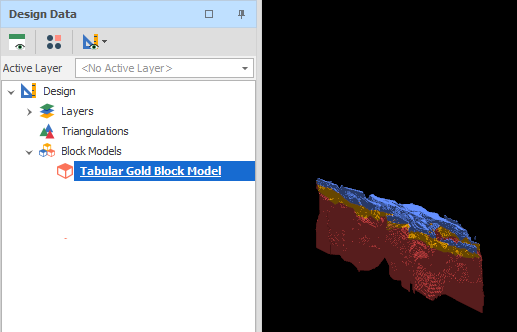
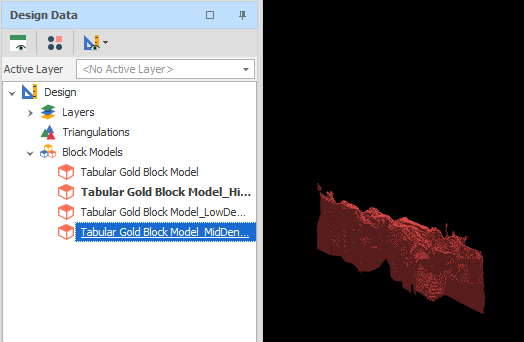
For example, the above source block model can be split into three using a grouping expression based on Density values in the block model:
if (GetValue(Density) > 2.5,"LowDensity", if (GetValue(Density) <= 2.5, "MidDensity", "HiDensity"))
Note: When you define a group expression, each group name is appended to the name of each output file and the name of each layer (when imported):
Block Filters
Use the toolbar to manage the list of field conditions you can use to filter the data in the block model file.
|
|
Add a new row to the list. |
|
|
Delete the row(s) currently selected in the list. |
|
|
Use the Bulk Editor to make bulk modifications to the items in the list. |
|
|
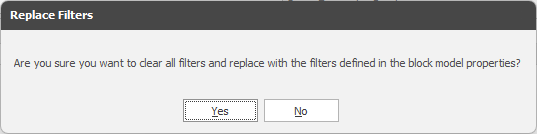
By default, Field Filters applied as part of the Properties of the block model (if any) are also applied to the export process. Click Refresh to clear existing block filters and re-apply the defaults. You will be prompted to confirm (or cancel) the removal of the filters:
|


Field Condition
One or more filter expressions can be defined and enabled to select the blocks you want to include in the exported block model file. Use the drop-down or click on the ellipsis to use the Expression Editor to define each field condition.
Enabled
Tick this box to enable the corresponding block filter expression.
Block Model Export: Filter Options
Settings
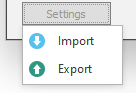
Click the Settings button to import or export settings:
-
Import the settings saved in an XML file.
-
Export current settings to an XML file.
Next
Click Next to use the Field Options page of the Block Model Export Wizard to populate the exported block model with user-defined calculated fields. See: Field Options