Filter
Colour Set
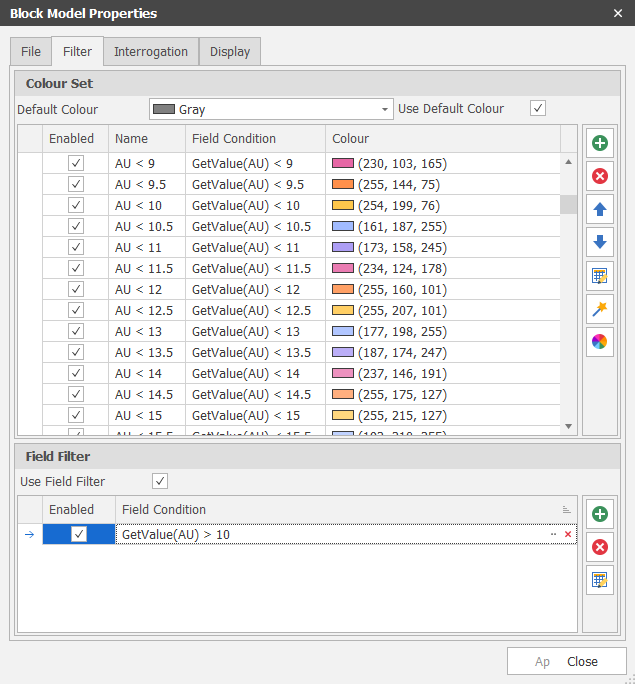
In the Colour Set pane, use the tools provided on the sidebar to create a Colour Set to apply to the Block Model and a Legend:

|
Add a new row to the list. |

|
Delete the row(s) currently selected in the list. |

|
Move the currently selected row(s) Up to reorder the list. |

|
Move the currently selected row(s) Down to reorder the list. |

|
Use the Bulk Editor to make bulk modifications to the items in the list. |
Click on a Colour box to apply a colour from a theme or assign a custom colour. Alternatively, use one of the following tools:

|
The Colour Wizard can be used to generate colour entries based on ?????. |

|
Click the Palette icon to apply a Colour Palette to the entire colour set. |
| You can also use the SHIFT key to select multiple entries, then right-click and select Apply Colour Palette for just the entries you have selected. |
|
|
Use the Bulk Editor to make bulk modifications to the items in the list. |
Field Filters
Select the check boxes to Apply a filter to the Block Model display based on one or more block model field expressions.
Legend
The colours and the filter you have applied to the block model are also applied to a tabbed Legend panel:
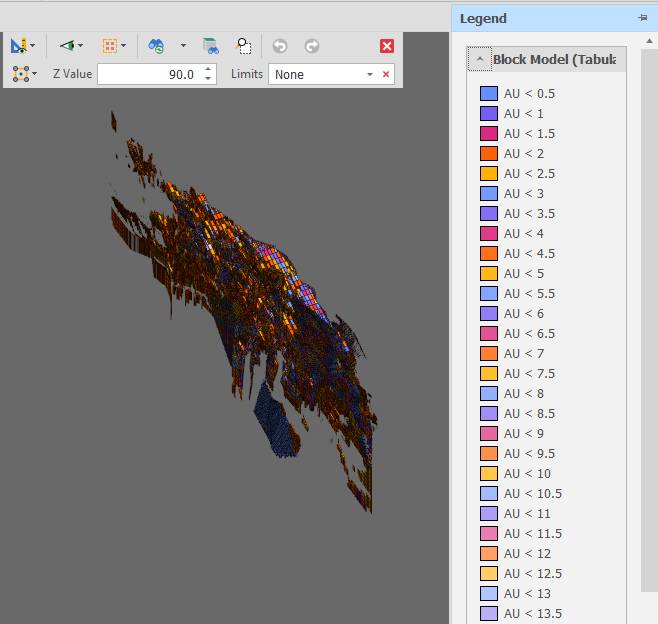
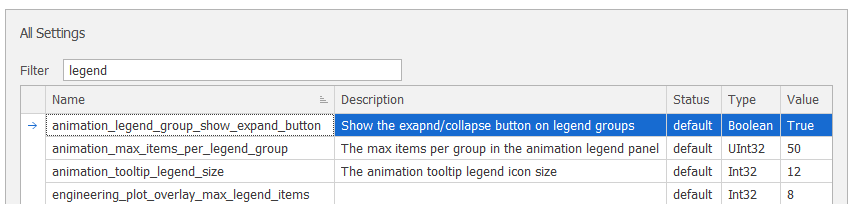
An animation_legend_group_show_expand_button setting can be set via All Settings and default to True. This allows each legend group to be collapsed (hidden) which is useful when many block models/legend groups are displayed.
An animation_max_items_per_legend_group setting may also be used to limit the number of items to display per legend group.