Colour Wizard
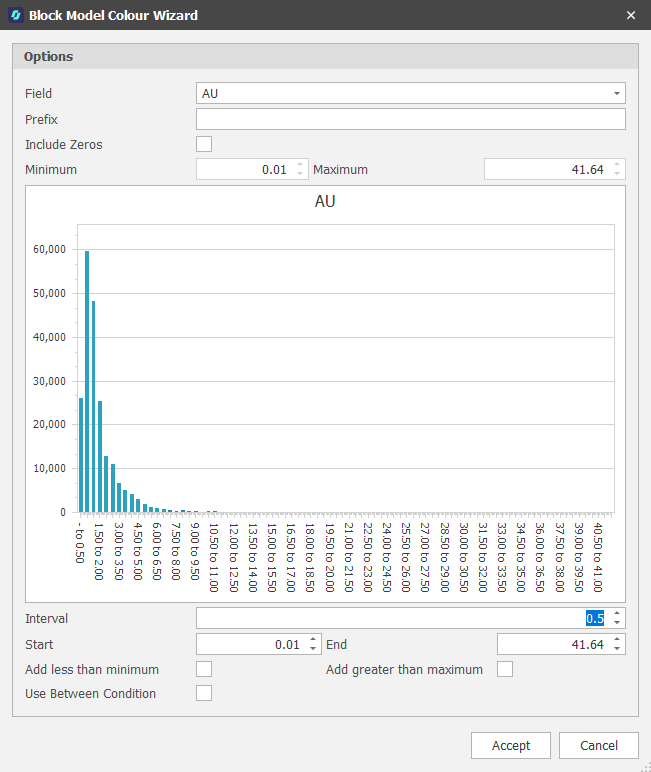
To create a Block Model Colour Set using the Block Model Colour Wizard:
-
Select the Field to colour code by:
-
Optionally specify a Prefix. This might further help to identify the field when its properties are displayed.
-
Choose whether to include fields with zero values.
-
Specify a Minimum and Maximum value for the chosen field.
-
Set an Interval for the Colour Set. Colours wil be ramped by the Intervals you have defined.
-
Optionally specify a Start and End value. These will default to the Minimum and Maximum field values you have specified.
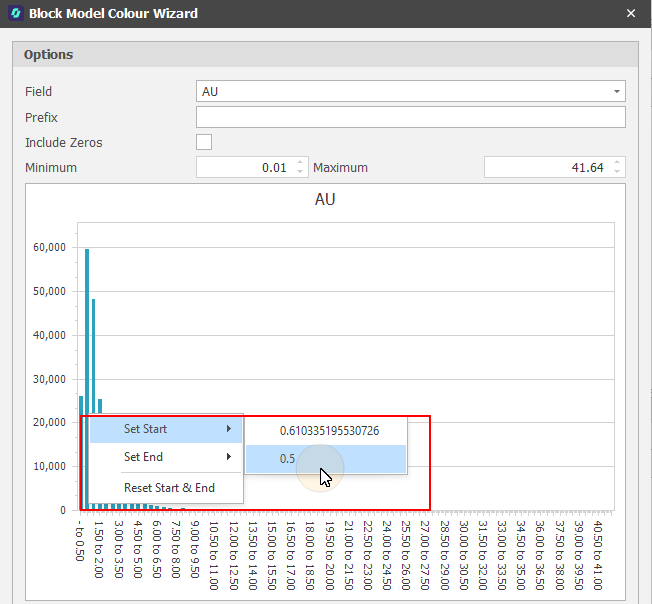
You can also right-click on the bar chart to set values for the Start and End spin edits (or Reset the Start and End to the Minimum and Maximum):
The first Value is the accurate horizontal value based on the cursor position.
The second Value is the nearest interval the cursor is over. If setting the Start, it will use the start of the interval. If setting the End, it will use the end of the interval.
-
You can choose to Add values less than the Minimum to the Start interval.
-
You can choose to Add values greater than the Maximum to the End interval.
-
Choose which Processes to apply the Colour Set to. The default is <All>.
-
Finally, click Accept to generate the Colour Set.
-
Use the tools provided on the Block Model Filter tab to customise the Colour Set further.