Configure and Deploy a Subreport
Before you proceed you should first ensure that the main report template (created in Crystal Reports) has been attached to the corresponding Pitram report and has been tested.
To configure and deploy a subreport:
- Repeat the steps you went through to configure and deploy the main report. See: Configure and Deploy a Pitram Report
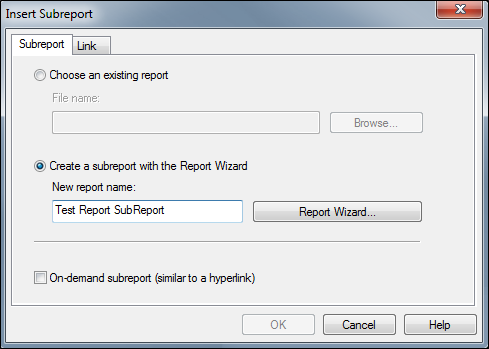
- Open the main report in Crystal Reports and select Insert | Subreport.
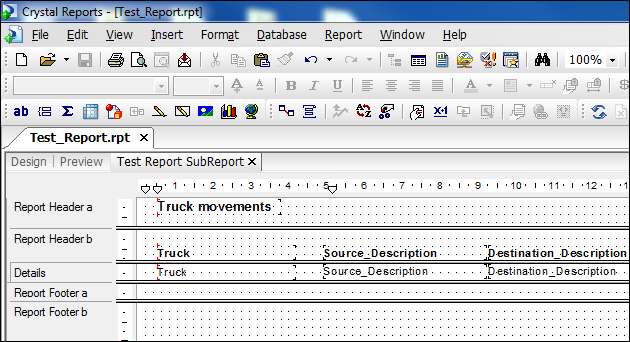
- Use the Report Wizard to configure the appearance of the main report:
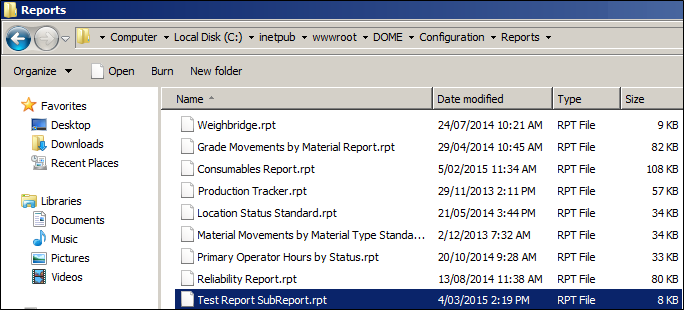
- Save the updated report template to the following folder:
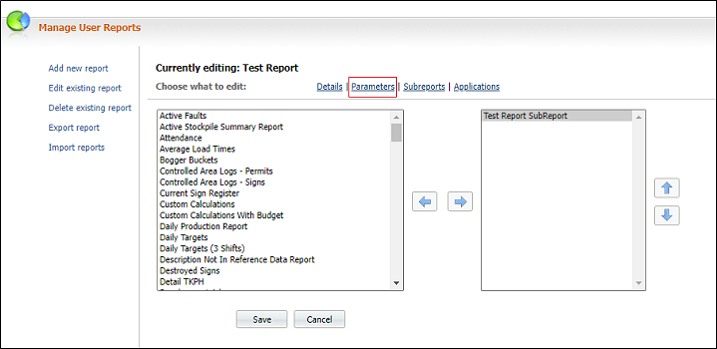
- In the Pitram Reporting Service, select System | Manage Reports and click on the Subreports link to include the subreport in the main report:
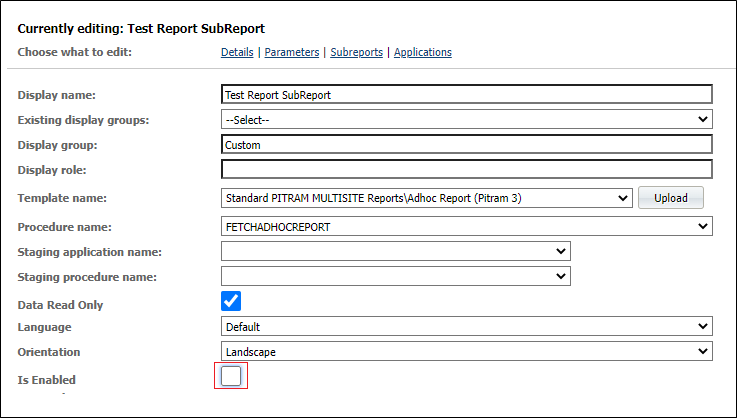
- If the subreport is never going to be run as a standalone report, you need to update it: Uncheck the Is enabled check box. This will remove it from the selection list in the Reporting screen:
In Crystal Reports, you will have saved a separate .rpt file template for the subreport and copied it to the same folder as the main report.
The extra step is to add the subreport to the main report:
C:\Inetpub\wwwroot\DOME\Configuration\Reports\Custom Pitram Reports\<sitename>.
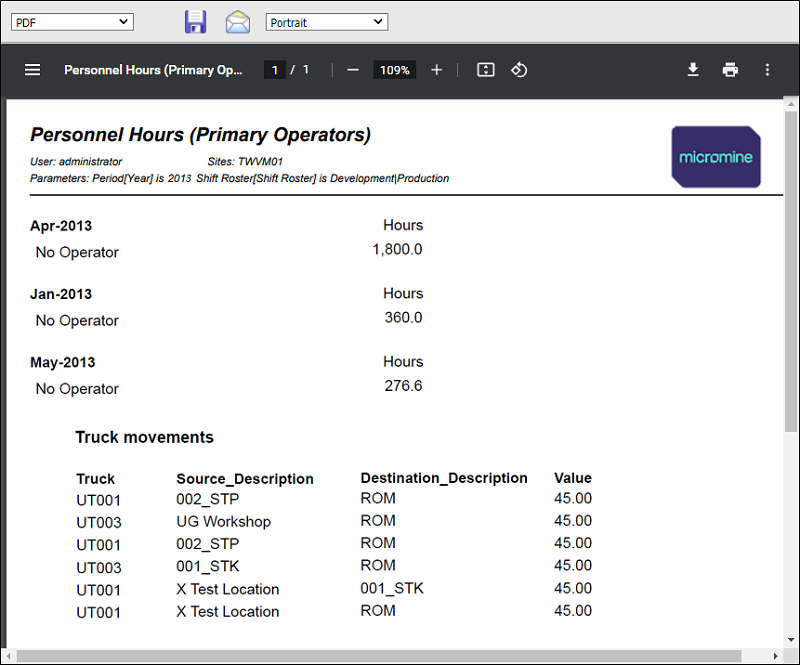
When run, the final report will include the subreport: