

Main View
(as on wider, non-phone screen sized devices)
The main view has the following elements:
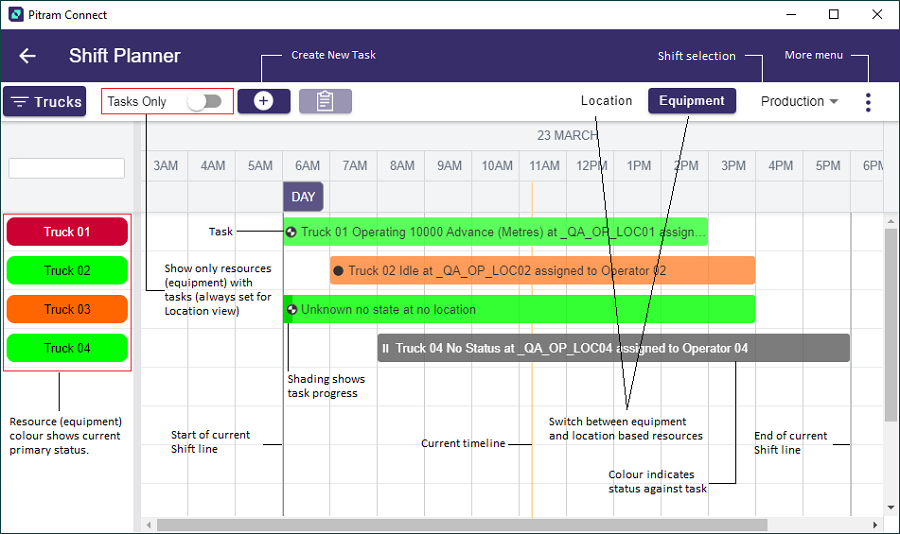
Based off what we see in Data Acquisition, but scaled back a little, we currently have the above information, that should immediately be familiar to anyone who has used the Pitram Shift Planner.
Use the Shift Selection menu to select which Shift to display.
The More menu contains the Select Shift Range and Select Shift Plan options.
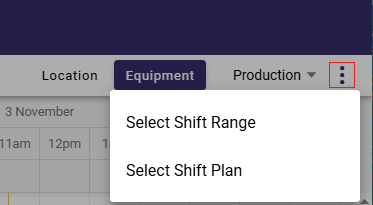
Selecting the Select Shift Range option will open a form allowing you to select a range of shifts before and after the current shift (for the current roster), for which to load data. This enables tasks to be loaded to more than the current shift.
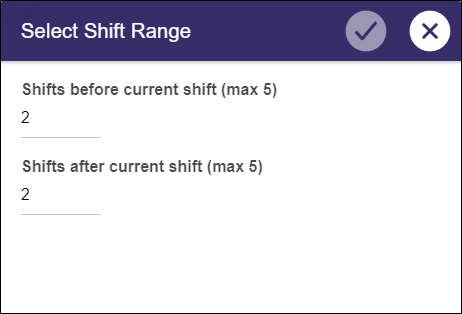
When you tap Select Shift Plan, the Select Shift Plan list will be displayed and you can search for and/or select a plan:
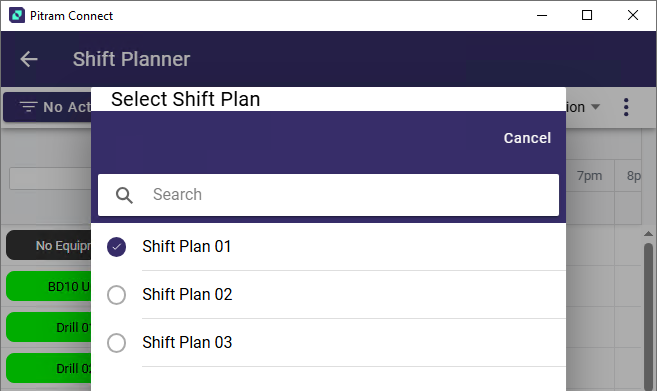
On selection of a Shift Plan, a confirmation message is displayed:

Note: The Select Shift Plan option is only available where more than one Shift Plan exists. For information on importing Shift Plans, see Importing Shift Transactions .
Tasks Only
In the Equipment view, there is the option of either showing all equipment, or just equipment with tasks within the current shift.
This option is not currently in the Location view, this is set to always be Tasks only.
Task Status Icons
Each task will display the task status the left of the task name:
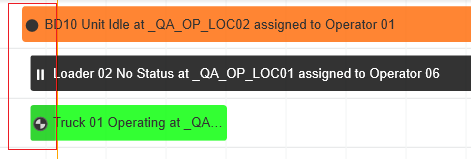
It has the following symbols:
|
Task Status |
Icon |
|---|---|
|
Not started |
|
|
Commenced |
|
|
Suspended |
|
|
Complete |
|


