Configuration
The Configuration menu allows users to:
- Change the Pitram Server
- Clear the Offline Cache for Connect
- Set Connect to Dark or Light mode
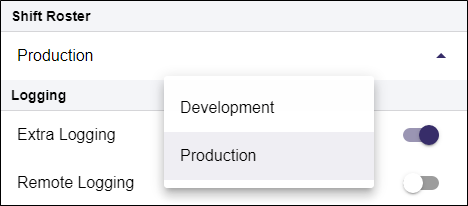
- Set the default Shift Roster for Connect
- Turn on Logging (if instructed to do so by Pitram Support)
- Send Feedback to Micromine Australia Pty Ltd
- Email logs (support logs emailed through the device's native mail client)
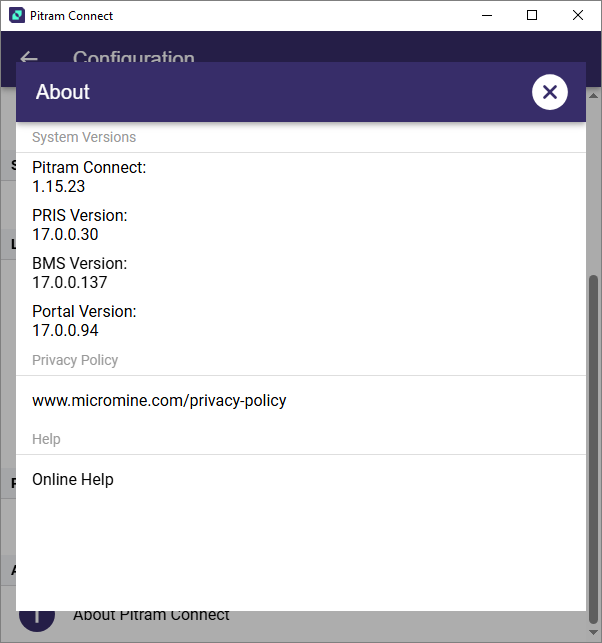
- About Pitram Connect provides user version information here.
Server Startup
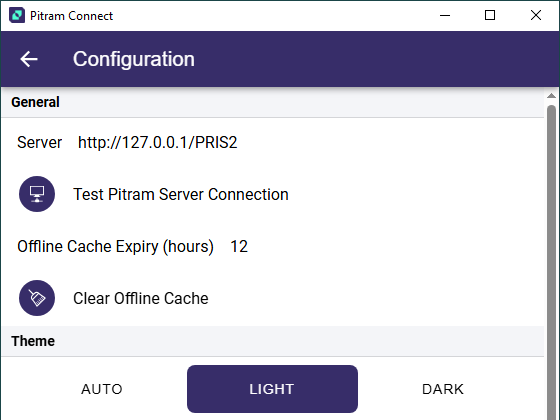
The first time you use Pitram Connect you will need to connect to the Pitram Server:
The Offline Cache Expiry (hours) option determines the length of time for which offline cache is held before being cleared automatically. You can set the value of the option using the spinner control provided.
To clear the offline cache manually, select the Clear Offline Cache option.
The Theme options switch Connect from Light to Dark or Auto mode display. In Auto mode, Connect will be displayed in Light or Dark according to the settings from your Operating System.
Shift Roster
The Shift Roster drop down is used to select the default shift roster to be applied to Connect.
Logging
To enable message logging for diagnostic purposes, tap and swipe to select one or both of the Logging options:
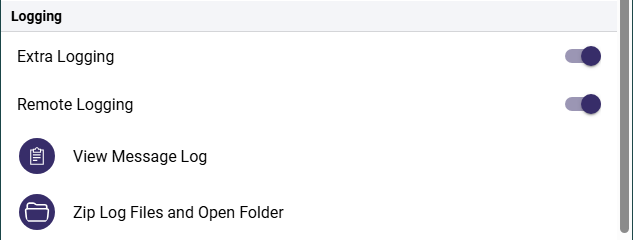
For detailed diagnostic tracing, select the Extra Logging option if advised to do so by Pitram Support.
To enable logging over a remote connection, select the Remote Logging option.
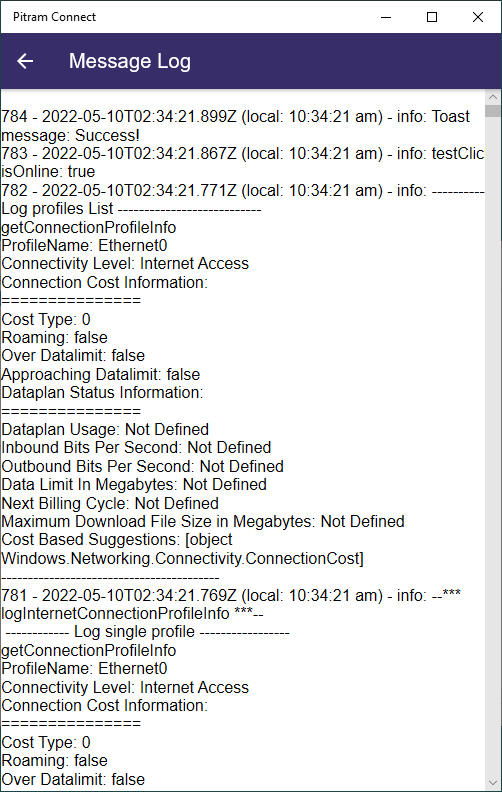
You can also select an option to View the message log and Email message logs to Pitram Support.
Feedback can also be sent using the Send Feedback option.
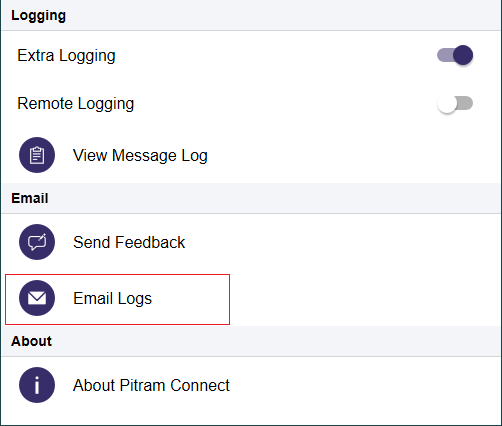
For Windows users, the option to email message logs is not supported. Instead, the Zip Log Files and Open Folder option will add the log files to a zip folder and open the folder where it is saved. You can attach the zip folder to an email created on your Windows device.
Pitram Events
The Pending Events option opens the Event Viewer for Micromine Pitram Connect which displays any pending events and any existing error information. Shift Planner events are not displayed.
When pending events are available, the option will be displayed in red.

-
Tap the Pending Events option to open the viewer.
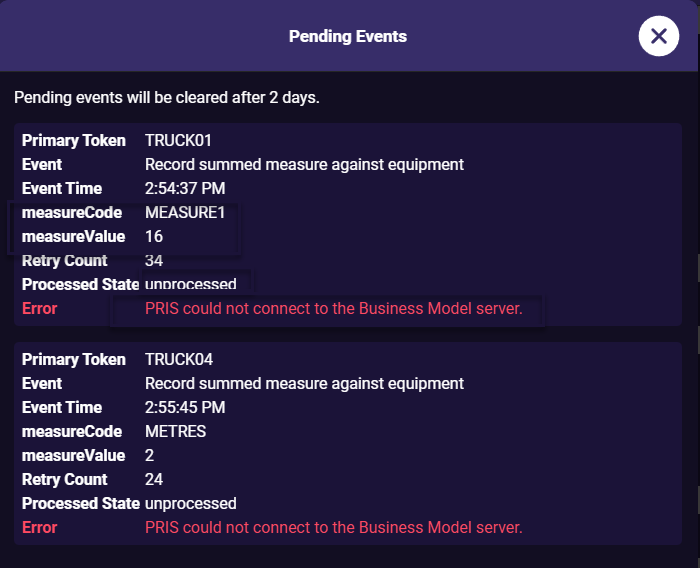
Each event displayed in the viewer is sorted descending, by event time. Pending events are cleared after 2 days.
-
To Close the Event Viewer, tap the cross at the top right.
About
To view Pitram Connect versioning information, tap the About Pitram Connect option: