

Equipment
Equipment pages provide real-time information about the mining fleet during the current shift.
On initial use of the Equipment function you will be asked for a Status Type:
- Select an equipment status type and tap OK:
- Status type can be changed by tapping on the Filter button. You can also manually filter the list of equipment by entering a search string:
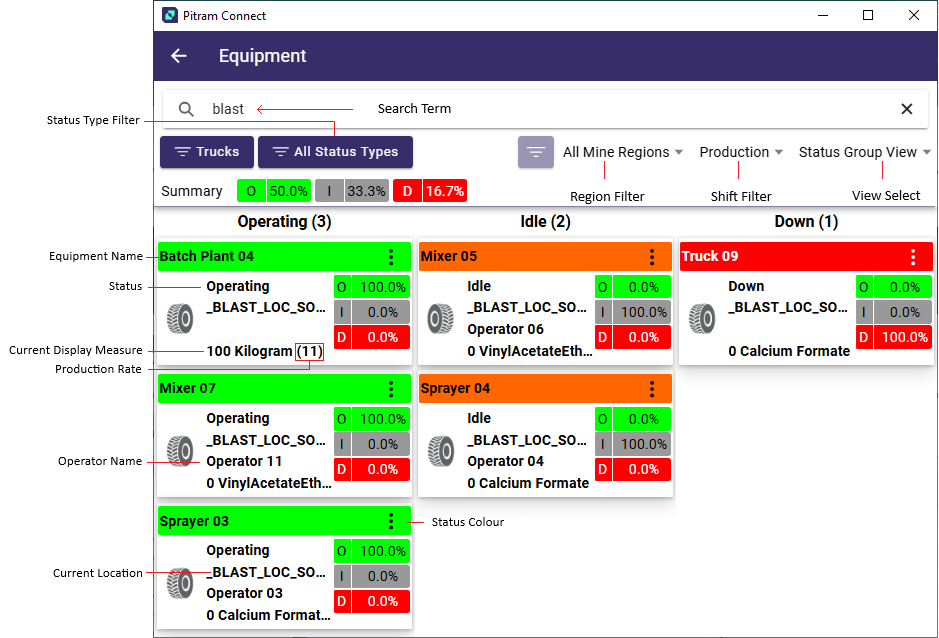
Note: The Production Rate value displayed (in brackets after Current Display Measure) refers to the Measure / Operating Hours, where operating hours is the hours for which the equipment is operating for the current shift. If there are no operating hours for the equipment in the current shift, this value will not be displayed.
Where regions are configured, the Equipment view can be filtered by Mine Region using the Region Filter. Similarly, the Shift shown in the Equipment view can be selected from the drop down.
To switch the view for the Equipment page, select an option from the View selection drop down.
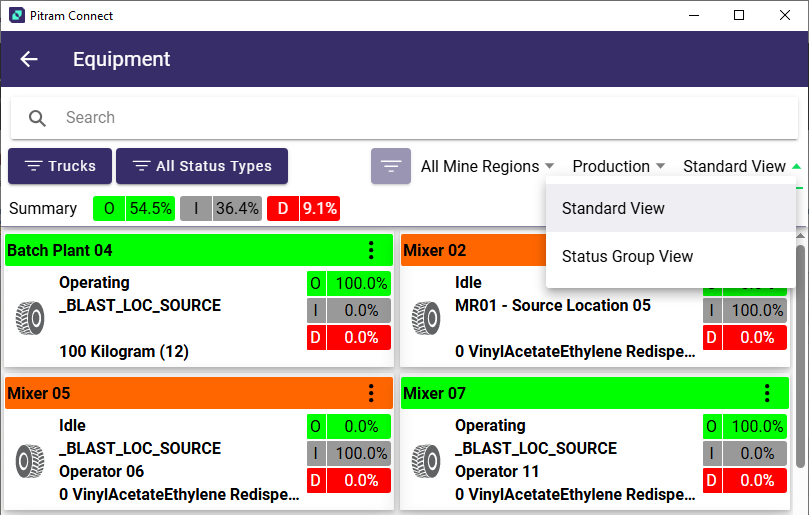
- To view equipment details (location of machine, hours worked, status, etc.), tap on the equipment unit:
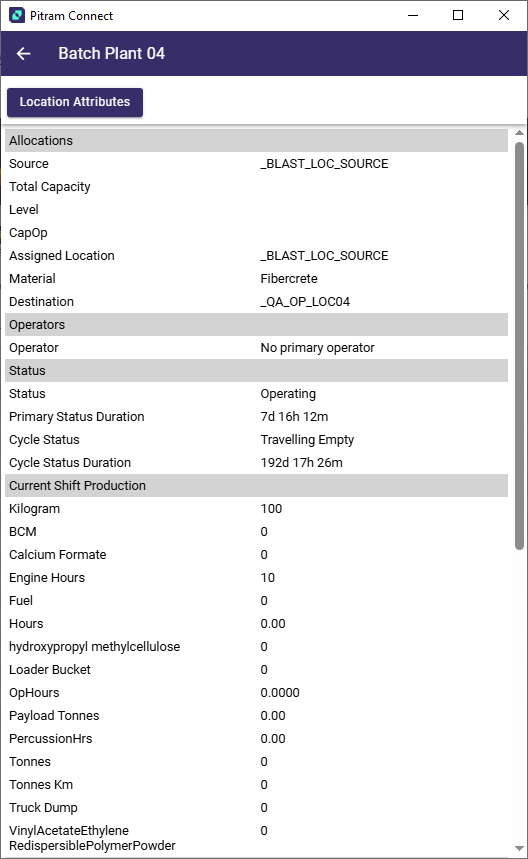
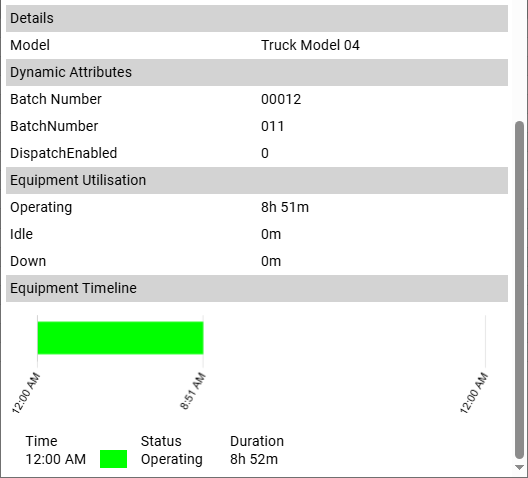
The Equipment details display information on allocations, operators, status, equipment units and more, as well as featuring an Equipment Timeline graph at the bottom of the dialog:
-
The Location Attributes button at the top left of the Equipment Details screen opens the Location Attributes dialog from which you can select and add location attributes for the equipment:
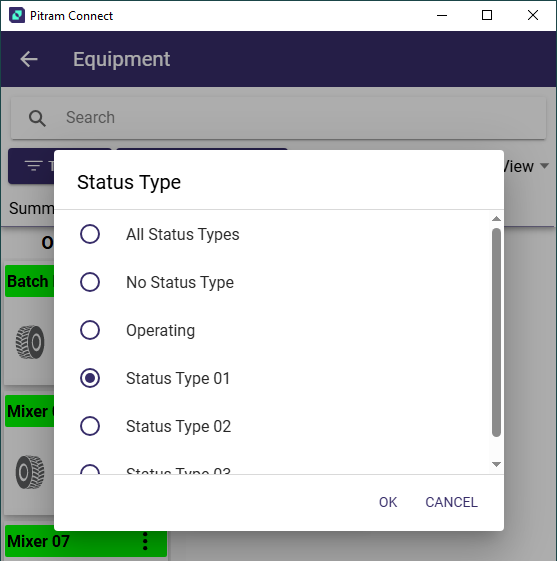
The equipment units that match the chosen status are listed.
The equipment icons displayed on the Pitram Connect screen are configured in the Pitram Portal Reference Edit service. For more details refer to Equipment Model Icons.
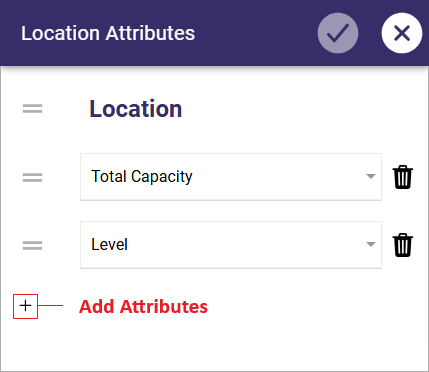
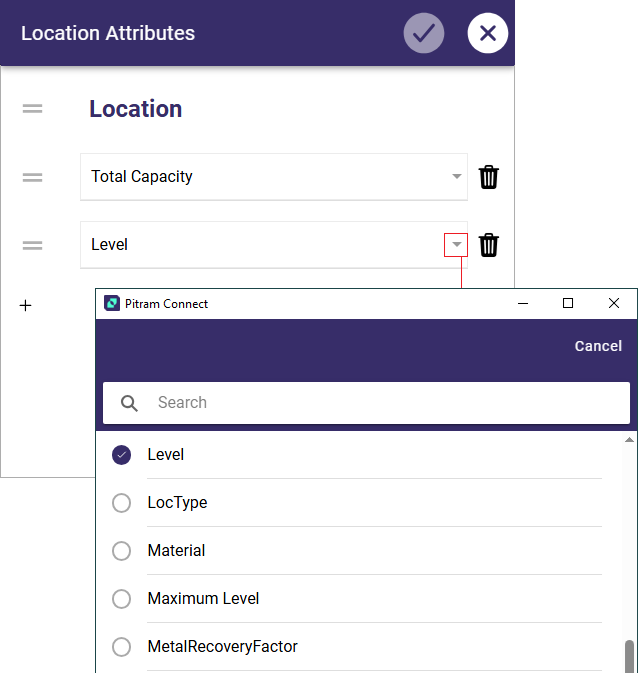
Multiple attributes can be added, and the Select arrow will display a list of attributes that can be selected:
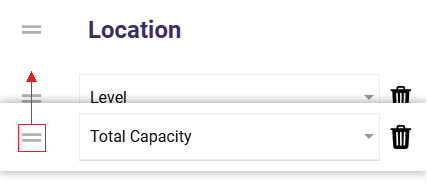
The Location attribute is predefined and can be used to position the attributes your create within the specific location. You can modify the order of the attributes using the drag handles at the left:
You can use the Delete button to remove any attribute you no longer want to display:
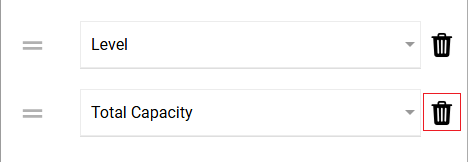
Save any changes made to the Location Attributes using the check button in the Location Attributes dialog, or click the Cross to cancel.
You can tap the back arrow at the top-left of the Equipment details screen to return to the Equipment screen.
More Menu
For the Equipment displayed in the Equipment screen, you can perform a number of tasks using the More menu at the right of each equipment:
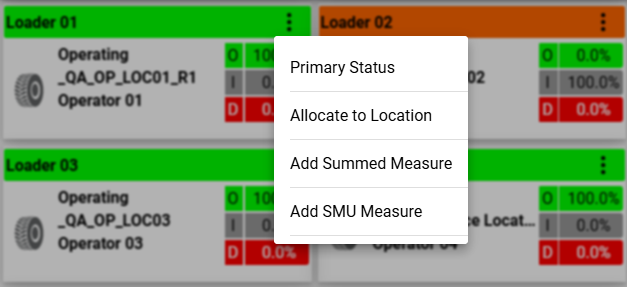
The following options are available:
-
The Primary Status option is used to set the primary status for the selected equipment.
-
The Allocate to Location option enables the allocation of the selected equipment to a specified location.
-
The Add Summed Measure option is used to add a summed measure and a value to the equipment.
Summed Measures relate to the quantity of consumables used (rock bolts, kilos of anfo etc.) or particular measures, such as truck loads, buckets etc.
-
The Add SMU Measure option is used to add an SMU measure to the equipment.
SMU measures are meter readings such as engine hours or fuel. They are recorded against a particular piece of equipment.