

Manipulate tasks
There are a number of ways to manipulate the tasks in the Shift Plan panel.
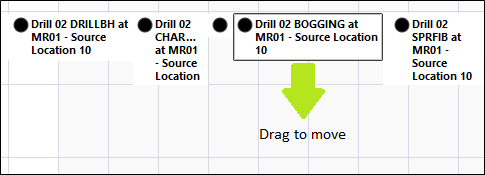
Move Task
To move a task:
- Simply left-click and drag the mouse to where you want to move it.
Copy Task
To copy a task:
- Right-click on the task and select Copy from the right-click menu.
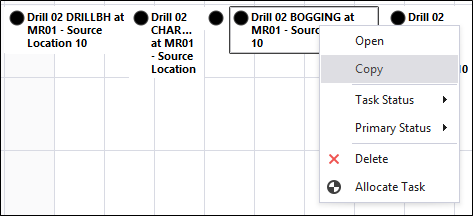
Move the mouse to where you want to copy the task, right-click and select Paste.
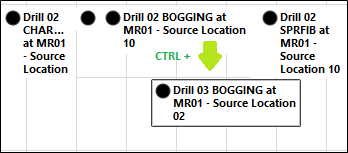
Alternatively, hold down the CTRL key as you click and drag the mouse to where you want to copy it.
There is a limit to the number of operators that can be assigned to a task. 4 for Location tasks. 3 secondary operators and 1 primary operator for equipment tasks.
Extend Task
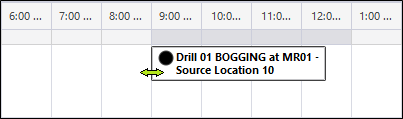
To extend the duration of a task:
- When you hover the mouse over the left or the right edge of the task, an extend cursor is shown.
- Click and drag the mouse to extend the task.
Delete task
There are no restrictions on task deletion, but common sense should prevail. Tasks that are complete are automatically removed from the plan after a period of time has elapsed.
To delete a task:
- Right-click on the task and select Delete.
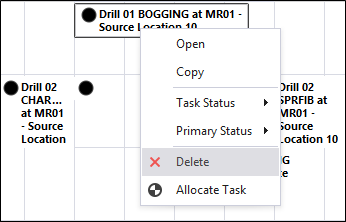
If the task has started, a warning is displayed.
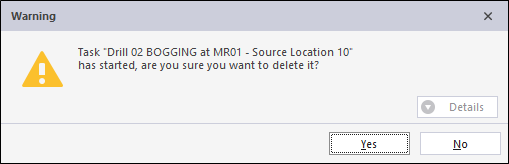
Although you can delete an active task, it is recommended you suspend the task and provide a note prior to deleting it.
Add Task note
To add a note for a task:
- Right-click on the task and select Open.
- Click the Add Note button in the Edit Task dialog.
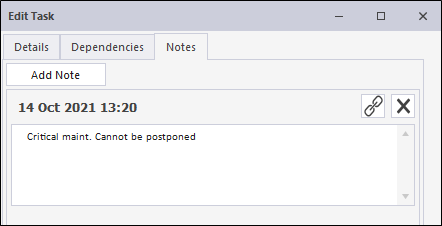
If required, you can use the Hyperlink button  in the Notes tab to enter a hyperlink in your note.
If you click the Hyperlink button, the Insert Hyperlink form opens.
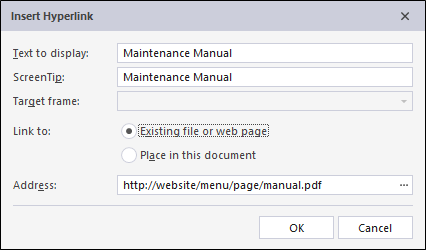
You can configure the hyperlink as required and click OK to place it in the note.
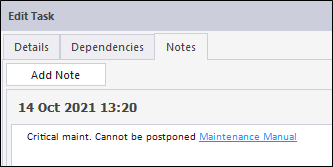
- Click OK to close the Edit Task dialog.
When you enter a note against a task, a Task Note Event is recorded for the shift .