

Profiles
In the Shift Plan panel, a number of profiles can be setup. A profile might be created, for example, to show the availability and the utilisation of the primary loading fleet, or an auxiliary fleet of water carts.
Multiple profiles can be created for the same shift plan.
Create a profile
- Click on the Profiles tab (at the top of the Shift Plan panel) to open the Profiles pane.
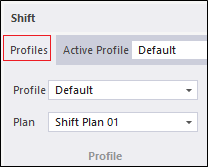
- In the Profiles pane, click the down arrow in the Profile box to display the Profiles form.
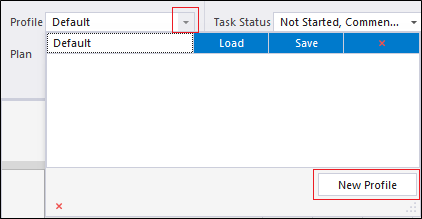
The same form is used to load, save or delete the profiles you have created. Initially, however, there will be no profiles listed.
- Click New Profile and enter a name for the profile in the input box provided.
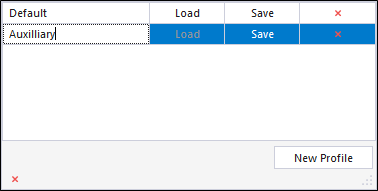
- Click Save to create the new profile.
You cannot load the profile and edit the properties of the profile until you have saved it.
- Select the profile you have created and click Load to load it.
When you load a profile, it becomes the active profile. In other words, the Setting up a profile you select are applied to the view of the Shift Plan.
Delete a profile
- Click on the Profiles tab (at the top of the Shift Plan panel) to open the Profiles pane.
- In the Profiles pane, click the down arrow in the Profile box to open the Profiles form.
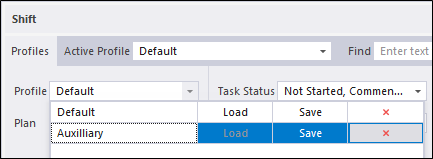
- Select the profile you want to delete and click the Delete button.
Load a profile
- Click on the Profiles tab (at the top of the Shift Plan panel) to open the Profiles pane.
- In the Profiles pane, click the down arrow in the Profile box to open the Profiles pane.
- Select the profile you want to load and click Load.
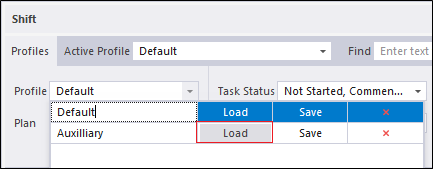
When you load a profile, it becomes the active profile. In other words, the Setting up a profile you select are applied to the view of the Shift Plan.
Save changes to a profile
- Click on the Profiles tab (at the top of the Shift Plan panel) to open the Profiles pane.
- In the Profiles pane, click the down arrow in the Profile box to open the Profiles form.
The current (loaded) profile is selected by default.
- Click Save to save the changes you have made to the current profile.