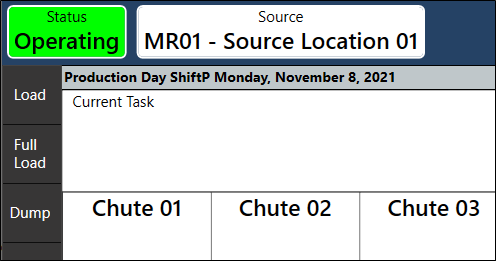
Mobile for Trains: User Interface
Set Wagon Count
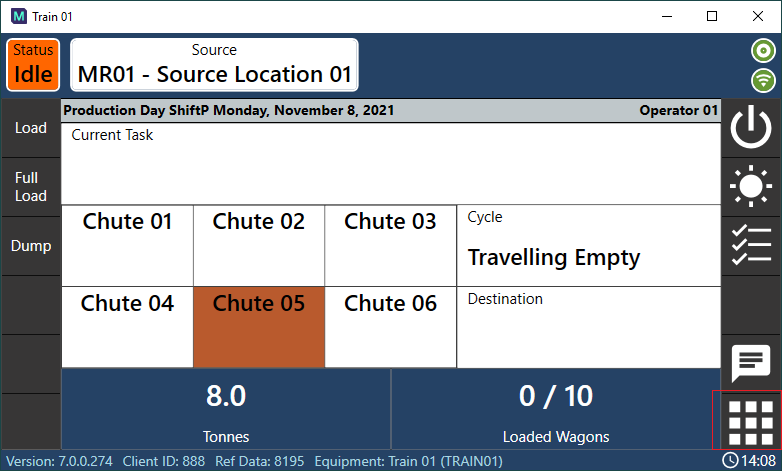
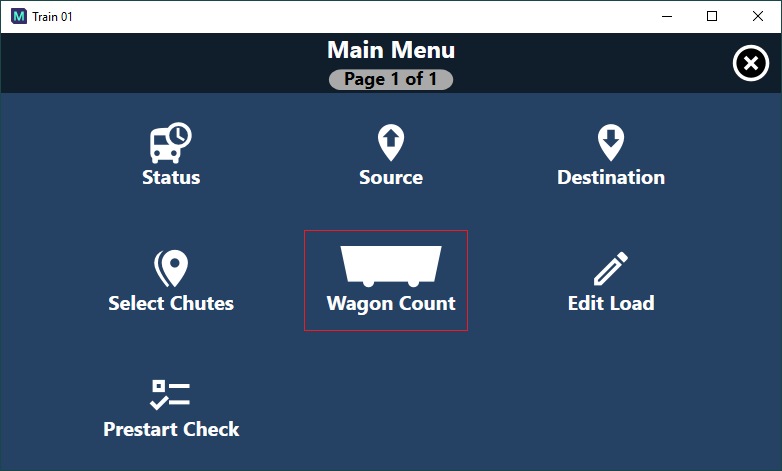
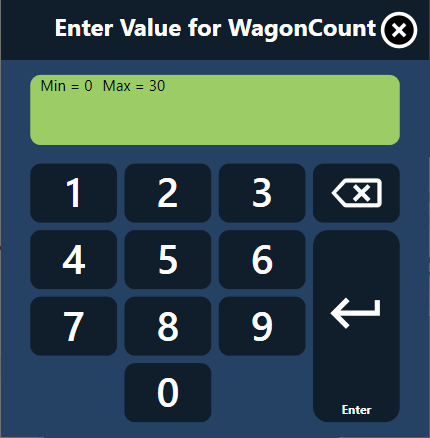
To set the number of wagons currently attached to the train:
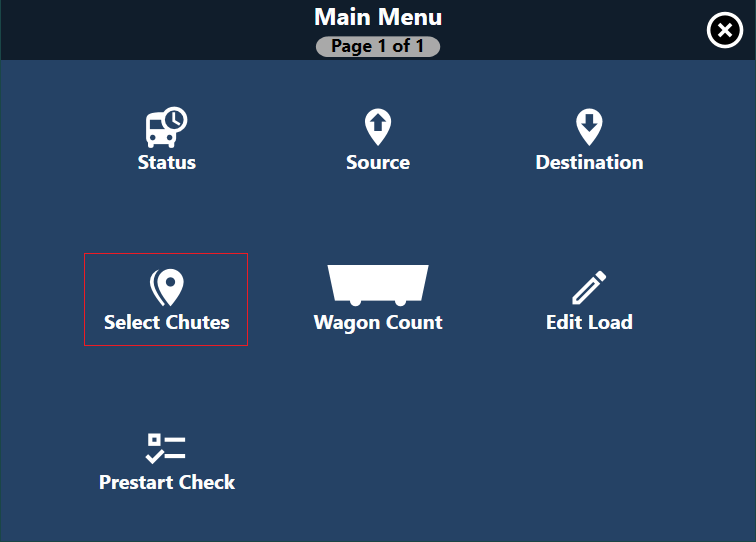
- Tap the main menu button:
- Tap to select Wagon Count:
- Enter the wagon count value:
Setting Up Quick Chute List
The main user interface for the train functionality is via the Train Property Sheet, where there is space for up to six chutes (source locations) from which the user will load the wagons:
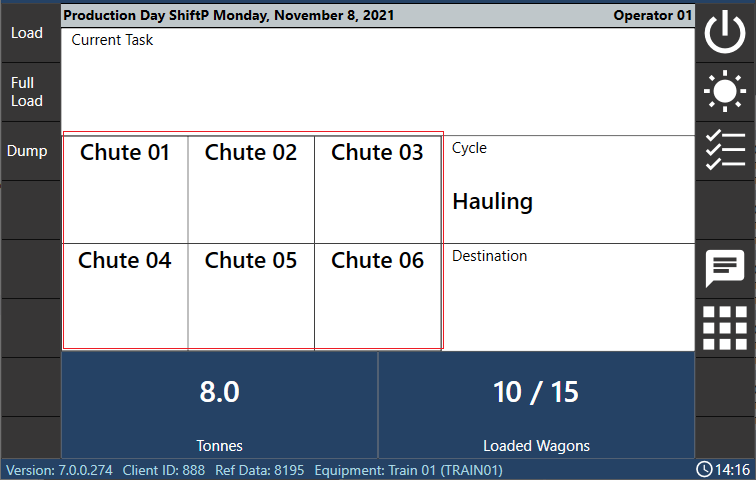
This list of chutes (locations) is set via the main menu:
- Tap the main menu button.
- Selecting Chute List:
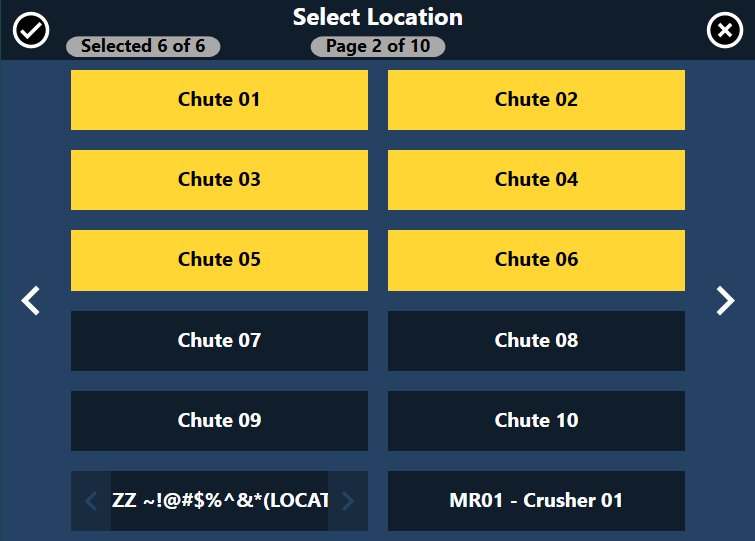
- Tap each chute to select, and then tap the top left OK button (tick) to select these:
A list of locations are shown. Here, you can tap to select up to six "quick select" chutes that will be added to the main property sheet (see the "six chutes (source locations)" selected above.
Main Train User Interface Flow
Loading Wagons
The user will typically work with the main property sheet "quick list" of chutes, together with the side menu buttons to load the wagons and finally dump the train.
To load a wagon from the main property sheet, do the following:
- Tap to select the chute to load from. The chute will be highlighted.
- Press the Load button.
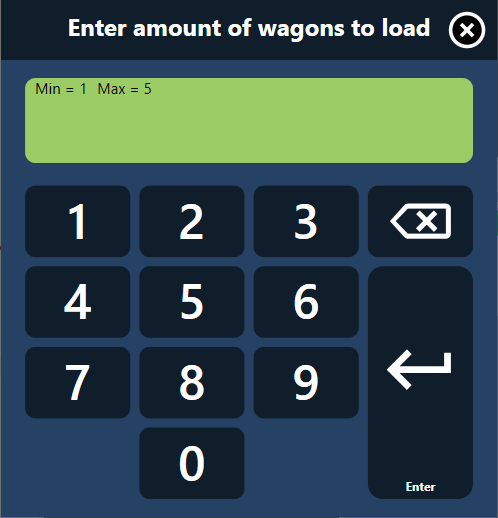
- Enter the number of wagons loaded from this chute:
- Press Enter to submit the events.
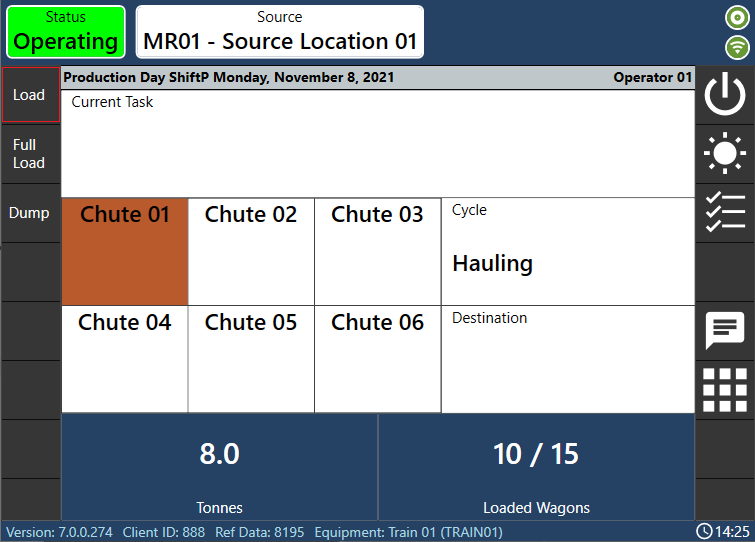
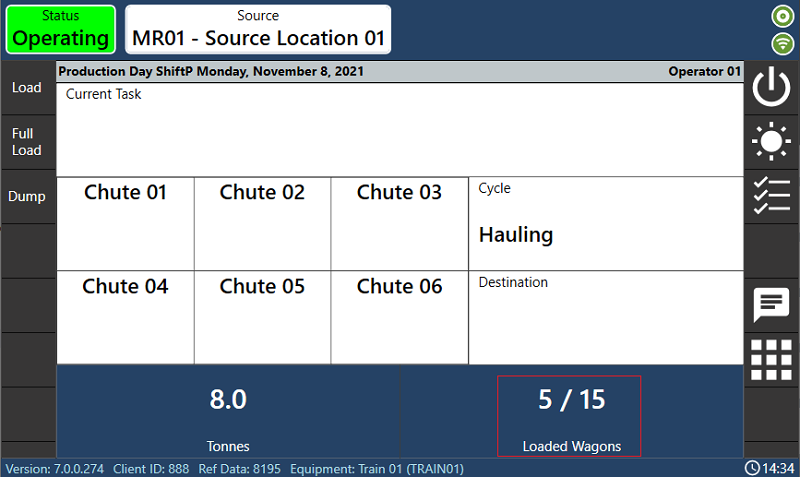
The WAGON LOADED property sheet footer item should update to the total Wagons now loaded:
Editing Loaded Wagons
If mistakes are made when users load the wagons (and before dumping them), the wagons loaded can be edited.
Press the main menu button and select Edit Load.
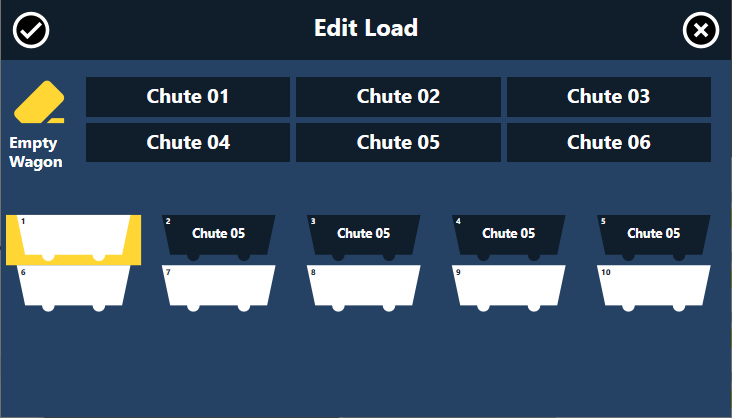
The Edit Load screen will be displayed showing the currently loaded wagons:
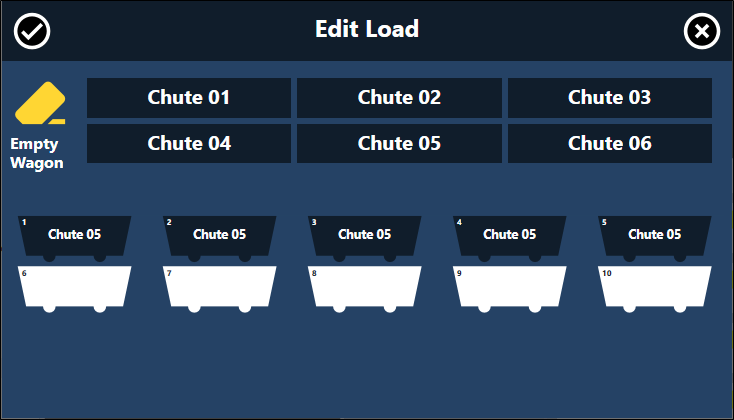
Wagons which are loaded display the assigned chute. Empty wagons are displayed in white.
If you select the Empty Wagon button and then select a wagon with a chute, the wagon is emptied - as illustrated with Wagon 1 below:
To assign another chute to the wagon, select the chute from the list at the top of the screen and then select the empty wagon.
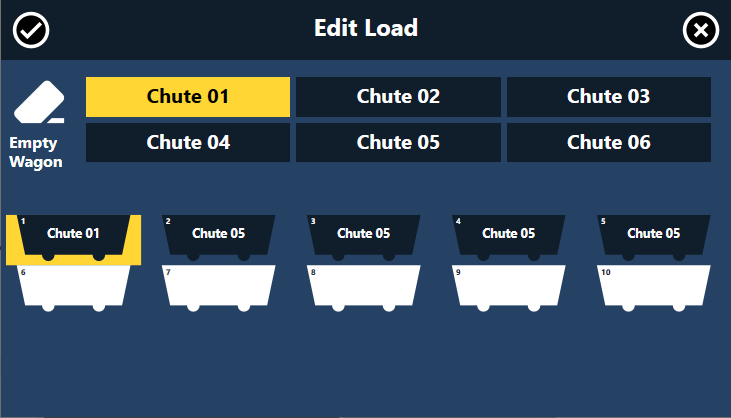
When the load has been modified to your requirement, select the check mark at the top left corner of the screen to save the changes.
Dumping Wagons
Once the train is done loading, and is ready to dump, tap the DUMP button, and follow the prompts as per usual: