

Attribute Sets
Attribute Sets and their Attributes are configured globally and selected at the workspace level. When you upload a file, the option to select its attribute set and set its attribute values is provided.
Default attribute sets
The following attribute sets are allocated to all workspaces by default and are the attribute sets you are most likely to work with as you integrate with other Micromine applications. You can accept the default selection, or deselect any attribute sets that you do NOT want.
|
Name |
Extension(s) |
Description |
|---|---|---|
| Archive | .zip | Zip folder file type to store multiple files and folders in a compressed format |
| Annotation | .mmaxl | Micromine file with dimension values and arrows, text labels and comments |
| Block Model | .dat | Micromine block model file with values for each cell |
| Drillhole | .dhdb | Drillhole object models storing drillhole data from MMO&B for which geometry and internal attributes can be previewed in Nexus Viewer. |
| DWG File | .dwg | DWG file |
| DXF File | .dxf | DXF file |
| Event File | .dat | Micromine Drillhole or Trench database file for point values along the trace |
| Grid File | .grd | Micromine grid surface file interpolated by any mathematical method |
| Image | .svg, .bmp, .gif, .jpeg, .png, .tiff, .jp2, .avif | Image file |
| Interval File | .dat | Micromine drillhole or Trench database file for interval values along the trace |
| Microsoft Excel File | .xls, .xlsx | Microsoft Excel file which can be viewed in the Document viewer. |
| Microsoft Powerpoint File | .ppt, .pptx | Microsoft Powerpoint file which can be viewed in the Document viewer. |
| Microsoft Word File | .doc, .docx | Microsoft Word file which can be viewed in the Document viewer. |
| PDF File | PDF file | |
| Pit Design | .pit | Micromine pit design file |
| Point Assays | .dat | Micromine point file with values for each XYZ coordinate |
| Report File | .rpt | Micromine report file containing results from different calculations |
| String File | .str | Micromine polylines file |
| Survey File | .svy | Micromine surface or UG survey file |
| Text File | .txt, .csv, .log, .xml, .json, .html, .htm, .py etc | Text file |
| Wireframe file | .tridb, .dat, .00t | Micromine wireframe file with surface or solid triangulation, Nexus Object model type for MMO&B Wireframes, or third-party wireframe files for which geometry and internal attributes can be previewed in Nexus Viewer. |
Attribute sets which have been added by an administrator, but which are not part of the default set, are listed in the Not selected pane. You can add them to the Selected pane if you wish.
Note that all attribute sets are customisable except for the Unknown type. If you do not assign an attribute set to a file at the time it is uploaded and Nexus is unable to determine a default type based on the extension, it will be assigned the Unknown type.
Selection
To select attribute sets for the current workspace:
-
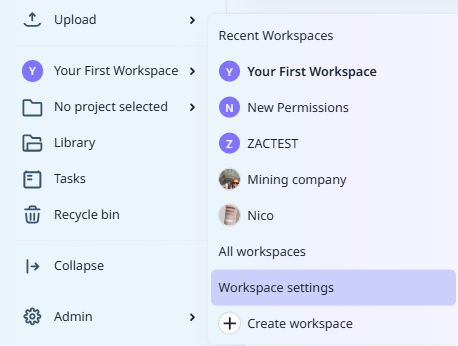
From the Navigation menu: Click on <the name of the current workspace>.
-
Select Workspace Settings.
-
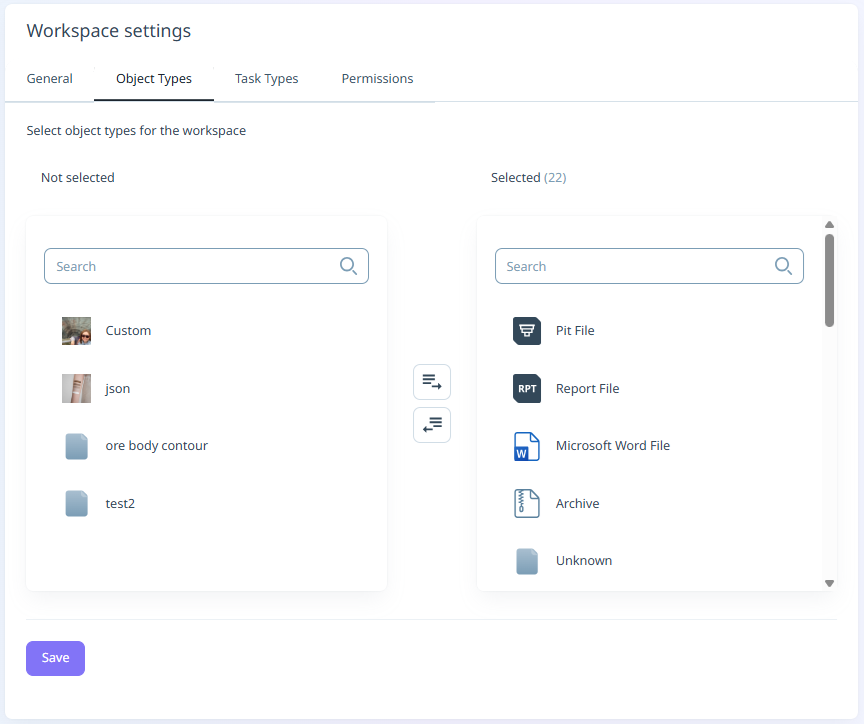
Click to select the Attribute sets tab:
- Select Files from the menu at the left.
Not Selected
The attribute sets that have been configured on the Attribute Sets tab of the Administration window are available for selection in the Not selected pane. Click on the objects to move them to the Selected pane.
Alternatively, you can click the Add All button to add all of the Not Selected items to Selected:

Selected
The attribute sets that you have added to the workspace are listed in the Selected pane. You can move an item to the Not Selected pane by clicking on the attribute set in the Selected pane.
Alternatively, you can move all of the Selected items to Not Selected using the Remove All button between the panes.

Save
When the required attribute sets have been Selected and Not Selected, click the Save button to confirm the changes.
Note: To Create Attribute Sets, you must have administrator privileges.