

Gantt View
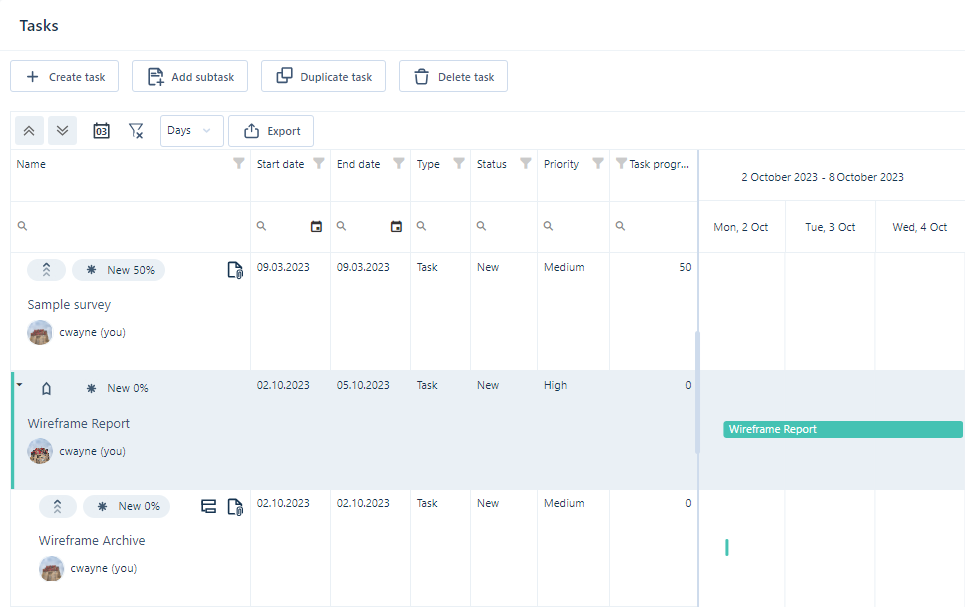
When you create a task it is added to the Nexus Gantt View:
Task Lists
Task are listed to the left of the Gantt Chart. Here you can:
-
Double-click on a task to Edit the properties of that task.
-
Drag column borders left or right to adjust the width of columns.
-
Click on the Filter icon in a column header to filter tasks by the selected column.
-
Enter text in the Search box below a column header to filter by details that match or partially match a search string.
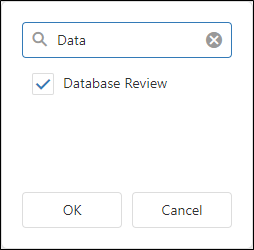
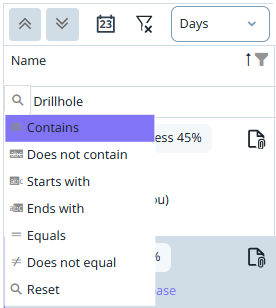
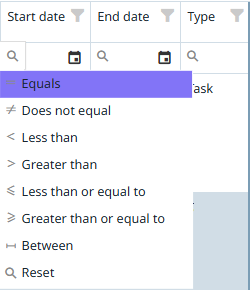
If you click the Search icon, you can select the search type to be performed:
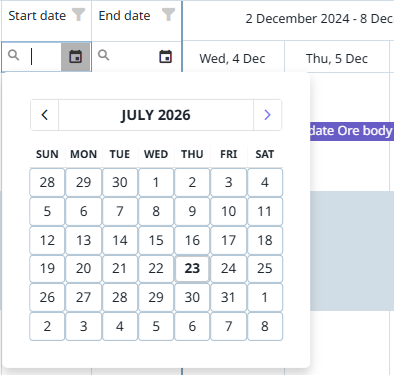
Calendar icons can be used to Search and filter a Start Date or End Date, and additional search types are available:
-
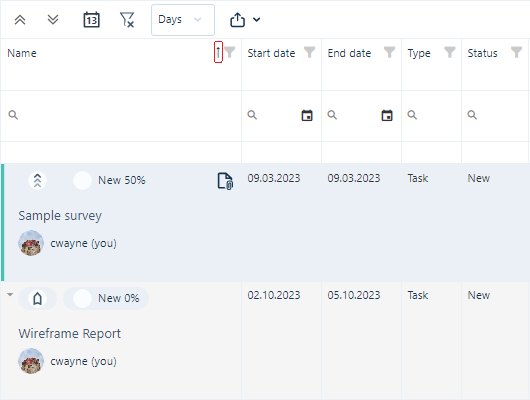
Sort tasks in Ascending or Descending order of any column by clicking the column header. An arrow in a header indicates the active sort order:
-
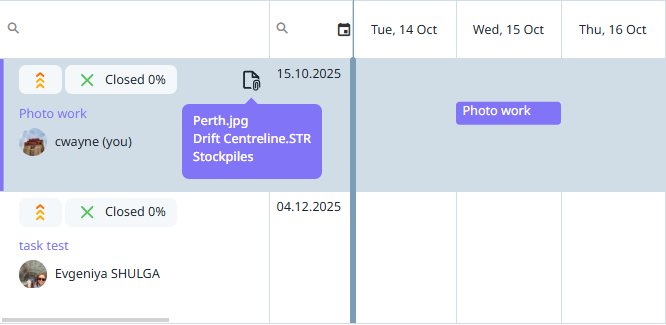
Hover the mouse on an Attachment icon to view a list of the files attached to the task.
-
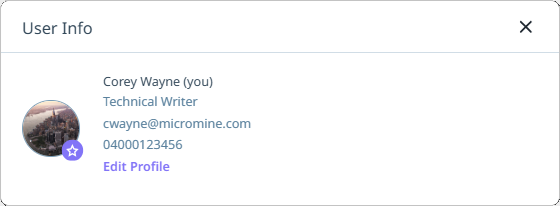
Click the User icon or name of a user to view their details. You can also click Edit Profile if the user profile is yours.
Gantt Chart
A timeline of the tasks in the Tasks List is shown on the Gantt Chart. Here you can
-
Double-click on a task to Edit the properties of that task.
-
View the name of each task or subtask and the Progress of each task or subtask.
-
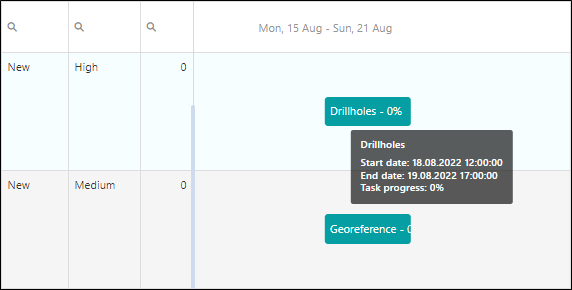
Hover the mouse over a task bar to view a summary of the task or subtask:
Splitter
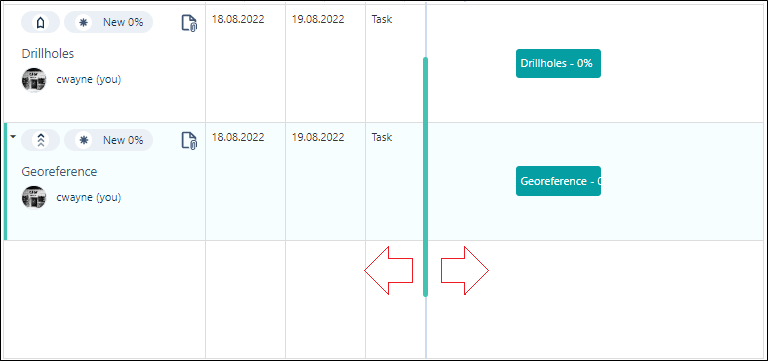
The Splitter in the Gantt Chart allows you to modify the layout of the chart to increase or decrease the view for the Task details or the Calendar. To adjust the view, drag the splitter left r right accordingly.
The following tools are available on the Gantt View toolbar:
|
Tools |
Description |
|---|---|
|
|
Click to collapse all task-subtask groups. |
|
|
Click to expand all task-subtask groups. |

|
Click to Scroll to the current date in the Gantt Chart view. |
|
|
Click to Clear all filters and refresh the current Gantt Chart view. |
|
|
Use the drop down to select the display level for the tasks in the Gantt Chart. You can select Days, Weeks, Months or Years. |

|
Use the Export button to export the Gantt Chart view to PDF for printing. |


Printing the Gantt Chart
The Gantt chart view in Nexus Workspaces can be exported to a PDF which can be printed on your available printers.
If you select Export from the toolbar, the Export to PDF page will open:
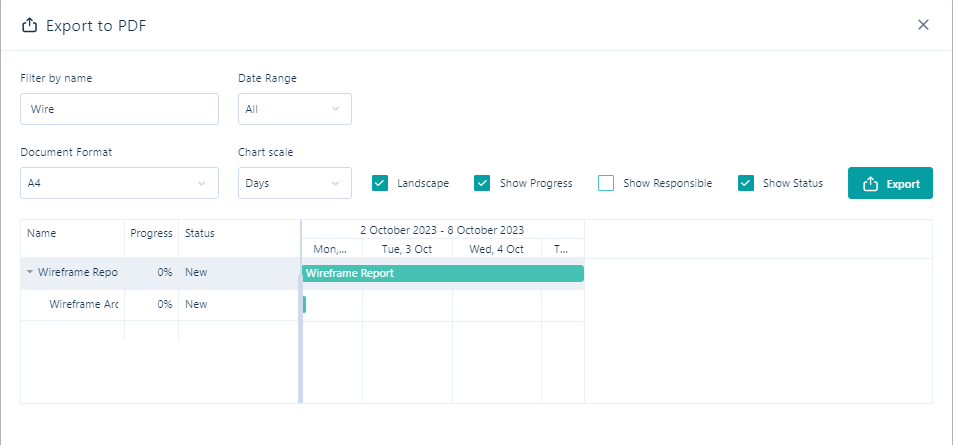
If you enter text in the Filter by name field, the tasks displayed in the Gantt chart will be filtered by any matched characters.
The Date Range drop down list is used to filter the exported view by the date range included.
-
All - will export the specified view for all dates in the Gantt chart.
-
Visible - will export the date range that is currently visible in the chart. For example, if the current view is set to Months and the period from March - October is visible, the Gantt chart export will be limited to those months.
-
Custom - if you select the Custom option, the date range for the export can be specified using the fields provided:

To clear the date range, click the Clear filter button.
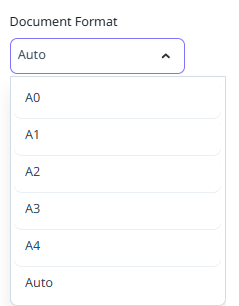
The Document Format drop down is used to select the page size of the PDF file for the exported Gantt chart view - from A0 down to A4. Select Auto if you want the application to select the format based on the Gantt view to be exported.
Use the Chart Scale drop down to select the time scale for the export.
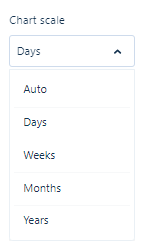
If you select Auto from the Chart scale drop down, the best scale for the configured Gantt chart display will be used.
The Landscape check box, when selected, will set the PDF export to landscape orientation. This option is ON by default as it is often the most appropriate layout.
Select the Show Progress check box to include the Progress column in the display for the exported PDF .
Select the Show Responsible check box to include the Responsible column in the display for the exported PDF .
Select the Show Status check box to include the Status column in the display for the exported PDF .
If you right-click on a task in the Gantt chart preview, the Task Details option is displayed:
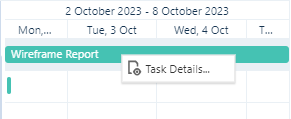
If you select the Task Details option, an information dialog containing the details of the selected task will be displayed:
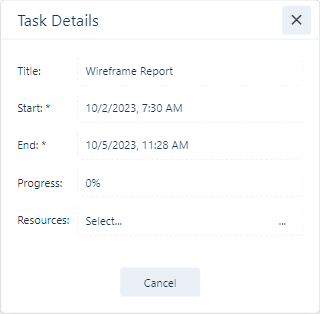
You can close the information dialog using the cross at the top right, or by clicking Cancel.
When you click the Export button, the PDF file will be generated with the configured settings and downloaded to your default Downloads folder. It can be opened in your PDF viewer and then printed to available printers.