

User Profile
Use the User Profile page to set up your account identity and review your personal details and system preferences.
If your Micromine application project is linked to Nexus, this page is also accessible when you select Account Settings in the Licence Manager.
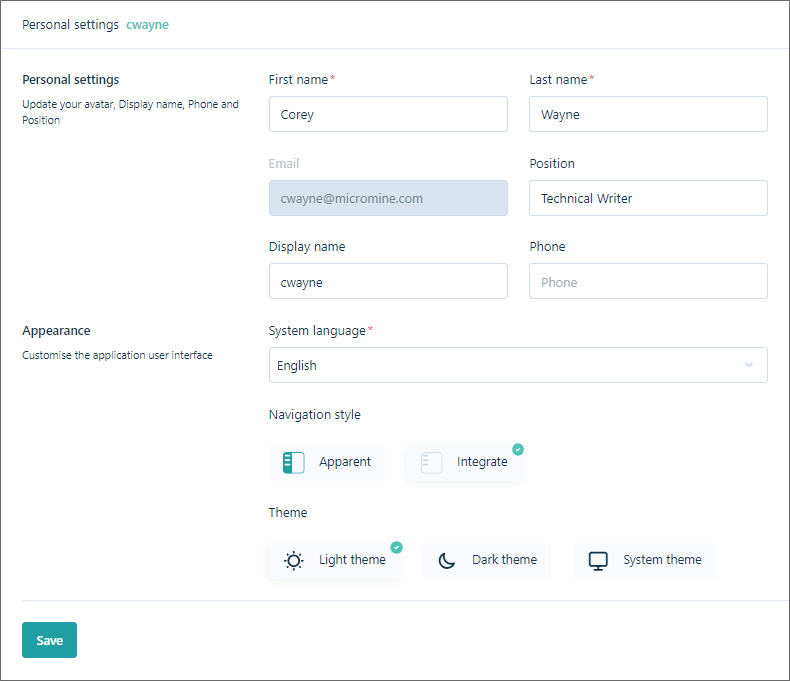
Personal settings including Name, Company Name and Role are very important for the Tenant. As such, it is recommended that Admin request that every user fill User Info with detailed information. This is useful for all members of the Tenant to see the personal details of other users (their name, role, email, contacts etc.) in their User Info panel:
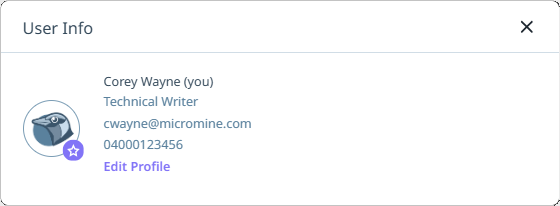
The name entered by each User will be displayed in the User attributes list in the Create task form and other places where a User must be assigned. When creating a task, for example, it will be much easier to select the right Responsible person if the name is present.
First Name and Last Name, Phone, Email
Enter your important contact details.
Role
(Optionally) Specify your role within the organisation or team.
Company Name
Enter the name of the Company you are employed with. Some Tenants may have multiple Companies, so this can be an important detail.
Country
Select the Country in which you are located from the drop down of available countries.
System language
Set the default language for the Nexus user interface. English, Spanish and Russian language options are currently available.
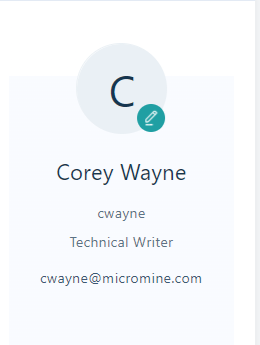
Set default avatar
Choose an avatar. This is how other users will see you when viewing the members of a workspace or project, or when responding to notifications. By default, your avatar will be the your initials in a coloured circle.
When an avatar has been uploaded, you can remove it using the Delete avatar option:
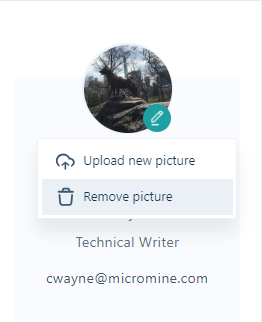
A different avatar can then be uploaded with the Set default avatar option.
For information about Nexus deployment options & subscription plans, click on the following links:
Update
Finally, click Save changes to update your personal settings.
