Search

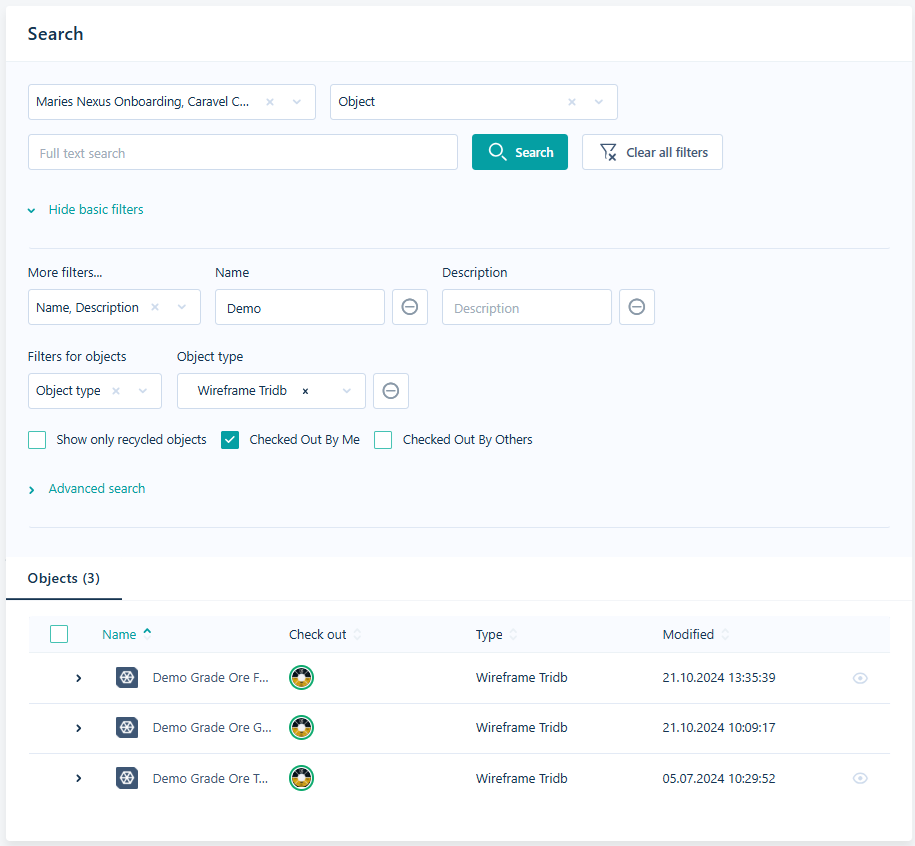
The Select Workspace filter allows you to filter the search by specific Workspaces.
The options in the Type filter are used to filter the search by the type of file for the results: Object, Folder and/or Task.
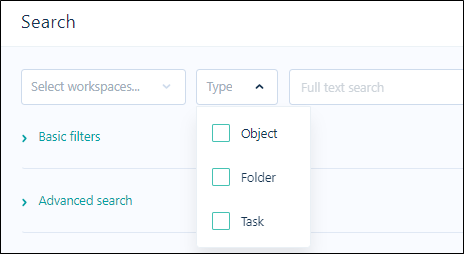
When you enter search text in the Full Text Search field and click Search, the results will be filtered to the Workspaces and file Types you selected.
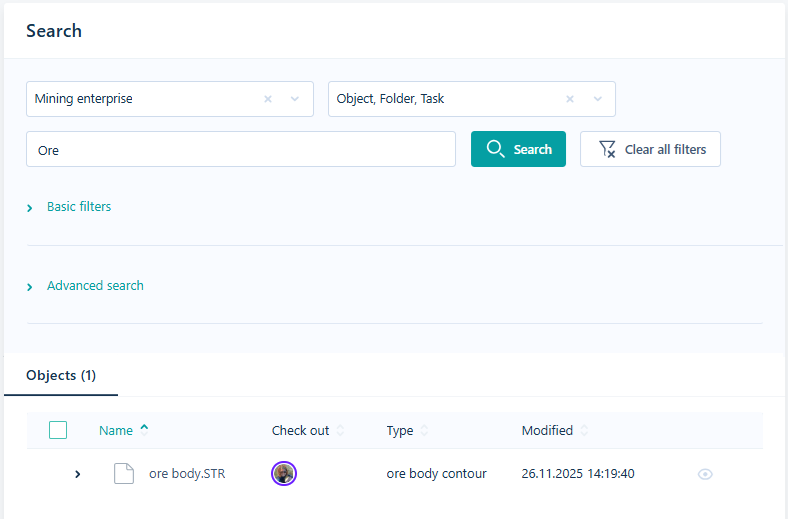
Full Text Search
Search for any object
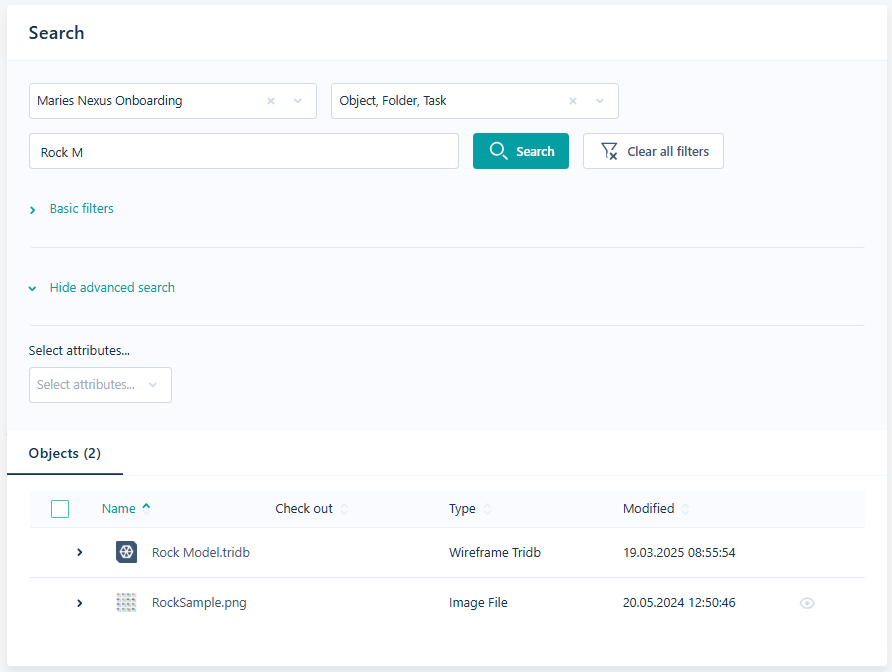
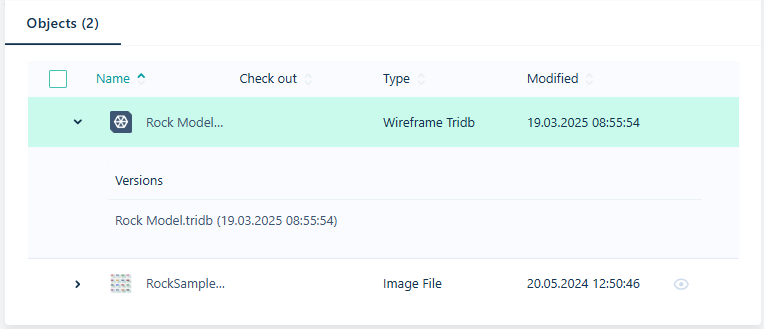
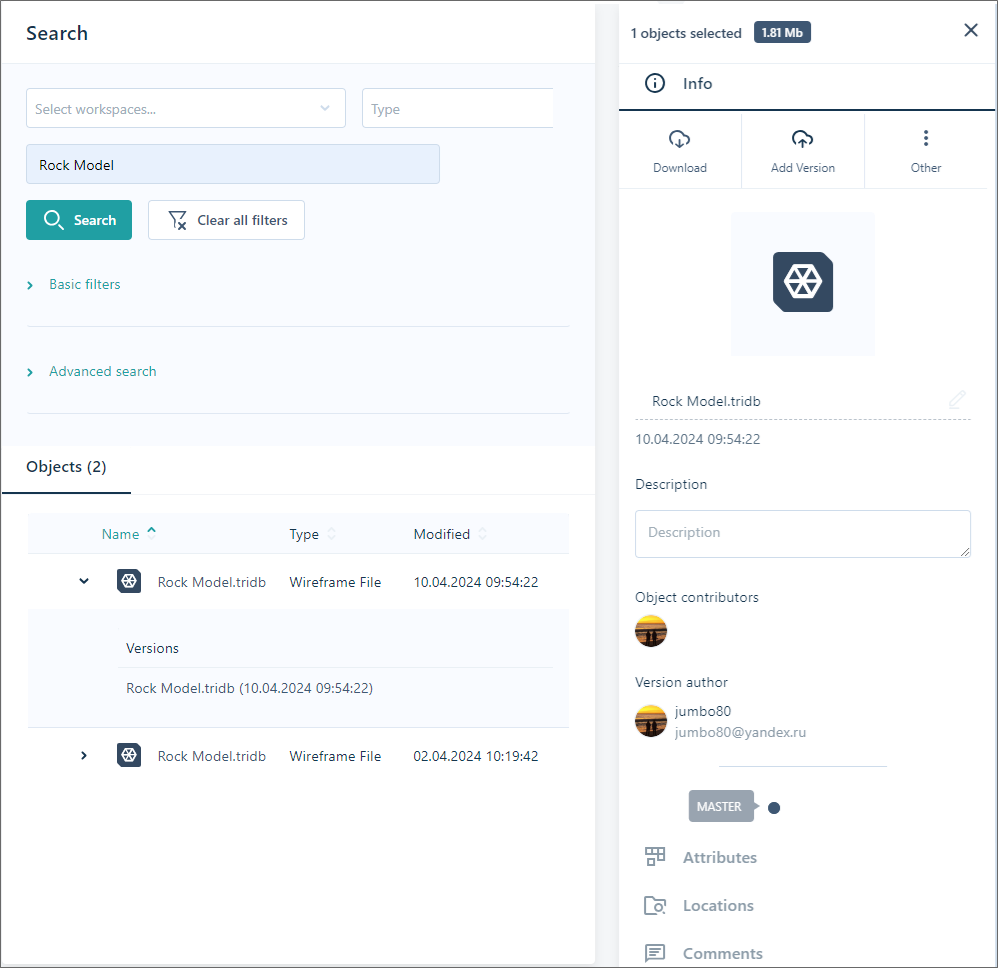
For each object in the search results, you can use the drop down arrow to display all versions of the object and select one to show the details in the Info panel.
Basic Filters
Along with the standard search filters for Workspace and Object, Folder, Task, you can filter your search by limiting the results to a match in one or more of the Basic filters:
|
Filter |
Description |
|---|---|
| Name | Limit the results to any object with a Name that matches or partially matches the text you have entered. |
|
Description |
Limit the results to any file with a Description (property) that matches or partially matches the text you have entered. |
|
Created by |
Limit the results to any file created by the nominated user(s). |
|
Created on |
Limit the results to any file created on the specified date (From) or within the specified period (From - To). |
| Data Type | Select a Data Type to restrict the search results to data objects of the selected type. |
| Attribute Set | Select an Attribute Set to restrict the search results to objects of the selected type. |
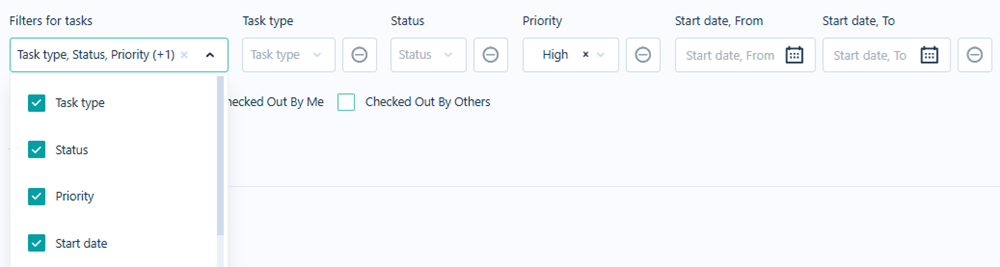
Where Task is selected for search, the Task Type menu in the Basic Filters group allows you to limit the results to any selected:
-
Task Type
-
Status
-
Priority
-
Start Date, End Date, or
-
User (Owner/Responsible/Consulted/Informed)
If you select the Show only recycled objects check box, the search results will be filtered to include only objects that have been deleted and are available to restore from the recycle bin.
The Checked Out By Me check box, when selected, will filter the search results to only those objects that are currently checked out by you.
If you select the Checked Out By Others check box, only results for objects checked out by another user will be displayed.
Advanced Search
Click on the link to set advanced search options:
Attributes
Here you can limit the search results to files associated with the attribute(s) and attribute value(s) you have selected:
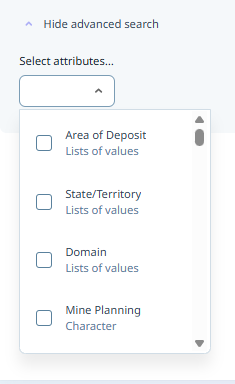
The attributes you have selected are shown under the Hide advanced search prompt (hiding your advanced search settings will not deselect them).
Attribute values
Specify a value for the attributes you have selected:
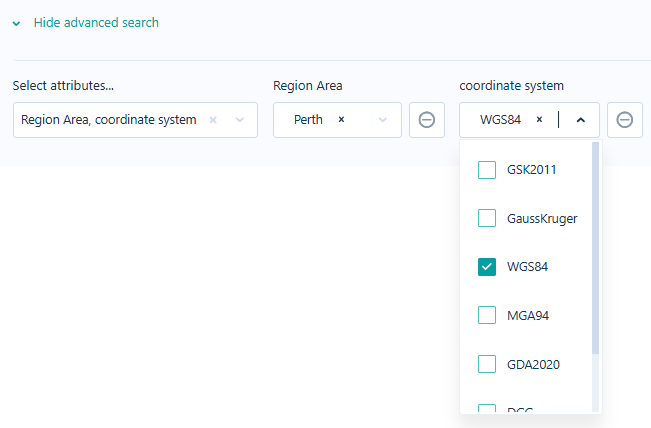
Click on the Delete icons to delete a particular attribute:

The search will be limited to those files with matching attribute values.
Results
The results of your search (if any) are listed below the search criteria you have specified and any inputs you have entered. Where matching versions of the same file exist, those versions are listed.
Information on any file or task in the search results can be viewed in the Info pane when selected:
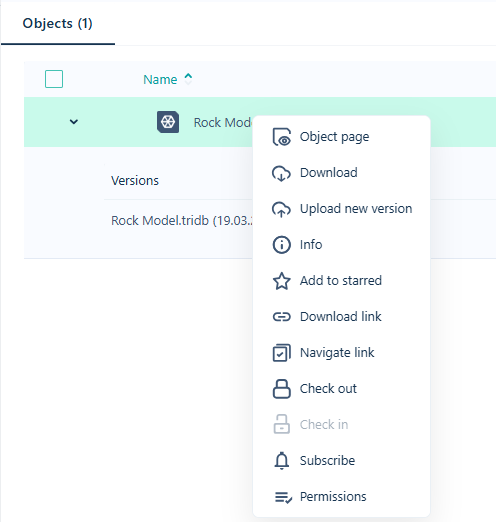
The context menu is available for the Search Results. You can Download an object or a link, create a Navigate link, Subscribe to updates, or change Permissions (where available), open the Info or Object pages, Check out or Check in and Upload a new version.
Download
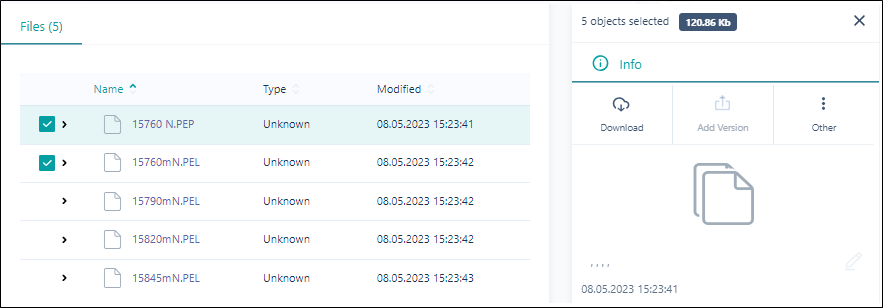
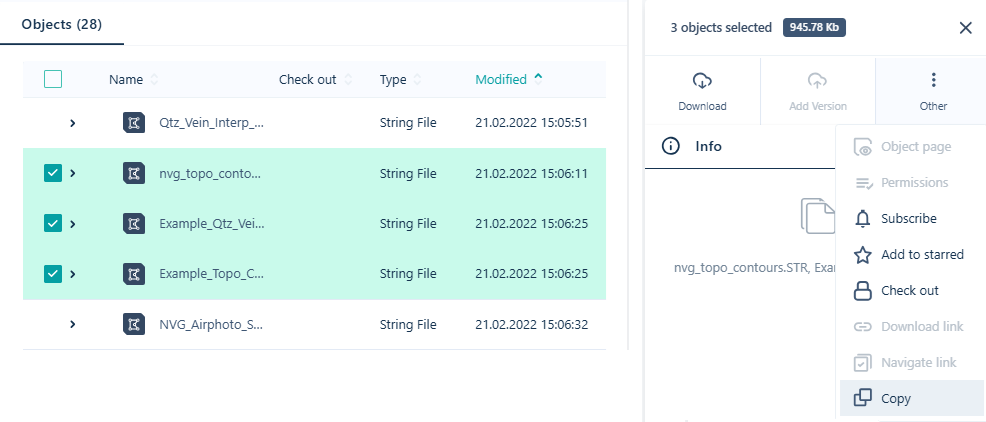
Multiple files can be downloaded from the Search results by selecting the check box for each file to be downloaded and using the Info panel at the right. The panel will indicate the number of files selected for download:
Add to another location
Multiple files can be copied to other locations from the Search results by selecting the check box for each file to be copied and using the Info panel at the right. The panel will indicate the number of files selected:
Search
Finally, click the Search button to begin your search. If no results are found, review your search criteria. You can press ESC to cancel the search at any time.

Clear All Filters
Click this button to clear your search parameters. Any results will also be cleared.