

Installation
Scripts can be downloaded through the "script downloader" which is accessed by enabling "Unsupported Utilities" on the General Settings page of the Spry Settings window.
Settings are accessible via the Home Screen when you click on the File tab or by selecting Tools > Settings on the application Title bar.
-
Select these check boxes to list unsupported utilities:
-
On the Home screen (when you click on the File tab)
-
On the Application Title bar, Tools > Unsupported Utilities drop-down menu.
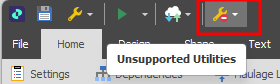
-
Select the Script Downloader utility:
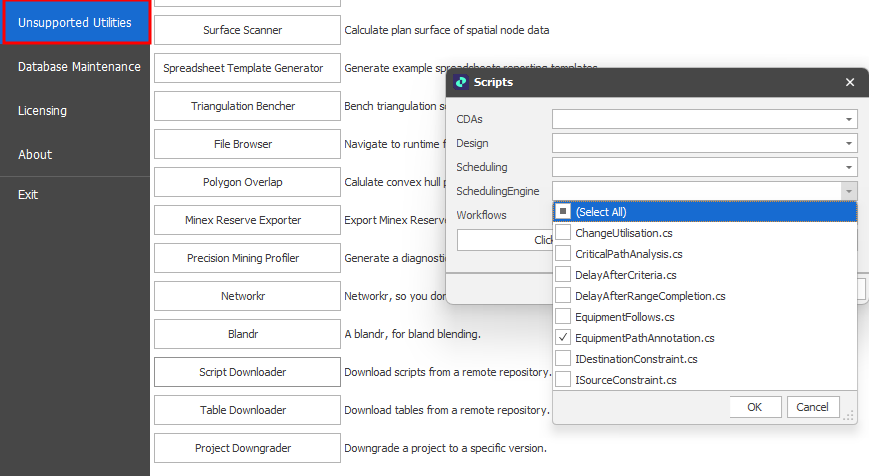
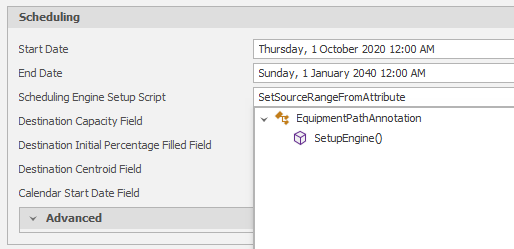
Once the script has been added to the Spry scripting area, in Scenario/Case Settings, the script can be invoked as part of the scheduling setup:
Note that if you already have an existing setup script, you can add a line to the script to invoke the path annotator:
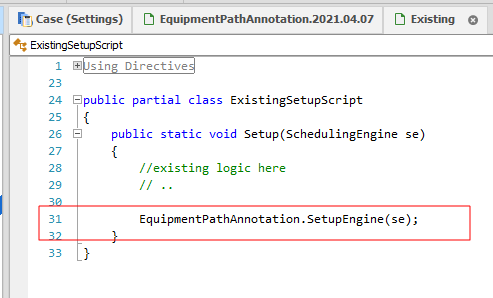
For convenience, you can copy and past the appropriate code into your scripts below:
print(sys.path)
public class ExistingSetupScript
{
public static void Setup(SchedulingEngine se)
{
// existing logic here
// ..

EquipmentPathAnnotation.SetupEngine(se);
}
}
For any equipment you use the path annotation syntax for, you must explicitly enable the path annotation by adding this line to the top of the file (or at least before any other annotation commands):
'!equipmentpathannotation_enable This uses the equipment path annotation script. It is an unsupported utility with some documentation provided in the online help at https://onlinehelp.micromine.com/spry/default.htm?#cshid=1214