Equipment Scheduling Assistant
A Source Path is the primary set of source scheduling instructions for a particular piece of Equipment and controls which Leaves are worked and in what order, as well as controlling the behaviour of equipment when it is unable to complete those defined instructions.
You can use the Spry Assistant to set, validate, expand and explain an equipment source path.
The Assistant is docked on the right edge of the application window. Click on the tab to open the panel.
Use the options on the View Settings page of the Micromine Spry Settings window, to toggle the display of (Project Explorer, Assistant, Design Data, Scripts, Preview, Properties, etc) dock panels on and off.
Note that the Assistant can only be accessed when you are logged in with a Micromine ID on Cloud Licensing.
You can download a copy of the Micromine Artificial Intelligence Transparency Statement from the link.
When you open the Assistant for the first time in a session, it is opened in Ask Mode.
When the Assistant is asked a question or is given a directive when the Source Path Editor is open, an @equipmentscheduling directive is sent followed by a request to describe the current source path structure. This routes to the Assistant.
An introduction appears, describing what the Assistant can do (read the Case structure, validate, write, schedule and verify paths).
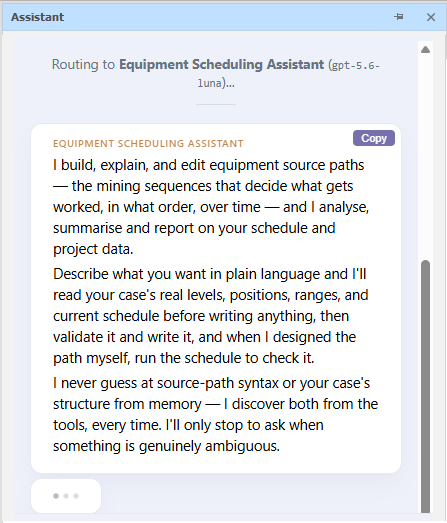
In Ask Mode, enter a question or a request for information and click Send:
For example, you might ask it to explain the complex multi-task syntax on one line. The Assistant will then formulate a response based on the levels and positions of the case.
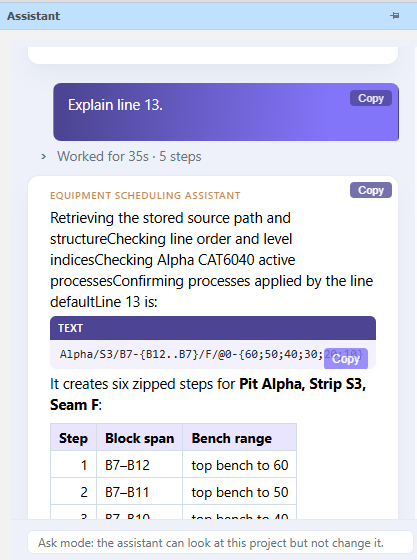
The Assistant returns a detailed breakdown of what the path syntax means or is doing.
If you want to go further than just asking questions, you can direct the Assistant to make changes to the Source Path by switching to Edit Mode.
Ask Mode vs Edit Mode
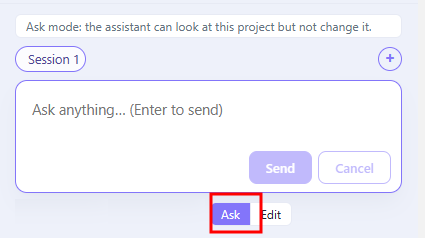
Use the Toggle to switch between Ask Mode and Edit Mode.
In Ask Mode, the Assistant can look at your project but cannot change it. In Edit Mode, the Assistant can change it.
For short-term detail and control, for example, the Assistant might be directed to unroll complex multi-task lines into their constituent tasks.
Here we can see the Assistant line has replaced the original path on line 13 with separate paths:
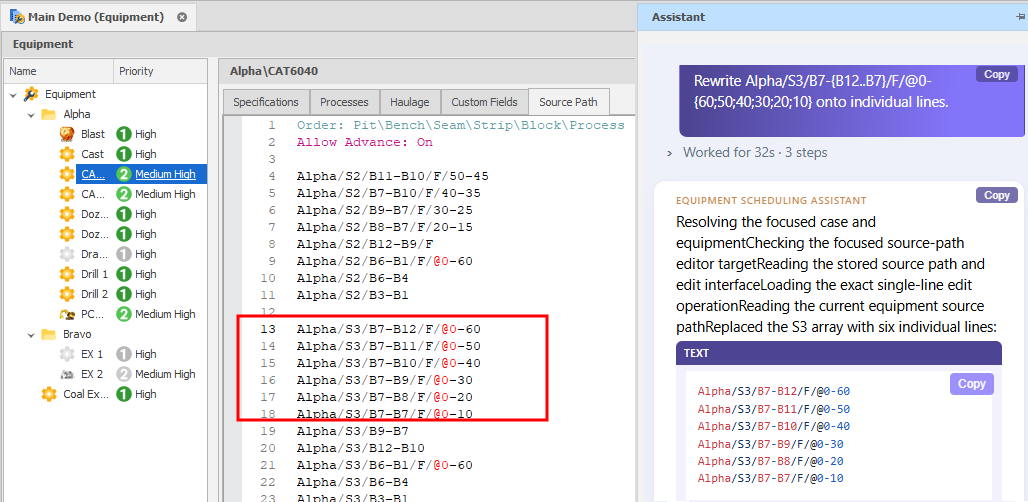
Source path directives can be given to the Assistant to do such thing as overwrite Production Rates or insert Relocation Delays.
The Assistant can also be used to edit multiple paths at once. For example, you ask the Assistant to move all Strip 2 references on the current CAT 6060 source path onto the source path of another piece of equipment, CAT 6060.
Not happy with the result of any edits? Simply ask the Assistant to Revert what it did.
Sessions
Different source paths can be edited in different sessions.
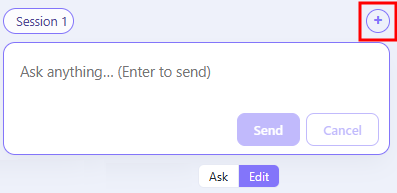
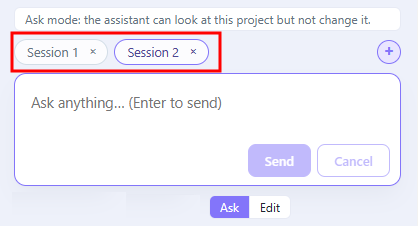
Click the Plus icon to begin a New Session. By default, a new session is opened in Ask Mode.
You can then use the buttons above the Input box to switch between sessions or click the Delete icons to delete them.
You might want to use the Copy buttons to copy the questions and responses for that session before deleting.