

How do I record a truck dump?
- Make sure the Loaders & Trucks panel is the active panel.
- Select a truck in an active cycle. The Recording truck cycle events of the truck must be Hauling or Q at Dump.
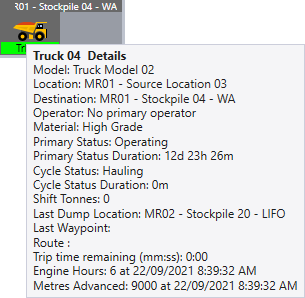
- If you are unsure of the destination, hover the mouse over the truck icon to view summary information for that truck:
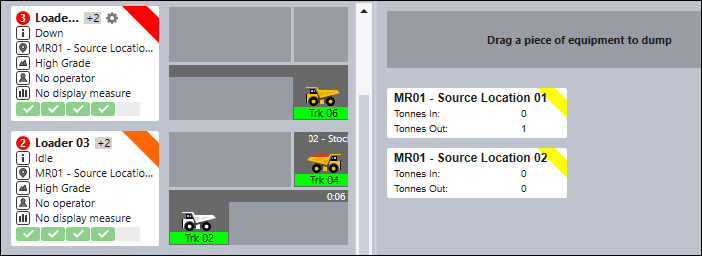
- Use the mouse to drag and drop the truck onto a dump destination in the Dump Destinations pane.
Be careful not to drag the truck into another Loader pane. If you do, the truck will be allocated to that loader. If this happens, undo the last event and dump the truck again.
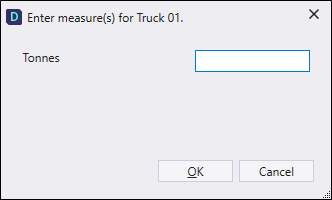
- You will be prompted to enter the tonnes dumped. Enter the tonnage and click OK:
- Check the Destination details and the View | Events summary window to ensure that the dump has been recorded.
The cycle status of the truck will be changed to Travelling Empty.
Invalid dump
If you try to dump at a destination which is invalid for the truck's material type, a red colour will be used to highlight the dump destination and a warning message will be displayed.
A dump will not be allowed and you will need to select a different destination.
Destination Details
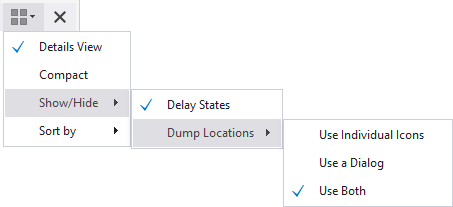
You can choose to show the Details of each location or display a Compact view of all locations:
You cannot use the right-click Cycle menu to enter a dump. However you can use it for all other stages in the truck cycle.