

Check for Updates
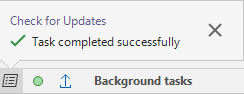
When you upload files to Nexus, download files from Nexus, or check for updates, the process is managed as a background task. When background tasks are running, the background tasks icon on the application status bar will flash.
To see the progress of tasks, click on the background tasks icon. A task completed message is shown once a task is completed.

When complete, you can close the notification using the cross at the right.
The result of a check for updates is written to the Output Console. Linked files not visible in the user interface (i.e. not visible in the Vizex Display Layers pane or in the File response of a form) will be listed here.
Version tracking
The status of the linked files that are visible in your local project (in the Vizex Display Layers pane or in the File response of a form) will be indicated by one of the following icons:
|
Icon |
Status |
Description |
|---|---|---|
|
|
Up to date | No changes have been made to the linked file, in the local project or on Nexus. Your local versions coincide with the Nexus versions. An Up-to-date icon (green tick) is shown alongside the filename. |
|
|
Local changes |
When you have changed a linked file in the local project but haven't updated it on Nexus , a Local changes icon is shown alongside the filename. |
|
|
|
You can select an Upload File option on the right-click menu, to upload your changes to Nexus. Alternatively, select Revert File to revert your local changes. |
|
|
Update is available |
Following a check for updates, if a remote change has been made to a file that was uploaded to the Nexus server, an Update-is-available icon is shown alongside the filename. |
|
|
|
You can select an Update File option on the right-click menu, to update your local copy of the file by pulling down the update that is available on Nexus. |
|
|
Modified & Update is available |
Following a check for updates for the files on Nexus , if a file has been modified both locally and remotely, then an Upload File and an Update File option are available on the right-click menu. If you select the Update File option on the right-click menu, to pull down an update which is available on Nexus, you will lose your local changes. |
|
|
|
If you choose Revert File to undo your local changes, then an Update-is-available icon (see above) will be shown alongside the filename. |
|
|
|
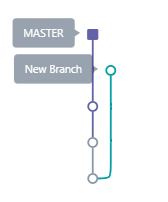
If you choose Upload File option to upload your local copy of the file, a new branch will be created on Nexus. (Since merging is not supported, your modified file may conflict with the newer version that another user has uploaded to Nexus, which is why a branch is created): |
|
|
|
|
|
|
Deleted |
When a linked file in the local project is deleted, a Deleted icon is shown alongside the filename. |
|
|
|
Since the file is still being tracked and stored in the Nexus database associated with your local project, you can choose Revert File to get back the last stored version of the file. |
|
|
Staged |
When a file in the local project is staged, a Staged icon is shown alongside the filename: |
|
|
|
Staged files are sent to Upload staging (you can see them in the Upload applet). The staged files can be can uploaded or cleared from staging. |
|
|
|
Click the flashing Upload icon on the application status bar to either upload or discard staged files. |
|
|
Staged & Modified
|
If you have staged a file, but then decide you want to change it, you can re-stage the file again to update what was in the stage. If you select Upload File, the file as it was when it was staged will be uploaded to Nexus. Currently, the Revert File option is not available for staged files. |




Note: Synchronisation
When downloading .TRIDB files (not Nexus Wireframe Objects) from the Nexus project to local MMO&B projects (for versions older than 25.5), where the option to publish wireframes as .TRIDB files is disabled (see Options), the file will show a Modified status (rather than Up to Date) for the newly downloaded .TRIDB local copy.
This is because all wireframes in the project are processed as Nexus Wireframe Objects when this option is not enabled. After downloading to the local project, the .TRIDB is updated to the new format, different to the .TRIDB uploaded to Nexus from the previous MMO&B version or from Nexus via web browser. This is why it is Modified.
To synchronise your updated local copy, you need to upload the updated object to Nexus using the Upload function. After uploading, the sync status will be Up to Date and the Nexus wireframe version will be also updated from .TRIDB to Nexus wireframe object. The file can now be previewed in the Viewer in Nexus, because it has become a Nexus object.