

Backstage Menu
Micromine Origin & Beyond integration with Micromine Nexus requires a connection to the Nexus server.
-
Click the Project tab to open the Backstage menu.
-
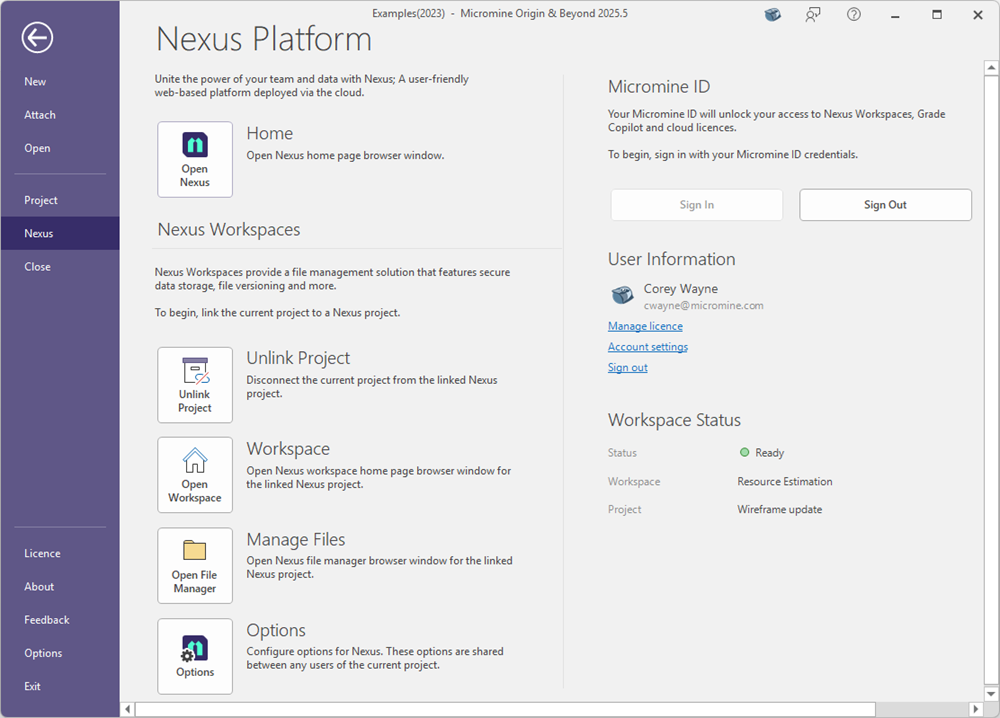
Select Nexus on the navigation menu:
-
Request an account from your Nexus administrator, who will provide you with the credentials you need to Sign In.
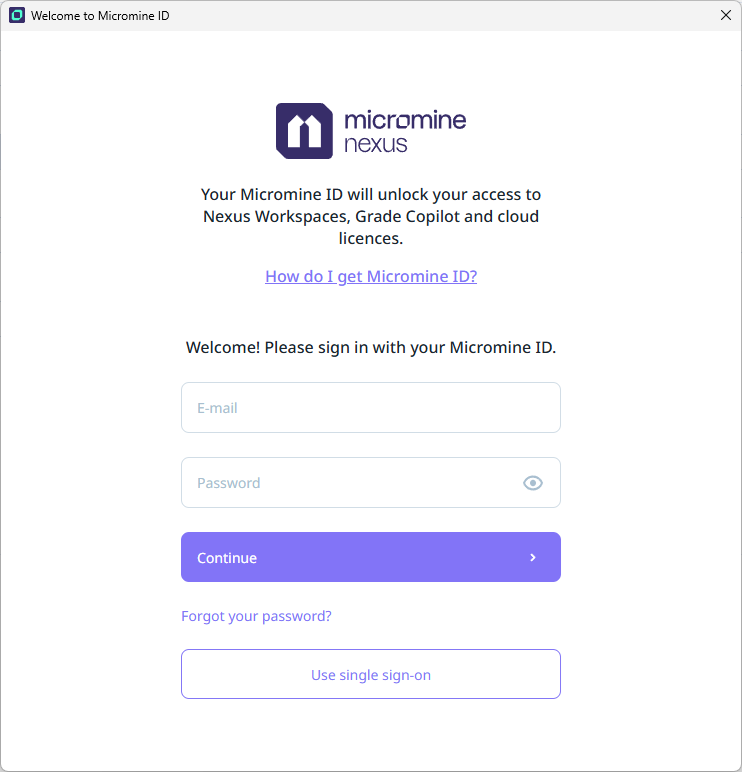
The Server URL of the Nexus server is nexus.micromine.com for all users (except on-premises users). Click Sign In to connect to Nexus. A Sign Out option is available instead when a link is active.
After successfully connecting to Nexus, the status of your connection is shown to the right of the backstage page:
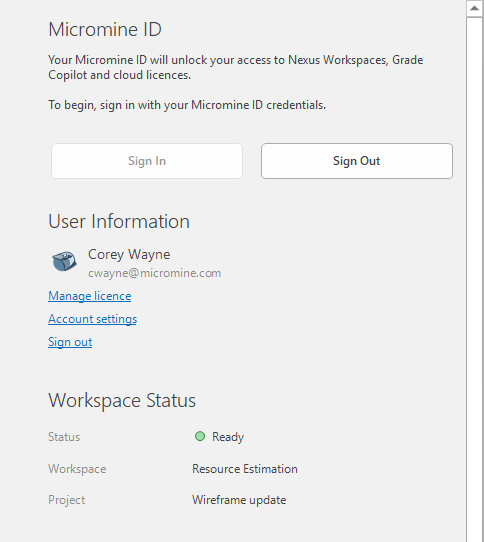
With sign in successful, you can use the Link Project option to connect the current MMO&B project to a Nexus project. See Link.
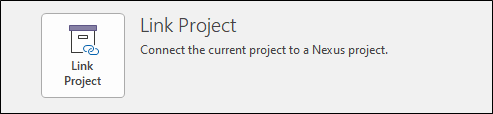
When the project is linked, the following Nexus backstage options are enabled:
- Select Home Page. Nexus will open in a browser tab inside Micromine Origin & Beyond.

-
Select Unlink Project. You will be redirected to the Nexus backstage page.

-
Select Open Workspace to open the Nexus workspace browser window for the linked Nexus project. The workspace will open in a new tab of the application.

-
Select Open File Manager to manage the files your local project and a linked Nexus project.

-
Select Options to configure Nexus options for the current project.
