

Viewing Wireframes
The Nexus Viewer allows for the visualisation of your project data in 3D. Tools in the Viewer allow you to manipulate (Move, Rotate, Zoom) your display objects in 3D space. An option to display those objects in Section View is also provided.
Note: Nexus wireframe objects that can be viewed in the Nexus 3D Viewer are different to the .tridb wireframe files in a Micromine Origin & Beyond project. For this reason, the functionality available for wireframe objects in the Nexus Browser and for wireframe objects opened in Nexus from a MMO&B project are not the same. For more information, see: Nexus Wireframes
Before viewing wireframes in Nexus Viewer, you should follow the steps outlined here:
-
Be sure you have updated Micromine Origin & Beyond (MMO&B).
Visualisation functionality is only available for wireframes uploaded from MMO&B 23.5 or later versions.
-
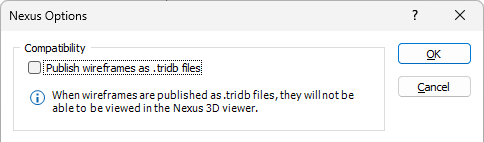
In MMO&B projects prior to 25.5 linked to Nexus, you will need to disable the Publish wireframes as Micromine .TRIDB files... option, accessible from File | Nexus | Options.
-
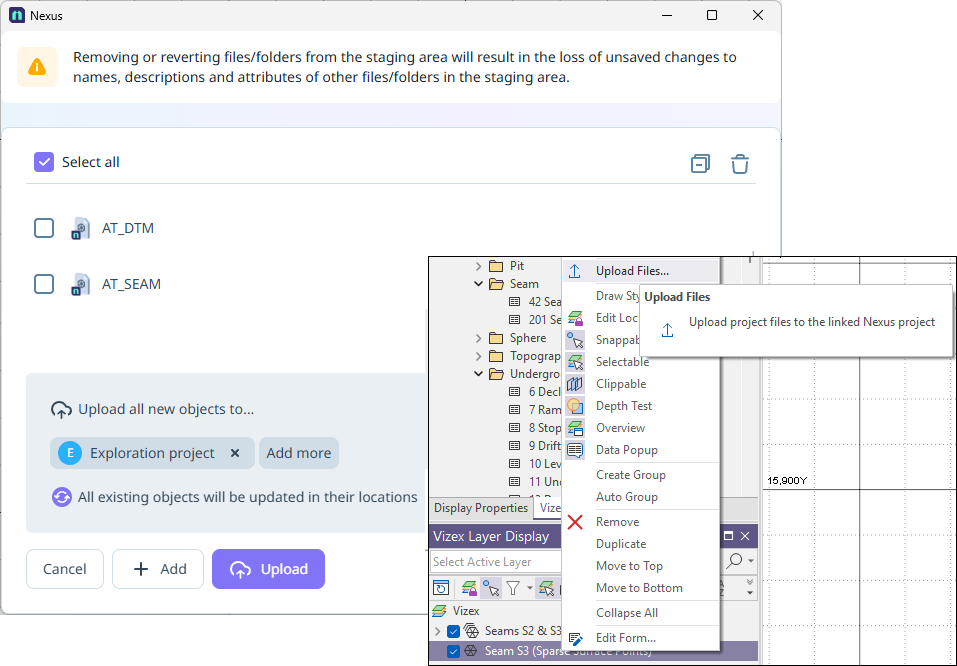
Upload the wireframe/s to be viewed in Nexus from MMO&B (23.5 or later) using the Nexus tools (Nexus | File Manager, Nexus | Upload Files) or the Layer | Upload files option.
-
In your Nexus project, find the wireframe/s you have uploaded. It will display an eye icon which opens the file in Viewer.
-
Alternately, open Nexus Viewer and find your Nexus project and wireframe as outlined below:
On the Navigation bar,
-
Select Viewer.
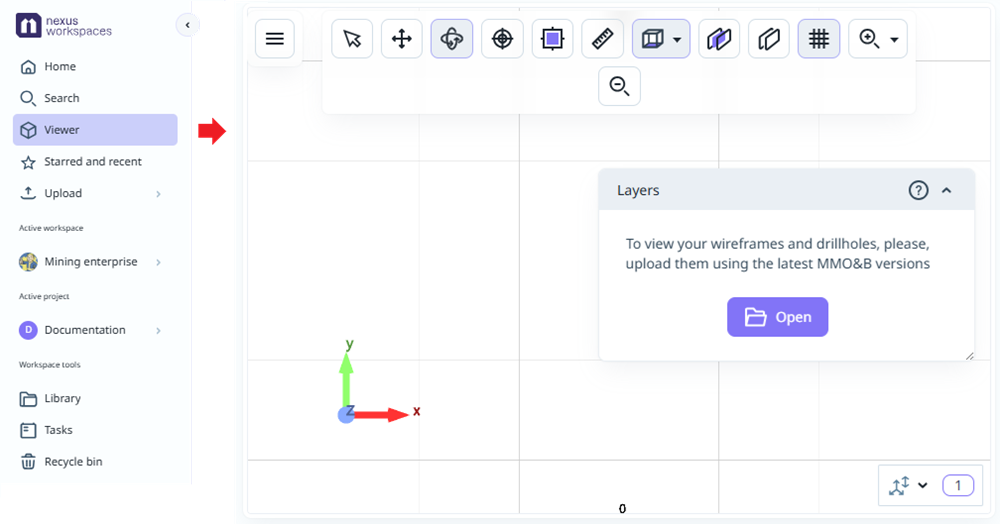
The Open button in the Layers panel is used to select the wireframe to be displayed in the Viewer. Nexus wireframes object models can be visualised, while Micromine Origin & Beyond wireframe .tridb files cannot.
Information on ensuring the wireframes you upload from MMO&B are able to be visualised is contained in Options. For a brief video on viewing and interacting with wireframes, select the Help icon in the right corner of the Layers panel and select Wireframe tutorial.
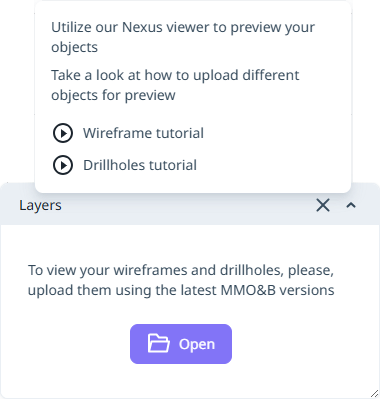
The tutorial opens in a focussed window:
Click the image above to view the video in your browser
Note: You can Close the tutorial using the cross at the top right.
Nexus objects that can be opened
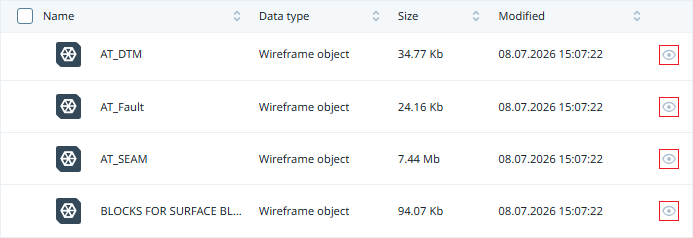
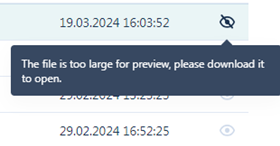
Note: There is a file size limitation of 100 MB for visualisation. When files exceed this size, they often surpass the visualisation limit, resulting in a crosshair eye icon being displayed to indicate they cannot be previewed:
-
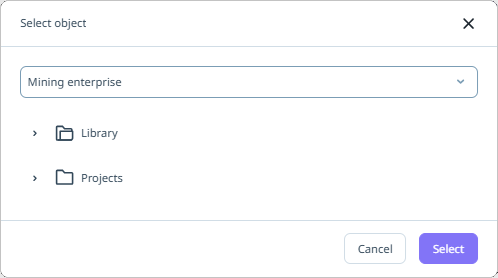
Click Open to display the Select Object form.
-
Use the drop down to select the relevant Workspace and navigate to the object to be visualised using the Library, Projects and Tasks lists.
Note: Any object that cannot be viewed will not appear in the lists.
-
Click OK.
The Viewer will display an animation while rendering of the wireframe is in progress.
When you open a valid display object, it will be rendered in 3D in the Viewer grid, where i It can be examined and manipulated using the tools provided on the toolbar.
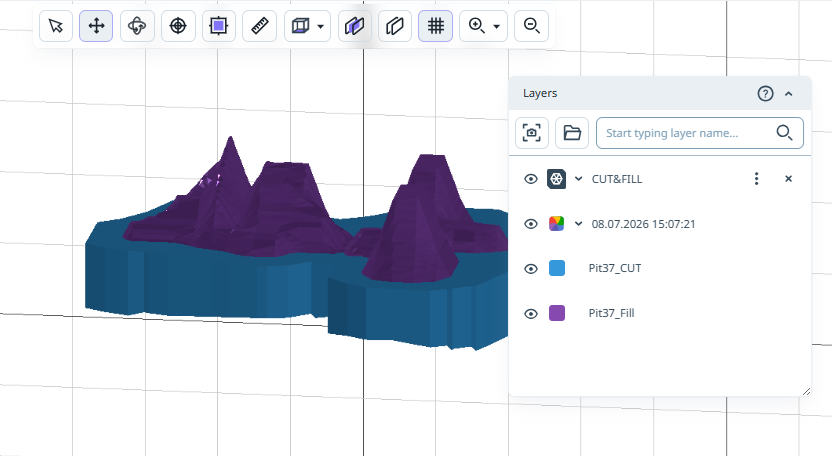
The wireframe is displayed in the Viewer according to its coordinates. Each wireframe has coordinates configured and will be located in the viewer according to position. If more than one wireframe with different coordinates is uploaded to the viewer simultaneously, the difference in position will be demonstrated in the display.
A number of tools are available from the Toolbar and the Layers panel.
Using the 3D Viewer you can perform various actions with the object, including moving it, rotating it, defining a section and more.
With the tools in the Layers Panel you can save and share a scene from the Viewer, open additional files, configure layer display colours and transparency, hide layers and more.