

Output
Select one or more of the following output options:
Wireframe
The Wireframe check box is selected by default to determine whether an output wireframe is created using the temporary grid, the interpolated points, or the interpolated points and the input points:
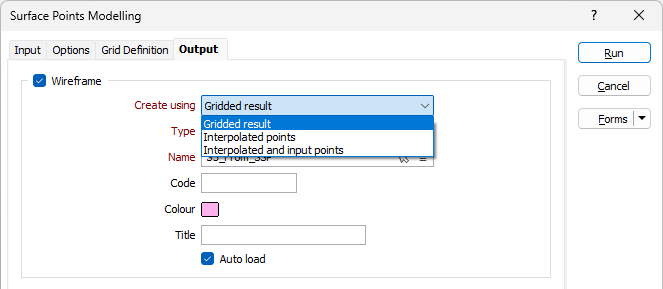
By default, Interpolated and input points is selected.
Double-click to set the Type and then the Name of the wireframe that will be generated as a result of the process. You can also use the Pick from Vizex button (or select the context menu option where available) to collapse the form and interactively select the required Wireframe to insert and return to the form.
You can optionally specify a Code attribute, an output Colour for the wireframe, and a Title that will help identify the wireframe.
Auto load
Select this option to load the generated output in Vizex. The default Display setting for autoloaded wireframes is Auto, which will display the layers as 2D slices when Vizex is in clipped view.
Grid file
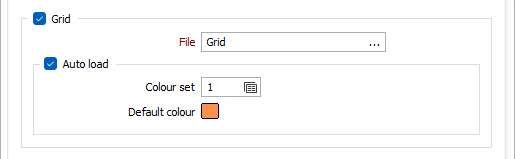
Select the check box and enter (or double-click to select) the name of a Grid file. The output generated by the process will be written this file.
Select the Auto load check box to automatically load the grid in Vizex. You can also specify how the grid will be colour-coded.
Double click (F3) to select the Colour set and the Default colour that will be used to control the display colour. The colour set maps colours to text strings or numeric ranges. Right click (F4) to create or edit a colour set. The Default colour will be used when a colour set is not defined.
Points file
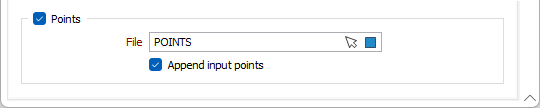
Select the check box and enter (or double-click to select) the name of a Points file. The interpolated points generated by the process will be written to this file. You can also click the Pick from Vizex button to collapse the form and interactively select a layer containing the file to be inserted and return to the form.
Select the Append input points in output file option to also include the original sample points as spot heights.
Forms
Click the Forms button to select and open a saved form set, or if a form set has been loaded, save the current form set.
Run
When you have set input and output parameters and defined the grid limits, click Run to begin the interpolation.