

Interactive Block Visibility
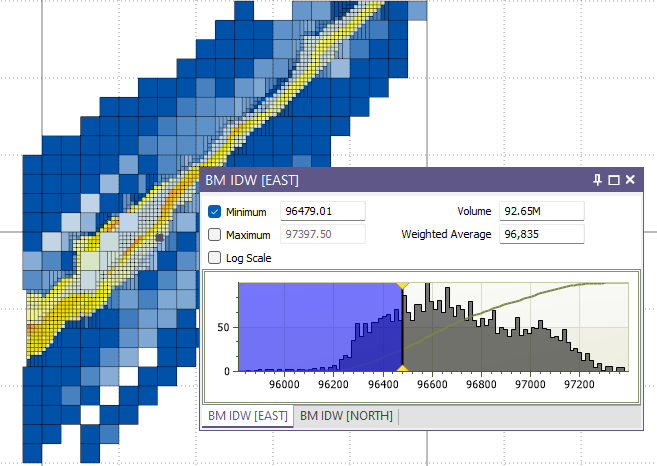
The Interactive Block Visibility option makes it easy to show or hide blocks based on numeric values in the model. When this option is enabled a histogram shows the distribution of those values; you then adjust the block visibility by moving sliders along the histogram.
If a colour set has been applied to that field in the displayed model, the same colours will appear on the histogram background. The total volume of the visible blocks is also reported.
To enable the Interactive Visibility tool:
- Open an existing, or create a new, Vizex Block Model form.
- Switch to the Display Options tab and enable Interactive Block Visibility.
- Choose an Attribute field and enable Minimum or Maximum (or both) as needed. Optionally enter initial values.
- Click OK to display the block model. Vizex will also display the histogram in a floating window.
- The triangular handles on the top and bottom edge of the histogram, indicate the position of the Minimum and Maximum visibility lines. Click and drag the lines to adjust the Minimum and Maximum visibility values.
Alternatively, if you know where you want to go, you can just click in the Visibility window and the line will move to that point.
- Optionally enable the Log Normal option to rescale the histogram for positively-skewed data such as gold assays.
- Visible Volume and Weighted Average Volume are reported. These values can be selected and copied to the clipboard.
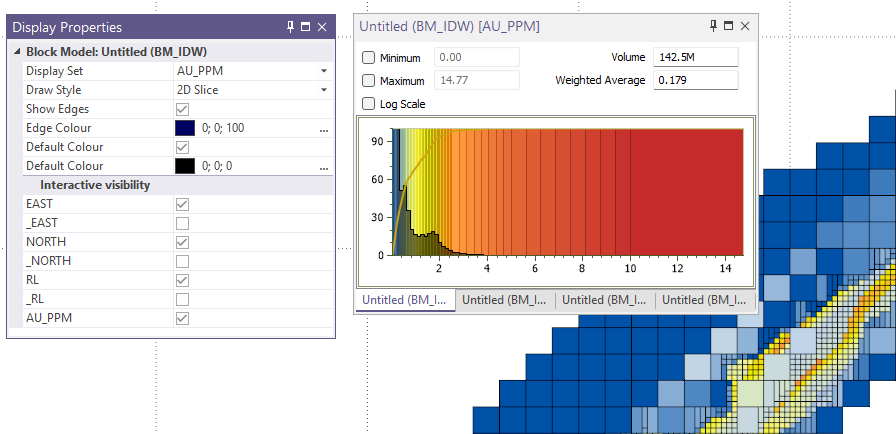
In the Display Properties pane, you can use the Interactive Visibility options to toggle the display of data:
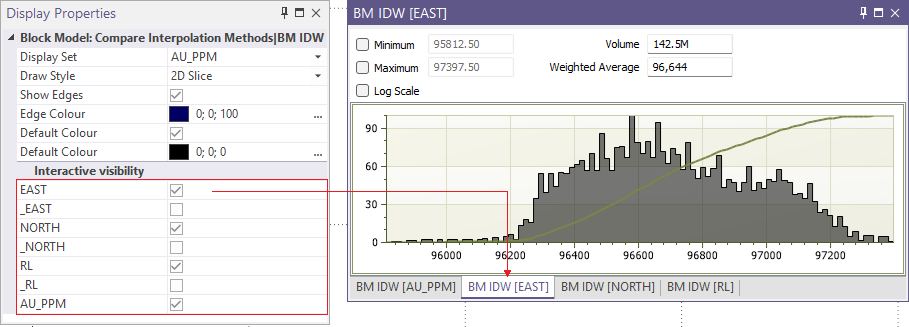
For each option enabled, a tab will be created for display of the data in the Interactive Visibility panel.
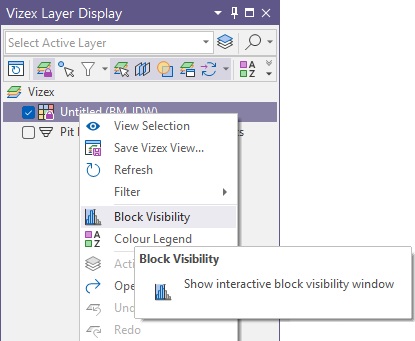
If you inadvertently close the Visibility window, you can right-click on the layer in the Vizex Layer Display panel and select Block Visibility:
Alternatively, you can Refresh the layer using the button in the Vizex Layer Display panel to display it again.
To temporarily hide the Visibility window use the pin icon on the Visibility window’s title bar. When you move focus away from the window, the window is hidden but the title bar is still visible. Simply move the mouse cursor over the title bar to display the window again
Interactive Block Visibility is only enabled when you have selected a 3D Shaded, 3D Lines or 2D Slice draw style.